
-
Contents
-
Table of Contents
-
Troubleshooting
-
Bookmarks
Quick Links
eWON
Installation Guide
IG 010 / Rev 1.3
This short guide explains how to install eWON COSY 141 and to get
started with the embedded configuration web site.
eWON COSY 141 —
Installation Guide
Related Manuals for eWON COSY 141
Summary of Contents for eWON COSY 141
-
Page 1: Installation Guide
Installation Guide IG 010 / Rev 1.3 eWON COSY 141 — Installation Guide This short guide explains how to install eWON COSY 141 and to get started with the embedded configuration web site.
-
Page 2: Table Of Contents
3.1 Factory default IP settings ………………….12 3.2 Selecting the appropriate LAN IP address …………….. 12 3.3 Setting the eWON COSY Machine LAN IP address …………..13 3.4 eWON COSY’s web interface ………………..14 3.4.1 Accessing the eWON COSY ………………14 3.4.2 Going through the 1-2-3 Setup Wizard …………….
-
Page 3: Foreword
Foreword 1. Foreword The present Installation Guide describes the hardware and software features of the eWON COSY. It does not address the 1-2-3 Setup procedure that is explained in 3 hands-on videos you can watch on eWON Website 2. Hardware description Housing interfaces Power supply (polarity sensitive, see label).
-
Page 4: Markings
Chapter 2. Hardware description Markings The identification label of the eWON is placed at the left hand side of the housing. The different parts of the label are shown below: Device type and interfaces Serial number 1145 = year+week 0062 = sequential number…
-
Page 5: Mechanical Outline
Chapter 2. Hardware description Mechanical outline The recommended free space in the cabinet for the eWON should be at least: 40-mm wide x 200-mm high x 160-mm deep (includes space for smooth cable bending). Latch for Omega-shape DIN rail to EN50022.
-
Page 6: Mounting And Environmental Conditions
Hardware description Mounting and environmental conditions The eWON COSY unit has an IP30 protection grade. It is therefore not suited for outdoor mounting. The design of the unit is such that it has to be integrated in an enclosed electrical cabinet, protected from excessive heat humidity and dust.
-
Page 7: Front Panel Status Leds
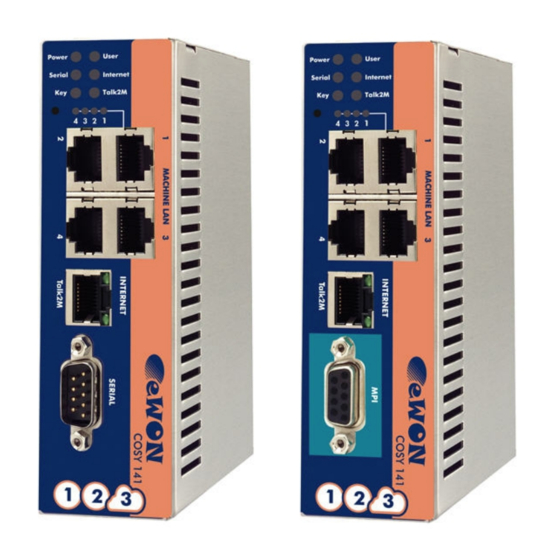
Flashing green = life (20 secs after power on) Internet access configuration (green = OK) VPN-tunnel status (green = OK, DO = 1) Ethernet ports By default, only the LAN Ethernet interface of the eWON COSY can be used to access the internal web site. 2.8.1 Machine LAN The Machine LAN interface consists of a four port autosense Ethernet switch (10/100 Mb).
-
Page 8: Serial-Ports
RS232/422/485 (no galvanic isolation) Polarization 680 Ω (if polarization & termination is activated) Termination 120 Ω (if polarization & termination is activated) Pin # RS232 RS485 RS422 SUBD9 connector pinout eWON COSY 141 — Installation Guide (How to) Page 8/20…
-
Page 9: Mpi Port
Chapter 2. Hardware description 2.9.2 MPI port The MPI version of the eWON COSY is easily identifiable with its light turquoise square surrounding the SUBD9 female DB9 connector. Characteristic Value Physical mode MPI (no galvanic isolation) Baud rates From 9,6 kBauds to 12,0 MBauds Polarization 100 kΩ…
-
Page 10: Digital Input — Digital Output
2.10 Digital input – Digital output The eWON COSY features one Digital Input (DI) to enable/disable the Internet port from outside and one Digital Output (DO) that returns the status of the VPN tunnel connection. The DI and DO cannot be allocated to other functions.
-
Page 11
Chapter 2. Hardware description (*) when the eWON COSY reboots, a short phase of ON state is part of the starting process. The digital output is activated by an open drain MOSFET transistor driven by an optocoupler. The maximum current flow into this transistor has a characteristic above the value specified in the eWON, in order to cope with the switching power losses. -
Page 12: Software Configuration
IP ranges of involved networks. Example of networks involved during the remote access : To allow routing to the devices connected to the eWON Machine LAN, following conditions must be complied: Network 1 <> Network 3: Company LAN address range must differ from eWON Machine LAN address range.
-
Page 13: Setting The Ewon Cosy Machine Lan Ip Address
(ask the network administrator). Knowing the ranges in use at the Company and Site side, you must select for the eWON Cosy Machine LAN a range outside these networks.
-
Page 14: Ewon Cosy’s Web Interface
Connect your PC with one of the LAN ports, make sure your PC has an IP address in the same range as the one of the eWON COSY, open your Internet Browser and, in the URL address field, enter the actual LAN address you configured in the eWON COSY:…
-
Page 15: Going Through The 1-2-3 Setup Wizard
3.4.2 Going through the 1-2-3 Setup Wizard After login, on a new eWON that was not yet configured the Quick Launch Wizard page opens: Button to access the Status page for each setup aspect (appears on all pages) Button allowing to return to this starting page (appears on all pages)
-
Page 16: Status
Chapter 3. Software configuration After going through each the wizard, the info bar of the eWON COSY shows checked boxes for each aspect that has been configured. The present installation guide does not cover all setup aspects in details. Each step of the 1-2-3 Setup is documented by a hands-on video tutorial. Go to the eWON COSY support page http://support.ewon.biz/cosy.htm…
-
Page 17
The example below shows how the same Status page looks when the Internet connection locked by the digital input (switch open). To access the detailed Status page, click the button in the message box: Note: access to this page requires to be logged-in. eWON COSY 141 — Installation Guide (How to) Page 17/20… -
Page 18: Troubleshooting
Note: you absolutely have to wait until the full auto test procedure is completed without interrupting it. If the auto test is interrupted, the flash memory of the eWON will contain random data likely to make it unstable. In such a case you have to redo the second level reset procedure from scratch and wait until it is totally completed.
-
Page 19: General Characteristics Of Ewon Cosy
Chapter 4. Troubleshooting When performing a second level reset, the eWON does NOT restart in normal mode by itself and remains running in diagnose mode. Power the eWON OFF and ON again to restart in normal mode. As described before, the eWON returns to its default COM parameters and factory IP addresses after this level 2 reset is performed.
-
Page 20: Revision History
No part of this handbook can be reproduced, transmitted or copied in any way without written consent from the manufacturer and/or the authors of this handbook eWON sa eWON COSY 141 — Installation Guide (How to) Page 20/20…
| Шаг 1: Создайте и сконфигурируйте ваш Talk2M аккаунт | |
| 1.1 Скачайте и установите eCatcher (ссылка). | |
 |
1.2 Создайте аккаунт кликнув “Create a Free+ Account”. Для завершения процесса вам будет необходимо кликнуть на URL, отправленный вам на email. |
|
|
1.3 Войдите в свою учетную запись в eCatcher и добавьте ваш eWON кликнув на кнопку “Add”. Продолжайте, следуя указаниям Мастера ( Wizard’a). Он будет использован при конфигурировании eWON в Шаге 2. |
| 1.4 Закройте приложение eCatcher. | |
| Шаг 2: Сконфигурируйте ваш eWON | |
| 2.1 Скачайте и установите eBuddy (ссылка). | |
 |
2.2 Подключите Ethernet кабель от вашего компьютера к LAN порту №1 вашего eWON. Оба варианта кабеля (прямой и кроссовый) будут работать. |
 |
2.3 Запустите eBuddy и выберите “Set IP Address” для смены IP адреса со стороны LAN вашего eWON. Используйте IP адрес, который не будет конфликтовать с WAN, или удаленного компьютера. |
 |
2.4 Задайте IP адрес вашего компьютера из той же подсети что и LAN IP вашего eWON. |
|
2.5 Запустите браузер и откройте адрес LAN IP вашего eWON. По умолчанию пользователь и пароль “adm”. |
|
 |
2.6 Нажмите кнопку “Settings” и запустите «Quick Launch Wizard» для конфигурирования настроек относительно системы, коммуникаций и Talk2M подключения. Подключите Internet кабель к WAN порту. Во время работы мастера подключения Talk2M вам будет необходимо ввести Activation Key, который вы скопировали ранее. |
|
2.7 По завершению настроек отключите Ethernet кабель между eWON и вашим компьютером. Верните IP адресу вашего компьютера прежнее значение. |
|
| Шаг 3: Подключитесь к вашему удаленному устройству | |
 |
3.1 Когда ваш компьютер подключен к Internet, запустите eCatcher. Статус вашего eWON должен быть “Online”. Просто выберите свой eWON и нажмите кнопку “Connect”. |
 |
3.2 Когда подключитесь, если ваше Ethernet устройство подключено к LAN порту вашего eWON COSY’s, вы сможете проверить связь с ним командой ping. |


Роутеры eWON на нашем сайте по ссылке
1. Foreword …………………………………………………………………………………………………………………………. 3
2. Hardware description ……………………………………………………………………………………………………….. 3
2.1 Housing interfaces ………………………………………………………………………………………………………. 3
2.2 Markings ……………………………………………………………………………………………………………………. 4
2.4 Mechanical outline ………………………………………………………………………………………………………. 5
2.7 Front panel status LEDs ……………………………………………………………………………………………….. 7
2.8 Ethernet ports ……………………………………………………………………………………………………………… 7
2.8.1 Machine LAN ……………………………………………………………………………………………………. 7
2.8.2 Internet port ………………………………………………………………………………………………………. 7
2.9 Serial-ports …………………………………………………………………………………………………………………. 8
2.9.1 Configurable serial port ………………………………………………………………………………………. 8
2.9.2 MPI port …………………………………………………………………………………………………………… 9
3. Software configuration ……………………………………………………………………………………………………. 12
3.1 Factory default IP settings …………………………………………………………………………………………… 12
3.4 eWON COSY’s web interface ……………………………………………………………………………………… 14
3.4.1 Accessing the eWON COSY ……………………………………………………………………………… 14
3.5 Status pages …………………………………………………………………………………………………………….. 16
4. Troubleshooting …………………………………………………………………………………………………………….. 18
4.1 Resetting the eWON COSY ………………………………………………………………………………………… 18
4.2 First level reset ………………………………………………………………………………………………………….. 18
4.3 Second level reset ……………………………………………………………………………………………………… 18
Revision history ……………………………………………………………………………………………………………………. 20
i
eWON COSY 141 — Installation Guide (How to)
Page 2/20
Компания eWON ( Бельгия ) — разработчик и производитель промышленных VPN роутеров. Также компания eWON стала первой компанией в мире, разработавшей облачный VPN сервис Talk2M, который позволяет.

Серия COSY

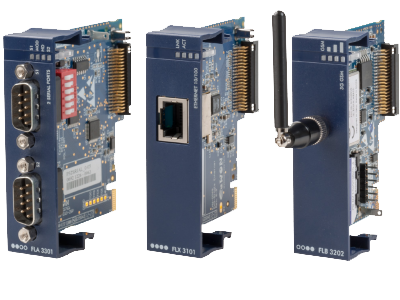
Серия FLEXY
Промышленные VPN роутеры eWON, спроектированы для простого подключения удаленных объектов автоматизации к Интернет посредством защищенного VPN канала.
При этом нет необходимости в запуске собственного VPN сервера, так как eWON предлагает свой облачный сервис Talk2M. Таким образом, промышленные VPN роутеры eWON — это готовое решение для тех, кому необходимо удаленно поддерживать, отлаживать, обновлять прошивки, мониторить оборудование. С помощью eWON Cosy производители оборудования и системные интеграторы могут удаленно проводить наладку и техническое обслуживание оборудования, отлаживать программы контроллеров ( подключенных как по Ethernet, так и по COM, либо MPI ), операторских панелей загружать в них проекты, просматривать изображения с IP-камер.
Все это можно делать без посещения объекта, что существенно снижает затраты на обслуживания объекта.
eWON Cosy полностью совместим с Talk2M, облачным сервисом eWON ( бесплатным ). Talk2M обеспечивает безопасное VPN соединение между пользователем и удаленным роутером. При этом роутеру не нужен выделенный IP. eWON Cosy и Talk2M обеспечивают простой доступ роутеру и оборудованию, подключенному к нему, так, что пользователю не нужно обладать знаниями в области IT. VPN роутер просто подключается к локальной сети на объекте, при этом не требуется значительного вмешательства администратора сети. Роутер использует стандартные порты 443 (HTTPS) и 1194 (UDP).
VPN роутер eWON устанавливается на удаленном объекте, к которому необходим удаленный доступ,
Оборудование, которое необходимо контролировать, подключается по Ethernet к разъемам «MACHINE LAN» (1-4), либо к разъему COM порта, либо MPI.
Разъем «INTERNET» VPN роутера подключается к локальной сети объекта.
При этом нет необходимости конфигурировать что-либо в локальной сети объекта ( пробрасывать порты, выделять IP итд )

Также VPN роутер eWON может быть подключен к любому роутеру с 3G, либо 4G модемом, при этом не требуется договариваться с сотовым оператороам о статическом IP. VPN роутер eWON отлично справляется с установкой VPN соединения поверх мобильного трафика.

VPN роутер eWON при включении устанавливает защищенное VPN соединение с сервисом Talk2M. При этом не важен способ подключения VPN роутера, это может быть локальная сеть предприятия, либо роутер с 3G, либо 4G модемом. Не нужно также выделять статический IP-адрес.
Сервис Talk2M — это бесплатный сервис, предлагаемый компанией eWON. В состав сервиса Talk2M входят несколько специализированных серверов, расположенных по всему миру, позволяющих одновременно обслуживать тысячи VPN роутеров eWON.
Как только VPN роутер eWON подключился с сервису Talk2M, он становится доступным для подключения к нему с любого ПК, на котором установлено приложение eCatcher. В приложении eCatcher видны все роутеры, привязанные к аккаунту пользователя, при подключении к любому из роутеров, между ПК и удаленным VPN роутером устанавливается защищенное VPN соединение, и все устройства, подключенные к этому роутеру, становятся доступны, как будто они находятся в одной локальной сети с ПК, на котором запущен eCatcher.

При установке на ПК приложение eCatcher создает виртуальный сетевой адаптер. При подключении с помощью eCatcher через Talk2M к удаленному VPN роутеру, роутер и все удаленные устройства, подключенные к нему, оказываются в виртуальной локальной сети, их IP адреса известны и имеют всегда одинаковые значения ( заданные при настройке ) независимо от реального IP адреса удаленного VPN роутера ( он может быть динамическим ).
Например, Ваш PLC может иметь IP арес 192.168.12.5, операторская панель 192.168.12.2, а IP камера 192.168.12.3, Вы всегда сможете получить доступ к Вашими устройствам по этим адресам.
Приложение eVCOM создает виртуальный COM порт на ПК, связанный через VPN соединение с COM портом удаленного VPN роутера. Вы можете использовать любые приложения для работы с COM портом, они буду связываться с COM портом удаленного устройства и работать также, как если бы они были подключены непосредственно к COM порту Вашего ПК.
Таким образом, к удаленным устройствам может получить доступ любое ПО, необходимое для обслуживания устройств. Например, вы запускаете GX IEC Developer, STEP7, CX-Programmer, EasyBuilder, либо любое другое ПО для отладки и загрузки проектов для PLC, либо панелей оператора, и работаете с удаленным устройством так, как будто оно находится на Вашем рабочем столе. Не важно, как ПО подключается к устройству — по Ethernet, либо по COM порту, либо по MPI, вы не почувствуете расстояния.

Данный материал является частной записью члена сообщества Club.CNews.
Редакция CNews не несет ответственности за его содержание.
-
ANTAIRA
LNP-1204GN-T
LNP-1204GN-T User’s Manual Antaira Technologies 1 12-port Managed Gigabit Industrial Ethernet Switch with 8 x Gigabit Combo Ports and 4 x 1000BaseX SFP Ports User’s Manual Version 1.2 …
LNP-1204GN-T Network Router, 116
-
D-Link
DFL-2560G
This document will guide you through the basic installation process for your new D-Link security device.Building Networks for PeopleDFL-2560 / DFL-2560GDocumentation also available on CD and via the D-Link WebsiteHardware Installation GuideFirewallQuick Installation GuideInstallations-AnleitungGuide d’installationGu� …
DFL-2560G Firewall, 44
-
Lancom
800+
110711/0309LANCOM Systems GmbHAdenauerstr. 20/B252146 WürselenGermanyE-Mail: [email protected] www.lancom.euLANCOM Installation Guide…connecting your business110711_LC-all-IGUIDE_cover.indd 1110711_LC-all-IGUIDE_cover.indd 1 03.03.2009 10:32:5303.03.2009 10:32:53 …
800+ Modem, 60
-
Danfoss
VLT AutomationDrive
SafetyWARNINGHIGH VOLTAGE!Frequency converters contain high voltage when connectedto AC mains input power. Installation, start up, andmaintenance should be performed by qualified personnelonly. Failure to perform installation, start up, andmaintenance by qualified personnel could result in death orserious injury.High V …
VLT AutomationDrive Media Converter, 89