
This User Manual is based on the G-Stomper Studio/G-Stomper Producer feature set. Please note that not all documented features are available in G-Stomper Rhythm or G-Stomper VA-Beast Standalone.
Note for G-Stomper Producer Users:
Be sure to check out the article Introducing G-Stomper Producer for a quick overview.
 Printable PDF Manual
Online Manual
1 Introduction – What are the G-Stomper Apps about
2 Quick Start – Watch Video (G-Stomper Studio) / Watch Video (G-Stomper Producer)
3 General Controls Information – Watch Video
4 Performance & System Requirements
5 Pattern-Sequencer – Watch Video
6 Timing & Measure – Watch Video
7 Drum Sampler
8 VA-Beast Synthesizer
9 Audio Editor – Watch Video
10 Effects – Watch Video
11 Mixer & Master – Watch Video
12 Programmable Multi-Mute – Watch Video
13 Parameter Automation – Watch Video
14 Live Recording – Watch Video
15 Pattern Set & Song Arranger (G-Stomper Studio) – Watch Video
16 Track Pattern Sets & Scene Set (G-Stomper Producer) – Watch Video
17 Graphical Multi-Track Song Arranger (G-Stomper Producer) – Watch Video
18 Data Copy & Clear Framework
19 Audio Export & Bouncing – Watch Video
20 User-Samples
21 Add-On Packs
22 SoundCloud
23 Ableton Link
24 MIDI
25 FAQ & Trouble Shooting
26 Technical Specifications
Printable PDF Manual
1 Introduction – What are the G-Stomper Apps about
2 Quick Start
3 General Controls Information
4 Performance & System Requirements
5 Pattern-Sequencer
6 Timing & Measure
7 Drum Sampler
8 VA-Beast Synthesizer
9 Audio Editor
10 Effects
11 Mixer & Master
12 Programmable Multi-Mute
13 Parameter Automation
14 Live Recording
15 Pattern Set & Song Arranger (G-Stomper Studio)
16 Track Pattern Sets & Scene Set (G-Stomper Producer)
17 Graphical Multi-Track Song Arranger (G-Stomper Producer)
18 Data Copy & Clear Framework
19 Audio Export & Bouncing
20 User-Samples
21 Add-On Packs
22 SoundCloud
23 Ableton Link
24 MIDI
25 FAQ & Trouble Shooting
26 Technical Specifications
 Download the complete G-Stomper User Manual (PDF) as zip
G-Stomper Video Tutorials


For more video video tutorials check out the G-Stomper Studio Tutorials Playlist on YouTube.
How to connect external MIDI equipment
G-Stomper MIDI connectivity
Share this page:
G-Stomper Studio — Профессиональный инструмент, который позволит создавать музыку студийного качества на вашем андроид устройстве. Программа имеет невероятно огромный функционал с которым придется долгое время разбираться, однако если вы поймете суть ее работы, то сможете с легкостью писать крутые минуса для электронных и живых выступлений.

Эта многофункциональная драм-машина основанная на пошаговом секвенсоре имеет виртуальный синтезатор (VA-Beast), позволяющий без труда создавать разнообразные сложные звуки. Его звуковые возможности практически безграничны, все в купе с интуитивно понятным интерфейсом, вашей фантазией и слухом позволит быстро написать невероятно качественную звуковую дорожку.

Кроме того полная версия позволит использовать сетку треков сэмплера до двадцати четырех дорожек, вести живую игру на барабанах, внедрять неограниченное количество эффектов, фильтров и искажений. Высококачественный аудио движок, микшер на тридцать шесть каналов, конвертер и многое-многое другое. Готовые композиции сохраняются в во всех популярных форматах, которыми потом можно поделиться с друзьями.


Хороших приложений не так много. Некоторые просто не работают, а с другими неудобно взаимодействовать из-за маленького экрана.
Поэтому я решил собрать несколько годных приложений для синтезатора. Одни из них помогут подключить к смартфону всамделишный инструмент, а другие будут его эмулировать.
Caustic
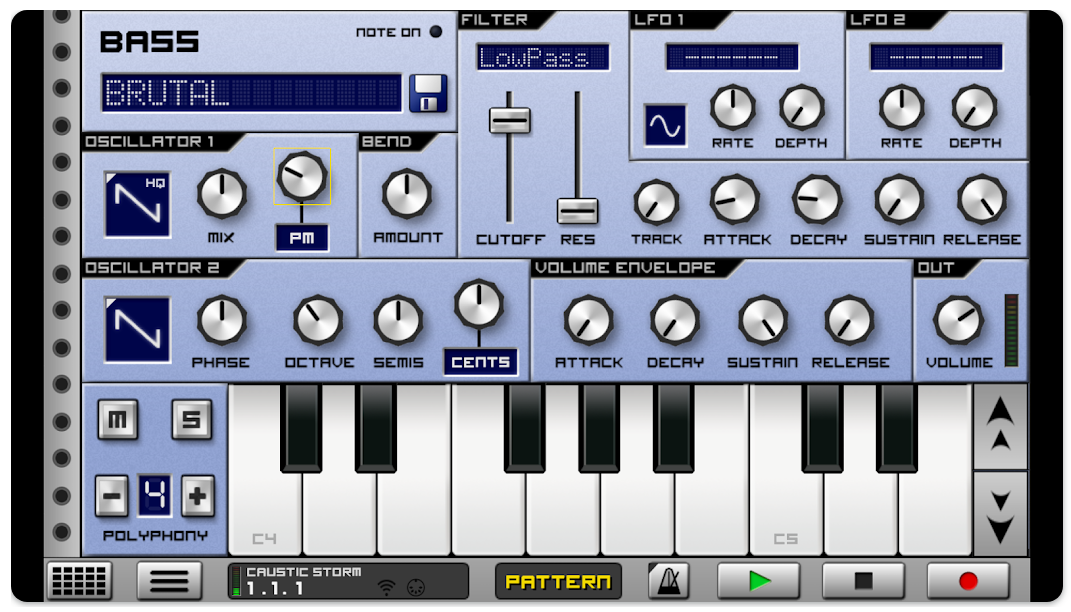
Одно из самых популярных приложений в этой категории. Технически это полноценный DAW-редактор, в котором можно записывать, редактировать и продюсировать музыку. При этом в Caustic встроено множество фишек для синтезатора, включая возможность подключения по USB OTG.
Скачать (бесплатно, есть платный тариф за $9.99)
DRC
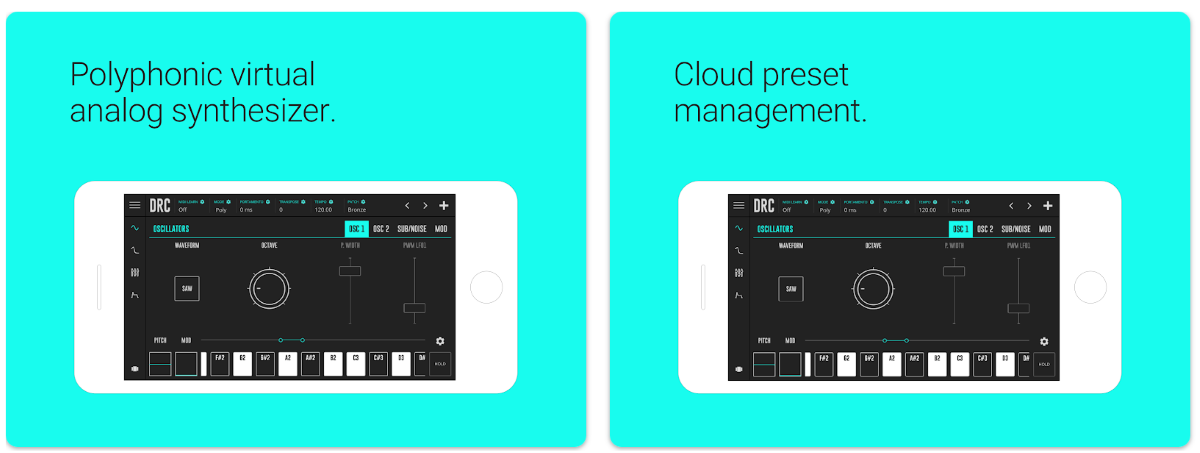
Приложение-синтезатор с кучей интересных возможностей. С его помощью можно воссоздать такие модели, как Roland Jupiter, Yamaha DX7, Moog и многие другие. А продвинутые пользователи смогут воспользоваться различными фильтрами.
Скачать (бесплатно, есть платный тариф за $6.99-$13.99)
G-Stomper Studio
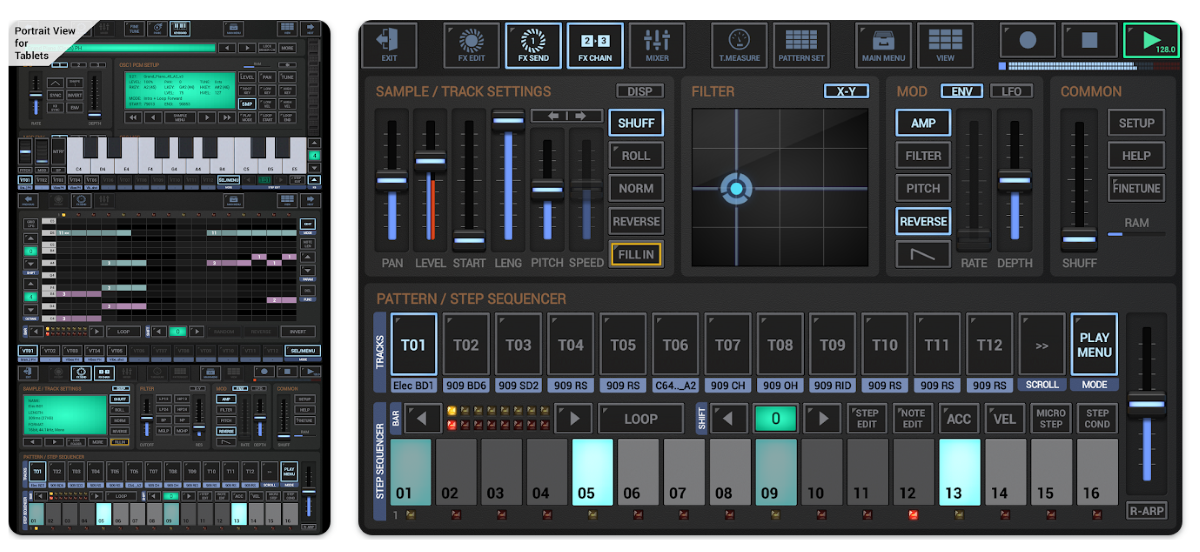
Во многом это приложение для продюсирования музыки похоже на Caustic. Здесь вы найдёте драм-машины, синтезаторы, пианино и многое другое. Есть нативная поддержка Abelton, экспорт в WAV-формат, запись в режиме реального времени и обучение работе с приложением.
Скачать (бесплатно, есть платный тариф от $13.99+)
Hexen
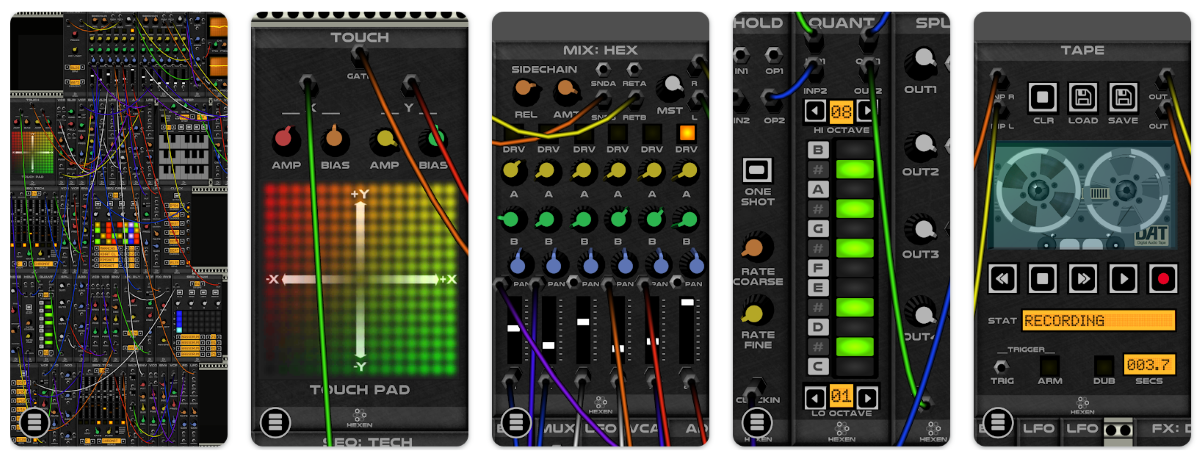
Это приложение можно расценивать как модульный синтезатор Eurorack. На выбор у вас есть около 50 модулей. Также в Hexen есть подробное руководство пользователя.
Скачать (бесплатно, есть платный тариф за $4.99)
Koala Sampler
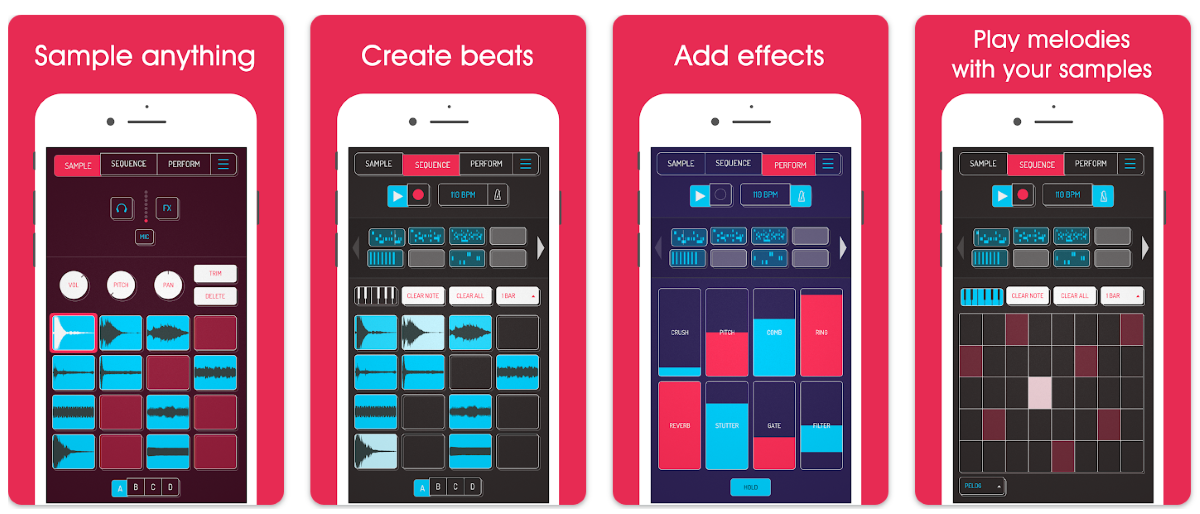
Как можно понять из названия, это приложение для работы с семплами. Вам доступно около 60 семплов с поддержкой микрофона. Можно менять звук встроенных эффектов, использовать семплы для создания новых и импортировать свои собственные.
Скачать ($4.99)
KORG Kaossilator
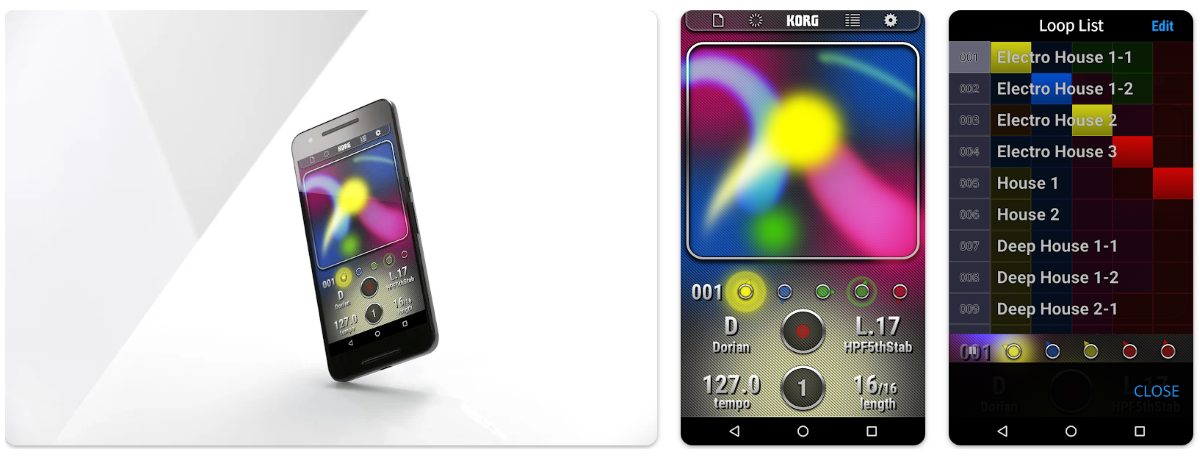
Здесь вы найдёте коллекцию из более 50 звуков, которые можно использовать при создании трека. Можно автоматически убирать плохие ноты, есть поддержка лупов и много другого.
Скачать ($4.99)
Nanoloop
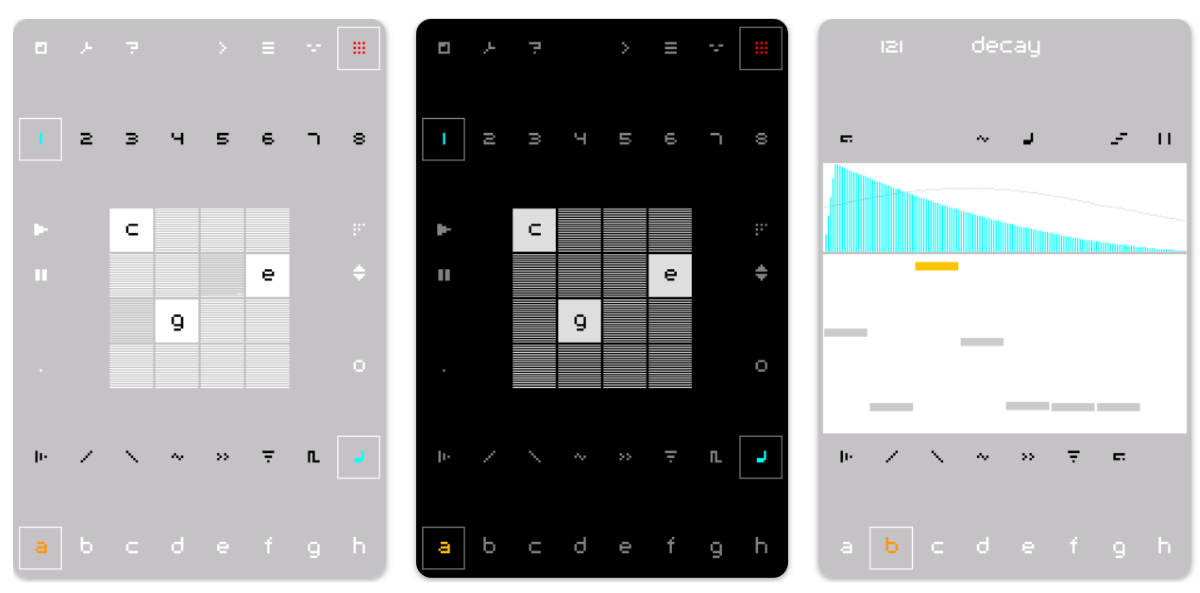
Секвенсер, синтезатор и семплер в одном флаконе. Есть поддержка восьми аудиоканалов с восемью же паттернами для каждого. Можно использовать микрофон, делать ресемплы, экспортировать в WAV, лупать.
Скачать ($3.49)
QiBrd
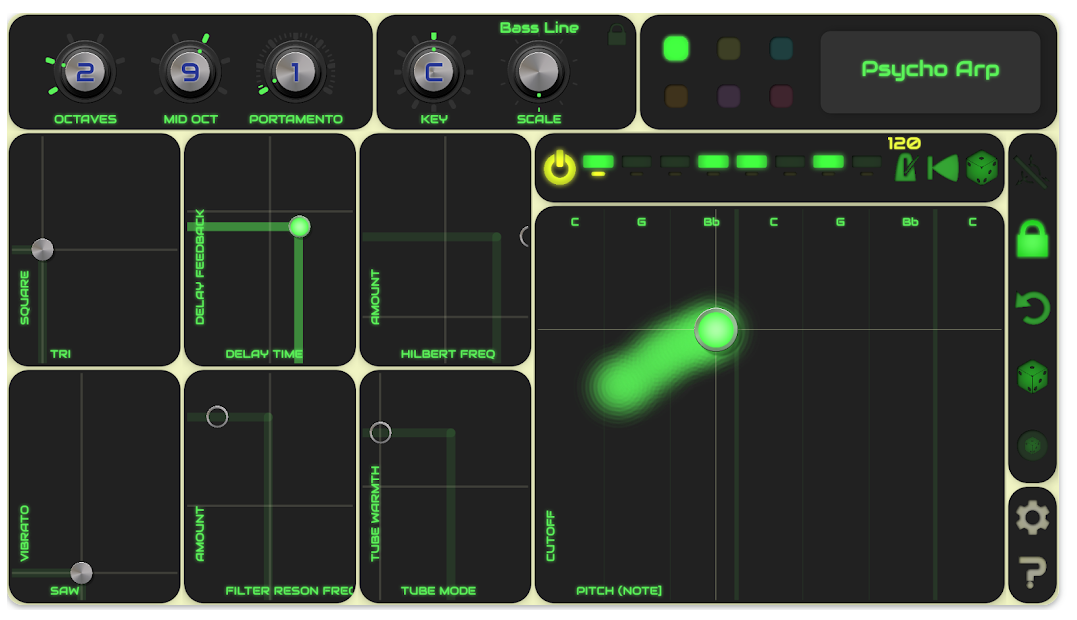
Редкая «птичка» в подборке. Потому что бесплатная и без рекламы. Есть множество различных опций для контроля музыки. Подойдёт скорее любителям, чем профессионалам.
Скачать
Saucillator
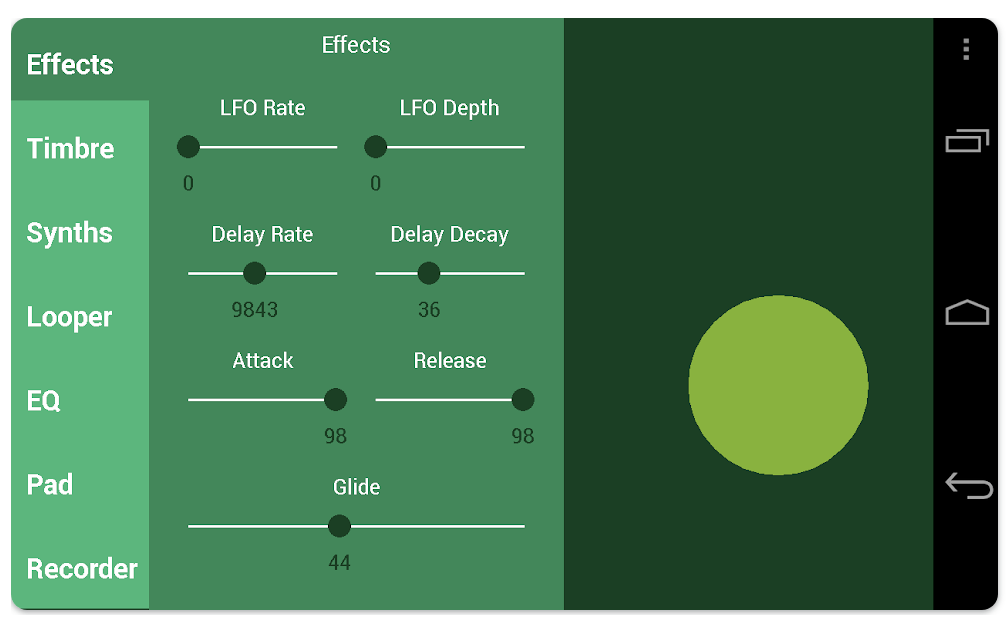
Можно управлять звуками с помощью тапов и свайпов, изменять размер элементов контроля, записывать сразу на карту памяти. И да — бесплатно.
Скачать
SunVox
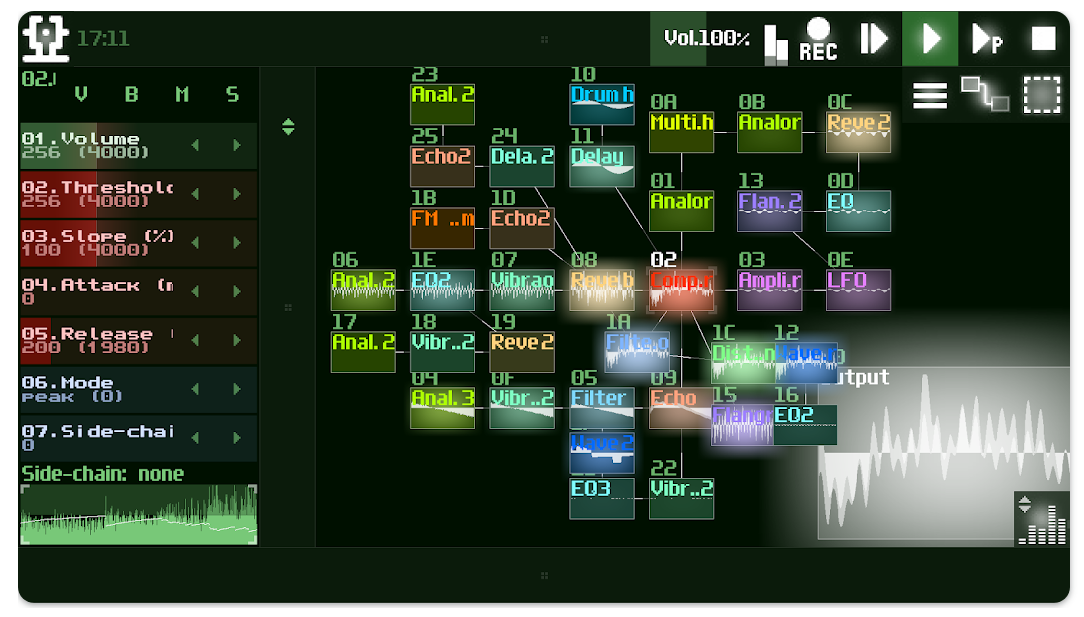
Здесь вы найдёте трекер, модульный интерфейс, поддержку высококачественных аудиовыходов, USB/MIDI-устройств и запись с микрофона. Можно использовать собственные библиотеки.
Скачать ($5.99)
Теги:
android
Caustic
DRC
G-Stomper Studio
Hexen
Koala Sampler
Nanoloop
QiBrd
Saucillator
SunVox
KORG Kaossilator
Разработано: planet-h.com
Лицензия: 13,99
Рейтинг: 4.5/5 — 3296 голосов
Последнее обновление: 2021-11-12
Ищете способ скачать G-Stomper Studio для ПК с Windows 11/10/8/7? Значит, вы находитесь в правильном месте. Продолжайте читать эту статью, чтобы узнать, как загрузить и установить одну из лучших Музыка и аудио Приложение G-Stomper Studio для ПК.
Большинство приложений, доступных в Google Play Store или iOS Appstore, созданы исключительно для мобильных платформ. Но знаете ли вы, что по-прежнему можете использовать любое из ваших любимых приложений для Android или iOS на своем ноутбуке, даже если официальная версия для платформы ПК недоступна? Да, они выходят из нескольких простых приемов, которые вы можете использовать для установки приложений Android на машины Windows и использования их, как вы используете на смартфонах Android.
В этой статье мы перечислим различные способы Скачать G-Stomper Studio на ПК в пошаговом руководстве. Итак, прежде чем приступить к делу, давайте посмотрим на технические характеристики G-Stomper Studio.
G-Stomper Studio для ПК — Технические характеристики
| Имя | G-Stomper Studio |
| Установки | 100 000+ |
| Разработано | planet-h.com |
G-Stomper Studio находится в верхней части списка Музыка и аудио категория приложений в Google Playstore. У него действительно хорошие рейтинги и отзывы. В настоящее время, G-Stomper Studio для Windows перешла 100 000+ Приложение установки and 4.5 звезда средний совокупный рейтинг пользователей.
G-Stomper Studio Скачать для ПК Windows 11/10/8/7 Ноутбук:
Большинство приложений в наши дни разрабатываются только для мобильной платформы. Игры и приложения, такие как PUBG, Subway surfers, Snapseed, Beauty Plus и т. Д., Доступны только для платформ Android и iOS. Но эмуляторы Android позволяют нам использовать все эти приложения и на ПК.
Так что даже если официальная версия G-Stomper Studio для ПК недоступен, вы все равно можете использовать его с помощью эмуляторов. В этой статье мы представим вам два популярных эмулятора Android для использования G-Stomper Studio на ПК.
G-Stomper Studio Скачать для ПК Windows 11/10/8/7 – Метод 1:
Bluestacks — один из самых крутых и широко используемых эмуляторов для запуска приложений Android на вашем ПК с Windows. Программное обеспечение Bluestacks доступно даже для Mac OS. Мы собираемся использовать Bluestacks в этом методе для загрузки и установки G-Stomper Studio для ПК Windows 11/10/8/7 Ноутбук. Начнем с пошагового руководства по установке.
- Шаг 1: Загрузите программное обеспечение Bluestacks по приведенной ниже ссылке, если вы не устанавливали его ранее – Скачать Bluestacks для ПК
- Шаг 2: Процедура установки довольно проста и понятна. После успешной установки откройте эмулятор Bluestacks.
- Шаг 3: Первоначальная загрузка приложения Bluestacks может занять некоторое время. После его открытия вы должны увидеть главный экран Bluestacks.
- Шаг 4: Магазин Google Play предустановлен в Bluestacks. На главном экране найдите Play Store и дважды щелкните значок, чтобы открыть его.
- Шаг 5: Теперь поищите Приложение вы хотите установить на свой компьютер. В нашем случае ищите G-Stomper Studio установить на ПК.
- Шаг 6: После того, как вы нажмете кнопку «Установить», G-Stomper Studio будет автоматически установлен на Bluestacks. Вы можете найти Приложение под список установленных приложений в Bluestacks.
Теперь вы можете просто дважды щелкнуть по значку Приложение значок в bluestacks и начните использовать G-Stomper Studio Приложение на вашем ноутбуке. Вы можете использовать Приложение так же, как вы используете его на своих смартфонах Android или iOS.
Если у вас есть файл APK, то в Bluestacks есть возможность импортировать файлы APK. Вам не нужно заходить в магазин Google Play и устанавливать игру. Однако рекомендуется использовать стандартный метод для установки любых приложений Android.
Последняя версия Bluestacks обладает множеством потрясающих функций. Bluestacks4 буквально в 6 раз быстрее, чем смартфон Samsung Galaxy J7. Поэтому рекомендуется использовать Bluestacks для установки G-Stomper Studio на ПК. Для использования Bluestacks у вас должен быть компьютер минимальной конфигурации. В противном случае вы можете столкнуться с проблемами загрузки при игре в высококачественные игры, такие как PUBG
G-Stomper Studio Скачать для ПК Windows 11/10/8/7 – Метод 2:
Еще один популярный эмулятор Android, который в последнее время привлекает большое внимание, — это MEmu play. Он очень гибкий, быстрый и предназначен исключительно для игровых целей. Теперь посмотрим, как Скачать G-Stomper Studio для ПК с Windows 11 или 10, 8 или 7 ноутбуков с использованием MemuPlay.
- Шаг 1: Скачать и Установить MemuPlay на вашем ПК. Вот вам ссылка для скачивания – Веб-сайт Memu Play. Откройте официальный сайт и скачайте программу.
- Шаг 2: После установки эмулятора просто откройте его и найти Google Play Store Приложение на главном экране Memuplay. Просто дважды нажмите на него, чтобы открыть.
- Шаг 3: Теперь Ищи G-Stomper Studio Приложение в магазине Google Play. Найдите чиновника Приложение из planet-h.com разработчика и нажмите кнопкуУстановить.
- Шаг 4: После успешной установки вы можете найти G-Stomper Studio на главном экране MEmu Play.
MemuPlay — это простое и удобное приложение. Он очень легкий по сравнению с Bluestacks. Поскольку он разработан для игровых целей, вы можете играть в высококлассные игры, такие как PUBG, Mini Militia, Temple Run и т. Д..
G-Stomper Studio для ПК — Заключение:
G-Stomper Studio получил огромную популярность благодаря простому, но эффективному интерфейсу. Мы перечислили два лучших метода установки G-Stomper Studio на ПК с Windows, ноутбуком. Оба упомянутых эмулятора популярны для использования приложений на ПК. Вы можете использовать любой из этих методов, чтобы получить G-Stomper Studio для ПК с Windows 11 или Windows 10.
Мы завершаем эту статью G-Stomper Studio Скачать для ПК с этим. Если у вас есть какие-либо вопросы или проблемы при установке эмуляторов или G-Stomper Studio для Windows, дайте нам знать через комментарии. Будем рады вам помочь!
User Manual for G-Stomper models including: G-Stomper Studio, G-Stomper Rhythm, G-Stomper VA-Beast, G-Stomper Producer, G-Stomper Studio App, App
G-Stomper User Manual | Drum Sampler
210
planet-h.com
G-Stomper User Manual | Drum Sampler
PDF G-Stomper User Manual | Drum Sampler
V.5.8.1. App Version: Date: Author: 5.8.1 11/10/2019 planet-h.com. Official Website: https://www.planet-h.com/. Important Note: The Drum Sampler is available in G-Stomper Studio, G-Stomper Rhythm, and…
G-Stomper User Manual | Drum Sampler — PLANET-H.COM
Furthermore the Drum Pads generally react instantly “on-touch” in all Track Pad Modes except. Play/Menu. Reacting “on-touch” is much more direct …
- PDF Viewer
- Universal Document Viewer
- Google Docs View
- Google Drive View
- Download Document [pdf]
- Download Document [Optimized]
- Document:
- Text
File Info : application/pdf, 37 Pages, 2.16MB
DocumentNot Your Device? Search For Manuals / Datasheets:
G-Stomper UserManual DrumSampler
G-Stomper | Drum Sampler

V.5.8.1

G-Stomper Studio G-Stomper Rhythm G-Stomper VA-Beast G-Stomper Producer
User Manual

App Version: Date: Author:

5.8.1 11/10/2019 planet-h.com

Official Website: https://www.planet-h.com/

Important Note: The Drum Sampler is available in G-Stomper Studio, G-Stomper Rhythm, and G-Stomper Producer. It is not available in G-Stomper VA-Beast (standalone).

Contents

7

Drum Sampler ............................................................................................................................ 3

7.1 7.1.1

Overview ...................................................................................................................... 3 Differences between the Apps ..............................................................................................4

7.2 7.2.1 7.2.2 7.2.3 7.2.4 7.2.5 7.2.6 7.2.7 7.2.8

Panel Reference .......................................................................................................... 5 Sample / Track Settings ..........................................................................................................5 Quick Sample Selector and Info Display...............................................................................6 Roll .............................................................................................................................................8 Roll-internal Accent .................................................................................................................9 Fill-In ........................................................................................................................................10 Filter ......................................................................................................................................... 11 Modulation Envelope ............................................................................................................12 Modulation LFO .....................................................................................................................16

7.3 7.3.1 7.3.2 7.3.3 7.3.4 7.3.5 7.3.6 7.3.7 7.3.8

Sampler Tracks ...........................................................................................................21 Sampler Track Pads T01 - T24..............................................................................................21 Sampler Track Pad Mode .....................................................................................................22 Actions for Track Pads in the different Modes ..................................................................23 Actions for the Track Pad Mode Button in the different Modes .....................................25 Sampler Track Pad Instant Mode (G-Stomper Studio, G-Stomper Rhythm)..................26 Sampler Drum Pads ..............................................................................................................27 Sampler Mute Groups...........................................................................................................28 The Mute Group `Monophony' Extension ..........................................................................29

7.4 7.4.1 7.4.2

Sampler Track Menu ..................................................................................................30 Show up the Track Menu......................................................................................................30 T[..] ...........................................................................................................................................31

11/10/2019

Page 1

G-Stomper | Drum Sampler

V.5.8.1

7.4.3 7.4.4 7.4.5 7.4.6 7.4.7 7.4.8

Load .........................................................................................................................................32 Edit ........................................................................................................................................... 33 Copy......................................................................................................................................... 34 Clear ........................................................................................................................................36 Export ......................................................................................................................................36 Automation............................................................................................................................. 37

11/10/2019

Page 2

G-Stomper | Drum Sampler

V.5.8.1

7 Drum Sampler

7.1 Overview
The Drum Machine in G-Stomper Studio, G-Stomper Rhythm, and G-Stomper Producer provides up to 24 Drum Sampler Tracks, where each is powered by its own Sampler instance.

The Drum Sampler has 4 main sections (per track) to tweak/modulate a sound in real-time.
· Sample / Track Settings
· Filter (Multi Filter with 8 Filter types)
· 1 Modulation LFO
· 1 Modulation Envelope
When you edit Sampler related parameters, then you always act on the currently selected Sampler Track (the highlighted one).
If you want to change the Pitch of the Sample on T01 for example, first select T01 and then change the Pitch Parameter.
Note: The Step Sequencers for the Samplers are monophonic, but for smooth transitions between the steps (in case when new step triggers a sound and the sound of a previous step is still running), the Samplers are of course able to (internally) play multiple sounds at once. If you want true monophony (so that a sound is cut off, when a new trigger is fired on the same Track) then you can either enable the "Sampler Monophony (cut sounds when played)" in the Sampler section of the Setup dialog, or you can use the "The Mute Group `Monophony' Extension" as described in the chapter below.

11/10/2019

Page 3

G-Stomper | Drum Sampler

V.5.8.1

7.1.1 Differences between the Apps
Although the Drum Sampler modules are technically identical, the user interface may look slightly different depending on the used app.

7.1.1.1 G-Stomper Studio, G-Stomper Rhythm

7.1.1.2 G-Stomper Producer

11/10/2019

Page 4

G-Stomper | Drum Sampler

V.5.8.1

7.2 Panel Reference

7.2.1 Sample / Track Settings The Sample/Track Settings provide the all basic Parameters to manipulate a sample in real-time.

Pan: Sample Panorama (the base sample panning, independent from the mixer channel panorama)
Level: Sample Output Level/Volume (the base sample level, independent from the mixer channel volume)
Note: In Accent Mode the Level fader switches to Acc and controls the Accent amount.
Start: Sample Start Point
Leng: Sample Length
Toggle Pitch/Speed between linked and independent
Pitch: Sample Pitch Scale (if pitch/speed are linked), Sample Pitch Shift (if pitch/speed are independent)
Speed: Sample Playback Speed (doesn't affect the Sample Pitch)
Shuff: Track Shuffle/Swing ON/OFF
Roll: Roll OFF/2x/3x/4x (play the Sample 1x, 2x, 3x or 4x per Step)
Norm: Normalize Sample to 0dB ON/OFF Normalizing is useful to give Samples a boost, if they're recorded with low volume. You won't hear a difference, if the sample file is already normalized.
Reverse: Reverse Sample ON/OFF
Fill-in: Randomized Fill-Ins at the end of the Pattern OFF / 1/2bar / 1/1bar (for details, see Chapter: Fill-In)

11/10/2019

Page 5

G-Stomper | Drum Sampler
7.2.2 Quick Sample Selector and Info Display

V.5.8.1

7.2.2.1 Quick Sample Selector
The Quick Sample Selector is very easy way to select samples with a single click rather than going through the regular file browser.

`<' and `>': Select the previous or next Sample within a particular sample folder.
By default, the Quick Sample Selector always adopts the folder of the currently loaded sample of a track. So when you select another track, the `<` and `>` buttons always start at the currently loaded sample location to obtain determine the previous or next sample to be loaded.
Sample Auto Preview when using `<' and `>': Long press `Lock Folder' to turn the Auto Preview ON/OFF.
Lock Folder: Adopting the location (as described above) fits very well when changing existing Patterns. But when you start from scratch, it's often more suitable to lock the sample folder at a specific location, so that you can quick select samples for multiple tracks, all from the same folder. If the folder is locked, you can switch between the tracks and step up and down within the locked folder, regardless what sample was previously loaded at the tracks.
More (or short click to the display): Shows up the "Load Sample" menu for the currently selected track, which lets you browse your samples using the regular file browser (loading a sample with the regular file browser updates the current Quick Sample Selector folder location).

11/10/2019

Page 6

G-Stomper | Drum Sampler
7.2.2.2 Sample Info Display The Sample Info Display shows the relevant details of the loaded sample.

V.5.8.1

Name: The Sample name (file name without extension)
Length: The length in minutes, seconds, milliseconds (+ the sample file size)
Format: The sample format (bit rate, sample rate, channels)
Short click to the display: Shows up the "Load Sample" menu for the currently selected track, which lets you browse your samples using the regular file browser (loading a sample with the regular file browser updates the current Quick Sample Selector folder location).

11/10/2019

Page 7

G-Stomper | Drum Sampler

V.5.8.1

7.2.3 Roll
The Roll function allows you to simulate typical drum rolls or flams. Technically spoken, this means to play a sample multiple times within a single Step. You can play a sample either 1x, 2x, 3x, 4x, 5x, 6x, 7x or 8x per step.
While the lower values 2x, 3x and 4x can be used to create realistic drum rolls, the higher values 5x, 6x, 7x, 8x can create very nice robotic effects as known from many genres (e.g. Trap).

Short click: Roll OFF / 2x / 3x / 4x / 5x / 6x / 7x / 8x
Roll 2x: The 1st Trigger is fired at the Step position (like a regular trigger) The 2nd Trigger is fired at 50% of the time frame between the current Step and the next Step
Roll 3x: The 1st Trigger is fired at the Step position (like a regular trigger) The 2nd Trigger is fired at 33.3% of the time frame between the current Step and the next Step The 3rd Trigger is fired at 66.6% of the time frame between the current Step and the next Step
Roll 4x: The 1st Trigger is fired at the Step position (like a regular trigger) The 2nd Trigger is fired at 25% of the time frame between the current Step and the next Step The 3rd Trigger is fired at 50% of the time frame between the current Step and the next Step The 4th Trigger is fired at 75% of the time frame between the current Step and the next Step
Roll 5x, 6x, 7x, 8x: Same pattern as explained in 2x, 3x, 4x, just with more Triggers per Step.
Long Click: Roll internal Accent ON/OFF

11/10/2019

Page 8

G-Stomper | Drum Sampler

V.5.8.1

7.2.4 Roll-internal Accent
The Roll internal Accent allows you to apply Accentuation to the Roll internal Triggers, which makes the drum rolls sound much more natural.

Long Click: Roll internal Accent ON/OFF
ON: The Roll generated Triggers are Accent aware, while the Accent Fader (in Accent Mode) controls the Accent amount. The Roll starts at full (Roll-internal) Accentuation and ends with zero (Roll-internal) Accentuation.
This means in detail, the first Roll Trigger is always fired at full Roll-internal Accentuation. The last Roll Trigger is fired at zero Roll-internal Accentuation. In case of Roll 3x/4x/5x/6x/7x/8x, the Triggers in between are fired at a partial Roll-internal Accentuation to generate a linear level change from the first to the last Roll Trigger.
OFF: All Roll triggers are played at the same Level.
Note: Whether an accentuated trigger is played at a higher or lower level than a non-accentuated trigger depends on the Accent Amount (which goes from -100 to +100). Accent Amount > 0 plays the sample louder, Accent Amount < 0 plays the sample less loud (also known as ghost notes) in relation to regular non-accentuated triggers.
(for further details about accentuation see Chapter Pattern-Sequencer > Main Drum Machine > Accent)

11/10/2019

Page 9

G-Stomper | Drum Sampler

V.5.8.1

7.2.5 Fill-In
The Fill-In function allows you to apply automatically generated, randomized breaks (Fill-Ins) at the end of the Pattern per Track.
The Fill-In are (if enabled) always applied to the last Bar of a Pattern. They can be applied either for the half or the full duration of the last Bar.

Short click: Fill-In OFF / 1/2bar / 1/1bar
1/2 bar: The sequencer creates a randomized break on the last 1/2 Bar of the pattern for the particular Track. (1/2 Bar = 2 beats in a 4/4 Time Signature)
1/1 bar: The sequencer creates a randomized break on the complete last Bar of the pattern for the particular Track. (1/1 Bar = 4 beats in a 4/4 Time Signature)
Long Click: Fill-In Hold ON/OFF
ON: The Fill-In break will be created every time the sequencer passes the last Position (1/2 or 1/1).
OFF: The Fill-In break will be created once and turns itself off afterwards.

11/10/2019

Page 10

G-Stomper | Drum Sampler

V.5.8.1

7.2.6 Filter
The Sampler provides a Multi Filter (per Track) with 8 Filter types. The filter is applied to the audio signal right after the sample was manipulated by the Sample/Track Settings section.

The Filter section offers 8 different Filter Types: · LP12 (12dB Low Pass Filter) · HP12 (12dB High Pass Filter) · LP24 (24dB Low Pass Filter) · HP24 (24dB High Pass Filter) · BP (12dB Band Pass Filter) · NP (12dB Notch/No Pass Filter) · MGLP (24dB Moog Low Pass Filter) · MGHP (24dB Moog High Pass Filter)
Cutoff: Controls the Filter Cutoff Frequency in a range from 1Hz to 14000Hz Res: Controls the Filter Resonance Bandw (BP, NP Filter only): Controls the Filter Bandwidth
11/10/2019

Page 11

G-Stomper | Drum Sampler

V.5.8.1

7.2.7 Modulation Envelope
The Modulation section provides an Attack Decay Modulation Envelope (per Track) which can be used to modulate the Amplification, the Filter Cutoff or the Sample Pitch in real-time.
Depending on the used app, the user interface may look slightly different.

7.2.7.1 G-Stomper Studio, G-Stomper Rhythm

7.2.7.2 G-Stomper Producer

11/10/2019

Page 12

G-Stomper | Drum Sampler
7.2.7.3 Destination (assign to Parameter) You can choose from 3 parameter routings (multiple selections are possible).

V.5.8.1

Amp: Apply the Modulation Envelope to Sample Amplification(Output Level) ON/OFF
Filter: Apply the Modulation Envelope to Filter Cutoff ON/OFF
Pitch: Apply the Modulation Envelope to Sample Pitch

11/10/2019

Page 13

7.2.7.4 Depth

G-Stomper | Drum Sampler

V.5.8.1

Depth: Controls the modulation depth/amount of the assigned parameter(s).
7.2.7.5 Decay The Modulation Envelope offers 2 different Decay types.
· Linear · Logarithmic To choose the Decay Type, simply tap the Decay Type selector button.

Decay length: The length of the Envelope is always matching the Sample playback length and therefore depending on the Start, Length and Pitch (if pitch/speed are linked) or Speed (if pitch/speed are indepenendent) Parameter in the Sample/Track Settings.

11/10/2019

Page 14

7.2.7.6 Reverse

G-Stomper | Drum Sampler

V.5.8.1

Reverse Off: The Envelope starts from its max value (normal direction).
Reverse On: The Envelope starts from zero and rises to its max value (reversed direction).

11/10/2019

Page 15

G-Stomper | Drum Sampler

V.5.8.1

7.2.8 Modulation LFO
The Modulation section provides a Modulation LFO (per Track) which can be used to modulate the Amplification, the Filter Cutoff or the Sample Pitch in real-time.
Depending on the used app, the user interface may look slightly different.

7.2.8.1 G-Stomper Studio, G-Stomper Rhythm

7.2.8.2 G-Stomper Producer

11/10/2019

Page 16

G-Stomper | Drum Sampler

V.5.8.1

7.2.8.3 Waveform The LFO offers 7 invertible waveforms:
· Triangle · Saw · Pulse (Square wave, fixed at 50% pulse with) · Random (similar to Pulse, but with randomized amplitude) · Smooth Random (similar to Triangle, but with randomized amplitude) · Triple Peak (a combination a smooth Saw approximated Sine and a 3 times faster running Sine
wave) · Sine

Short click: Select LFO Waveform Long click: Invert LFO Waveform (ON/OFF)

11/10/2019

Page 17

G-Stomper | Drum Sampler
7.2.8.4 Destination (assign to Parameter) You can choose from 3 parameter routings (multiple selections are possible).

V.5.8.1

Amp: Apply the Modulation LFO to Sample Amplification(Output Level) ON/OFF Filter: Apply the Modulation LFO to Filter Cutoff ON/OFF Pitch: Apply the Modulation LFO to Sample Pitch
7.2.8.5 Depth

Depth: Controls the modulation depth/amount of the assigned parameter(s).

11/10/2019

Page 18

7.2.8.6 Rate (Tempo)

G-Stomper | Drum Sampler

V.5.8.1

Rate (Sync off): Controls the LFO Rate in Hz in a range from 100s to 50Hz
Rate (Sync on): Controls the LFO Rate in Partials 16/1, 8/1, 4/1, 2/1, 1/1, 3/4, 1/2, 3/8, 1/3, 1/4, 3/16, 1/6, 1/8, 1/12, 1/16, 1/32, 1/64
7.2.8.7 Tempo Sync

Sync off: The LFO rate is independent.
Sync on: The LFO is synchronized with the tempo.
Note: Depending on the Sync switch, the LFO Rate is set in Hz or in Partials (see Chapter: Rate (Tempo)).

11/10/2019

Page 19

G-Stomper | Drum Sampler
7.2.8.8 Keyboard Sync Long press the Sync button to turn KB Sync on/off.

V.5.8.1

KB Sync off: The LFO will not be re-started when a Sound is triggered.
KB Sync on: With every triggered Sound the LFO gets re-started.

11/10/2019

Page 20

G-Stomper | Drum Sampler 7.3 Sampler Tracks
7.3.1 Sampler Track Pads T01 - T24

V.5.8.1

Track Pads (T[..]) are located on all screens that are related to the Drum Samplers (such as the Drum Machine).
To scroll to the upper 12 Tracks (13-24) simply tap the scroll button right beside the Tracks.

Note: The number of available/enabled Tracks depends on the 'Number of Sampler Tracks' setting in the Setup dialog.

11/10/2019

Page 21

G-Stomper | Drum Sampler

V.5.8.1

7.3.2 Sampler Track Pad Mode
Depending on the selected Track Pad Mode, the T[..] Buttons have different actions applied. Tap the Track Pad Mode Button to switch between the different modes.

Depending on the used app, the Track Pad Modes might be different. 7.3.2.1 G-Stomper Studio, G-Stomper Rhythm

In G-Stomper Studio and G-Stomper Rhythm, each Track Pad Mode has two actions, and is therefore defined with two terms. The term before the "/" is the short click action. The term after the "/" is the long click action.
7.3.2.2 G-Stomper Producer

In G-Stomper Producer, each Track Pad Mode has one single action (the Track Pad short click).
Note: Track Pads in G-Stomper Producer are not long clickable. Check the sidebar at the left side for additional actions.

11/10/2019

Page 22

G-Stomper | Drum Sampler

V.5.8.1

7.3.3 Actions for Track Pads in the different Modes
The following list describes the actions which are applied to the Track Pads (T[..]) in the different modes.
Depending on the used app, the available modes as well as the actions might be different.

7.3.3.1 G-Stomper Studio, G-Stomper Rhythm

Play(+Select)/Menu:

Click

: Play Sample (+select Track)

Click (while recording) : Record Trigger (+select Track)

Long Click

: Show up the Track Menu

Select/Mute: Click Long Click

: Select Track, silent : Track Mute ON/OFF

Mute/Select: Click Long Click

: Track Mute ON/OFF : Select Track, silent

Solo/Select: Click Long Click

: Track Solo ON/OFF : Select Track, silent

Play(live)/<no long click>:

Click

: Play Sample instantly, on-touch (dedicated for live playing/recording)

Click (while recording) : Record Trigger instantly

Long Click

: No function

Rhythm Arp/Select<2-click>:

Touch

: Activate the Rhythm Arpeggio for the particular Track

Release

: Deactivate the Rhythm Arpeggio for the particular Track

Long Click

: No function

Double Click

: Select Track, silent

Note: The Rhythm Arpeggio can only be used when the sequencer is running.

11/10/2019

Page 23

G-Stomper | Drum Sampler
7.3.3.2 G-Stomper Producer

V.5.8.1

Play(+Select):

Click

: Play Sample (+select Track)

Click (while recording) : Record Trigger (+select Track)

Select: Click

: Select Track, silent

Mute: Click

: Track Mute ON/OFF

Solo: Click

: Track Solo ON/OFF

Play(live):

Click

: Play Sample

Click (while recording) : Record Trigger

Note: Please take note that the Track Pads in G-Stomper Producer always react instantly "on-touch" (rather than like in G-Stomper Studio after a normal click "on-release"). Therefore the G-Stomper Producer Track Pads are not long clickable

11/10/2019

Page 24

G-Stomper | Drum Sampler
7.3.4 Actions for the Track Pad Mode Button in the different Modes Depending on the used app, the actions might be different. 7.3.4.1 G-Stomper Studio, G-Stomper Rhythm

V.5.8.1

All Modes: Click

: Select Mode

Play(+Select)/Menu:

Long Click

: Multi-Mute ON/OFF (see Chapter: Programmable Multi-Mute)

Select/Mute: Long Click

: Multi-Mute ON/OFF (see Chapter: Programmable Multi-Mute)

Mute/Select: Long Click

: All Track Mute OFF

Solo/Select: Long Click

: All Track Solo OFF

Play(live)/<no long click>:

Long Click

: No function

Rhythm Arp/Select<2-click>:

Long Click

: No function

7.3.4.2 G-Stomper Producer

In G-Stomper Producer, the Track Pad Mode button is not long clickable, and therefore provides only one single short click action: Select Mode.

11/10/2019

Page 25

G-Stomper | Drum Sampler

V.5.8.1

7.3.5 Sampler Track Pad Instant Mode (G-Stomper Studio, G-Stomper Rhythm)
On the Main Drum Machine, you have the possibility to change the main behavior of the Track Pads from normal click to "on-touch".
Normal behavior: The Track Pads react to a regular click, which means in fact when you release a Track Pad (a click from a technical point of view is always a combination of touch and release).
Instant (on-touch) behavior: The Track Pads react on-touch rather than on-release. This is, especially in a live situation, much faster and more direct.
Note: In Instant Mode, long click is not possible due to technical reasons
To switch between Normal and Instant (on-touch) behavior, long press the scroll button.

Note: This switch is available exclusively for the Track Pads on the Main Drum Machine. On all other screens the Track Pad behavior is automatically set to the most suitable setting for the particular modes.

Sampler Drum Pads

: All Modes except Play/Menu behave on-touch

Track Pads on FX and Master : All Modes behave on-touch

Sampler Track Grid, Note Grid : All Modes except Play(live) and Rhythm Arp behave Normal (on-click)

Note: Also Note that this switch is not available in G-Stomper Producer, since the Track Pads in G-Stomper Producer always react instantly "on-touch" (rather than like in G-Stomper Studio after a normal click "on-release").

11/10/2019

Page 26

G-Stomper | Drum Sampler

V.5.8.1

7.3.6 Sampler Drum Pads
Depending on the used app, the user interface may look slightly different.
The Sampler Drum Pads provide 24 Pads to be used for live playing. Since the Drum Pads are in fact a specialized form of the Sampler Track Pads, they can also be used like regular Sampler Track Pads, e.g. to mute/un-mute, solo/un-solo, load samples, etc. (for details see Chapter: Sampler Track Pads T01 - T24)
The advantage of the Drum Pads is that you see all 24 Sampler Tracks at once.

7.3.6.1 G-Stomper Studio, G-Stomper Rhythm

Furthermore the Drum Pads generally react instantly "on-touch" in all Track Pad Modes except Play/Menu.
Reacting "on-touch" is much more direct than the normal "on-click" behavior and therefore more suitable for Drum Pads.
7.3.6.2 G-Stomper Producer

11/10/2019

Page 27

G-Stomper | Drum Sampler

V.5.8.1

7.3.7 Sampler Mute Groups
Mute Groups are used to let two or more sounds mute each other when triggered. This is typically used for open and closed high hats to simulate their natural behavior (when you close the high hat in a real drum set while the open high hat was hit before, then the open high hat gets muted immediately).
G-Stomper Studio provides 4 independent Mute Groups for the Drum Samplers. To add a Track (resp. its sound) to a particular group, simply show up the Track Menu (see Chapter: Sampler Track Menu) and enable M Group A, B, C or D.

When you add two or more drum sampler tracks to the same Mute Group (e.g. M Group A), then every triggered sample by one of these tracks does cut/mute the the currently playing samples (if any) of the other tracks (only of the other tracks).
Conclusion: Adding a Track to a Mute Group (without `Monophony' extension) has only an effect if at least one other Track is in the same Mute Group.
Note: Mute Groups in G-Stomper are stored per Pattern and can be different for each Pattern in a Pattern Set. Also note that a Track can be in more than one Mute Groups at once.

11/10/2019

Page 28

G-Stomper | Drum Sampler

V.5.8.1

7.3.8 The Mute Group `Monophony' Extension
If you want a particular Mute Group to make all its members 100% monophonic, so that every trigger does not only cut/mute all currently playing samples of the other tracks, but also those of the same track, then you can enable the Mute Group `Monophony' extension by long pressing a particular Group.

Note: The `Monophony' extension can be used on Mute Groups with one or more members. This comes in handy, if you want to have a particular track true monophonic.

11/10/2019

Page 29

G-Stomper | Drum Sampler 7.4 Sampler Track Menu
The Sampler Track Menu provides all operations for a particular Sampler Track.

V.5.8.1

7.4.1 Show up the Track Menu Depending on the used App, the Track Menu location and its content might be different. 7.4.1.1 G-Stomper Studio, G-Stomper Rhythm
Make sure that the Track Pad mode is set to Play/Menu (which is the default). Long click a Track Pad to open to the Track Menu. 7.4.1.2 G-Stomper Producer Press the "Drum" button in one of the Mixer Channels to show up the Drum Machine, and then open the Track Menu in the sidebar.

11/10/2019

Page 30

7.4.2 T[..]

G-Stomper | Drum Sampler

V.5.8.1

Mute: Track Mute ON/OFF
Solo: Track Solo ON/OFF
Shuffle: Track Shuffle/Swing ON/OFF
Humanize Timing: Use this feature to add micro timing inaccuracies to your sequence to simulate a human musician. The inaccuracies are generated while the sequence is running, based on the selected humanization level and a randomly generated inaccuracy depth. E.g. `Humanize Timing : 1/16 Step' means that the generated inaccuracies (micro delays) will be in a range from zero up to 1/16 of a single step. Please keep in mind that the inaccuracies are only in micro timing, and therefore almost unnoticeable. But they'll add a lot more groove to your sequences. The right amount strongly depends on the particular music. Just don't overdo it.
MIDI Instrument (Internal Sound Off): Enable this option to control an external MIDI Instrument with this Track, rather than the internal Audio Source. Using a Track as [MIDI Instrument] means, the internal Sound will be disabled and only MIDI events will be fired from the Track. Be sure to configure the MIDI Channels, IN/OUT Interfaces in the GStomper Setup before you enable this option.
Set Track Name: Set a logical Track Name, independent of its content.
Mute Groups A, B, C, D: Mute Groups are used to let two or more sounds mute each other when triggered. This is typically used for open and closed high hats to simulate their natural behavior (when you close the high hat in a real drum set while the open high hat was hit before, then the open high hat gets muted immediately). To add the current Track to a particular Mute Group enable M Group A, B, C or D. (see also Chapter: Sampler Mute Groups)

11/10/2019

Page 31

7.4.3 Load

G-Stomper | Drum Sampler

V.5.8.1

Load Factory Sample: Load a single Factory Sample into the Track. (this includes Samples from installed Sample Packs)
Load User Sample: Load a single User Sample into the Track. (this can be a Sample from anywhere on your storage)
Load Currently used Sample: Load a single "already used" Sample into the Track. Here you can chose from a List of samples which are currently in use (in Memory), in other words which are already loaded in some other Track or Pattern.
Record Sample from Microphone: Start a new (empty) Audio Editor, ready to record a new Sample. (for details see Chapter: Audio Editor > Capture/Record Samples)

11/10/2019

Page 32

7.4.4 Edit

G-Stomper | Drum Sampler

V.5.8.1

Open Sample in Audio Editor: Open the current Track Sample in the Audio Editor. (for details see Chapter: Audio Editor > ...)
New Audio Editor: Start a new (empty) Audio Editor. (for details see Chapter: Audio Editor > ...)
Note: The graphical Audio Editor lets you edit/chop/process all supported .wav and .aif/.aiff samples.

11/10/2019

Page 33

G-Stomper | Drum Sampler
7.4.5 Copy Depending on the used app, the functions in the Copy tab might be different. 7.4.5.1 G-Stomper Studio

V.5.8.1

Copy Track (Selective Content): Copy the complete Track or selective Content (multiple choice) to .. .. a Track of your choice (in a Pattern of your choice) .. to the same Track in all Patterns in the Pattern Set .. to the same Track in a selection of Patterns in the Pattern Set .. to the same Track in all Patterns in a selection of Pattern Banks (A, B, C, D) in the Pattern Set (for details see Chapter: Data Copy & Clear Framework)
Swap Tracks (Selective Content): Swap the complete Track or selective Content (multiple choice) with a Track of your choice in a Pattern of your choice (for details see Chapter: Data Copy & Clear Framework)
Copy Track Sequence to VA-Beast Track: (G-Stomper Studio only) Copy the main sequence of the current (Sampler-)Track to a polyphonic VA-Beast Track of your choice When using this function, all Triggers of the source (Sampler-)Track will be copied in form of 1/16 Note Events to the destination VA-Beast Track. (for details see Chapter: Data Copy & Clear Framework)
Clone current Bar/Position to all other Bars Clones the current Bar/Position (of this Track) including Parameter Automations to all other bars in the Pattern.

11/10/2019

Page 34

G-Stomper | Drum Sampler
7.4.5.2 G-Stomper Rhythm

V.5.8.1

Copy Track (Selective Content): Copy the complete Track or selective Content (multiple choice) to .. .. a Track of your choice (in the same Pattern) (for details see Chapter: Data Copy & Clear Framework)
Swap Tracks (Selective Content): Swap the complete Track or selective Content (multiple choice) with a Track of your choice (in the same Pattern) (for details see Chapter: Data Copy & Clear Framework)
Clone current Bar/Position to all other Bars Clones the current Bar/Position (of this Track) including Parameter Automations to all other bars in the Pattern.
7.4.5.3 G-Stomper Producer

Clone current Bar/Position to all other Bars Clones the current Bar/Position (of this Track) including Parameter Automations to all other bars in the Pattern.
Note: In G-Stomper Producer, Tracks can be copied using the Per Track Pattern Set controls in the particular Mixer Channels.

11/10/2019

Page 35

7.4.6 Clear

G-Stomper | Drum Sampler

V.5.8.1

Clear Track (Selective Content): Clear the complete Track or selective Content (multiple choice) (for details see Chapter: Data Copy & Clear Framework)
7.4.7 Export

Important Note: The Export tab is only available in G-Stomper Studio and G-Stomper Producer, but not in G-Stomper Rhythm, because G-Stomper Rhythm provides neither Sample nor Track bouncing.
Export/Bounce Sample: Export/Bounce the Sample (NOT the Sequence) of the Track including all Parameters (but NOT the EFX chain). The exported file will be located in the folder /gstomper/usersamples/bounced_samples and can be loaded in use of the regular Sample selection. By default, the bounced Sample gets loaded automatically at the end of the bounce process.
Export/Bounce complete Track: Export/Bounce the complete Track including the Sequence, all Track and FX Parameters and all Automations. The exported Loop file will be located in the folder /gstomper/usersamples/bounced_tracks and will be loaded automatically at the end of the bounce process.
(for details see Chapter: Audio Export & Bouncing)

11/10/2019

Page 36

7.4.8 Automation

G-Stomper | Drum Sampler

V.5.8.1

Clear Parameter Automation: Clear the Automation Steps of a selection of Parameters.
Initialize Parameter Automation: Initialize all Automation Steps of a selection of Parameters to their current Value.
Auto-Complete Parameter Automation: The Auto-Complete Parameter Automation feature is used to create smooth movements just by setting the key steps.
To use it, you just have to define at least 2 Automation steps (in use of the Step Edit mode) for the desired parameter. Then call Auto-Complete Parameter Automation and enjoy the magic. The number of key steps is not limited. The Auto-Complete just fills all the gaps between the key steps with a smooth movement.
Note: Keep in Mind, that you must set the start step, even if it gets the same value as the already set parameter value.
(for details see Chapter: Parameter Automation)
Generate Parameter Automation: Create Automation curves based on regular waveforms (Triangle, Saw, Pulse, Triple Peak, Sine) for a selection of Parameters.
(for details see Chapter: Parameter Automation > Generate Parameter Automation)
Randomize Parameter Automation: Randomize Parameter Automation is used to either generate new random Automations or to randomize existing Automation curves of a selection of Parameters.
(for details see Chapter: Parameter Automation > Randomize Parameter Automation)

11/10/2019

Page 37
Adobe PDF Library 15.0