
- Инструкции →
- Аудио →
- Плееры →
- iRiver →
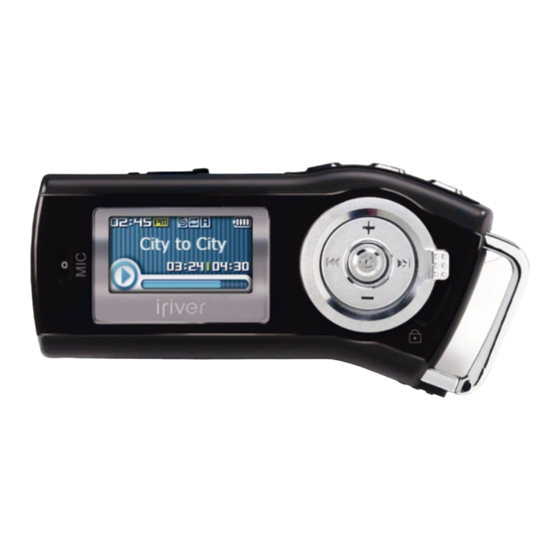
- iRiver T10
Модель, к которой подходит эта инструкция: iRiver T10
Скачать инструкцию к iRiver T10 (12 Мб)
Данная инструкция написана на русском языке
Вопросы и отзывы о iRiver T10
Пожалуйста, если у вас есть вопрос или отзыв, напишите пару строк в форме ниже.
Если вы скачали инструкцию, но не смогли разобраться, как пользоваться той или иной функцией прибора,
напишите свой вопрос, наши специалисты постараются найти ответ на ваш вопрос.
-
19.12.2011,
Александр:
Как переустановить прошивку? Он у меня плохо работает
Перед Вами Инструкция — T10. Вы можете ознакомиться и скачать данное руководство по эксплуатации бесплатно.
Инструкция по применению на русском языке, предложенная производителем, позволяет
правильно использовать Вашу бытовую технику и электронику.
-
 1
1
-
2
-
3
-
4
-
5
-
6
-
7
-
8
-
9
-
10
-
11
-
12
-
13

- Manuals
- Brands
- IRiver Manuals
- MP3 Player
- T10
- Instruction manual
-
Contents
-
Table of Contents
-
Troubleshooting
-
Bookmarks
Quick Links
Instruction Manual
T10
T10
Thank you for your purchase.
Please read this manual carefully
before using your new player.
http://www.iriveramerica.com
Related Manuals for IRiver T10
Summary of Contents for IRiver T10
-
Page 1: Instruction Manual
Instruction Manual Thank you for your purchase. Please read this manual carefully before using your new player. http://www.iriveramerica.com…
-
Page 2: Table Of Contents
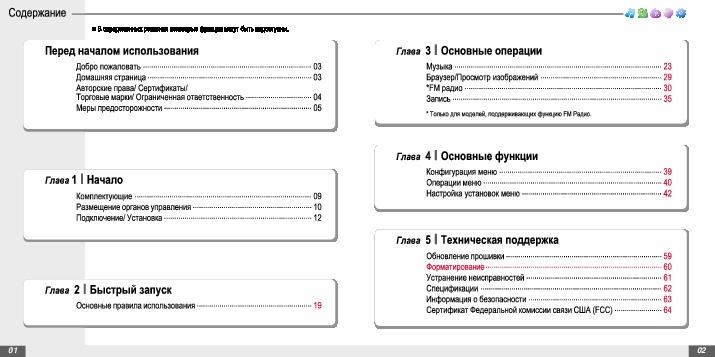
Contents Some features might not be available in every region. BROWSER Chapter 3 I Basic operation Before using the product MUSIC ………………….19 Welcome ………………..03 BROWSER ………………..26 Homepage ………………..03 IMAGE VIEWER ………………27 Copyrights/Certification/Trademarks/Limited Liability ….. 04 MUSIC *FM RADIO ………………..
-
Page 3: Before Using The Product
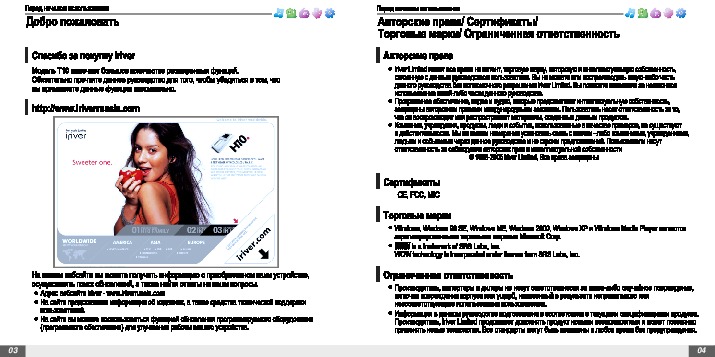
You may not reproduce any part of this The T10 comes complete with a long list of advanced features. It is important that you read manual unless authorized by iriver Limited. You can be punished by using any part the manual to ensure that you get the most out of your new player.
-
Page 4
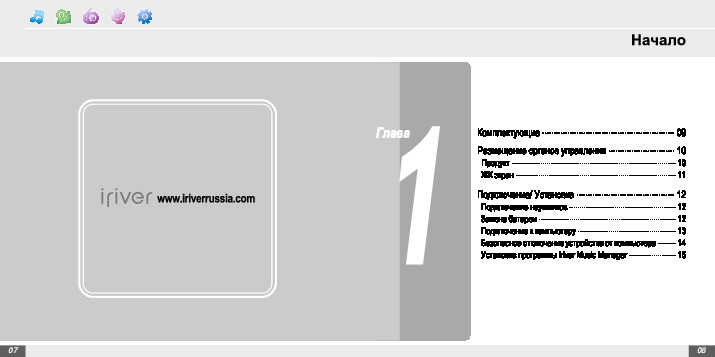
Getting started BROWSER Chapter MUSIC Components ……… 07 Locating the controls ……08 Product …………..08 RECORDING LCD Screen display …………09 www.iriveramerica.com Connection/Installation ……10 Connecting to the PC ………. 10 Connecting the earphones ……..11 Replacing the battery ………. 11 FM RADIO Easy Start CD Installation …….. -
Page 5: Components
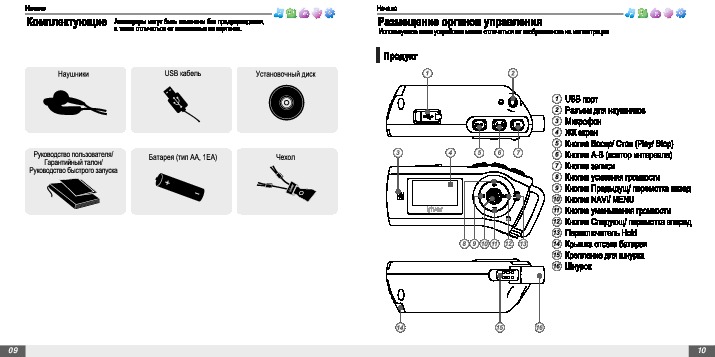
Getting started Getting started Components Locating the controls Accessories subject to change without notice and may vary from image shown. Your player may differ sightly from that shown in the illustrations. BROWSER Product BROWSER Earphone USB cable Installation CD MUSIC MUSIC USB connection port Earphone Jack…
-
Page 6: Connection/Installation
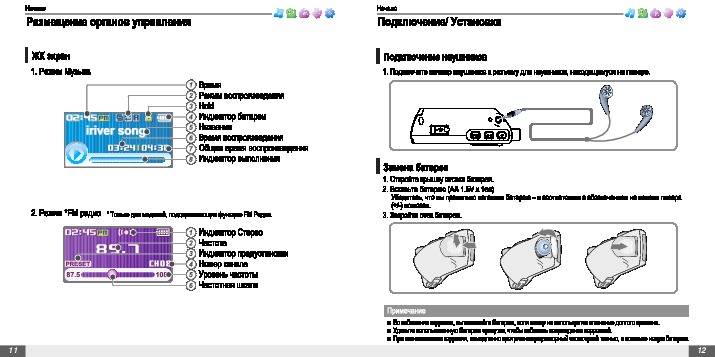
BROWSER 1. MUSIC Mode 1. Connect the USB cable(provided) to the USB port on the player and to your PC. Time Play Mode MUSIC MUSIC USB port on the T10 Hold Battery indicator Title name Playing time RECORDING RECORDING Total Playing time…
-
Page 7: Connecting The Earphones
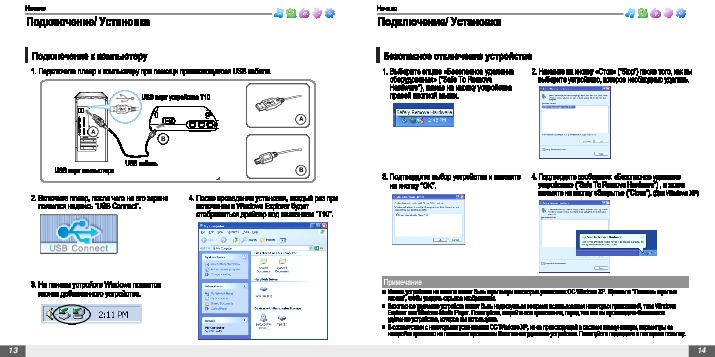
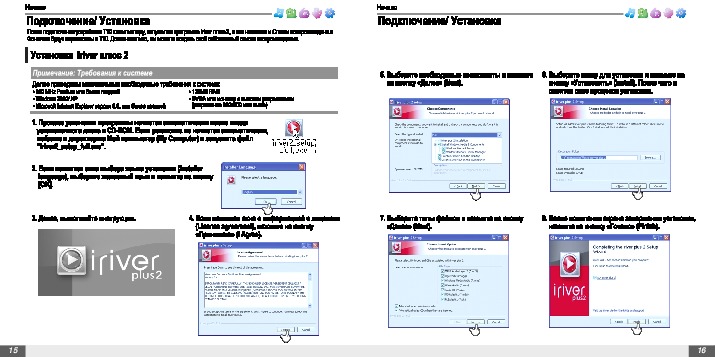
Getting started Getting started Connection/Installation Connection/Installation Connecting the earphones BROWSER Easy Start CD Installation BROWSER 1. Connect the earphones jack to the earphone socket on the player. 1. Insert the Easy Start CD into the CD or DVD drive of a computer. 2.
-
Page 8: Quick Start
Quick start BROWSER Chapter MUSIC Basic Usage ……..15 RECORDING Turning on/off the player ……… 15 Playing a music file ………. 15 www.iriveramerica.com Adjusting the volume ……..16 Selecting the function mode ……16 FM RADIO FM RADIO…
-
Page 9: Basic Usage
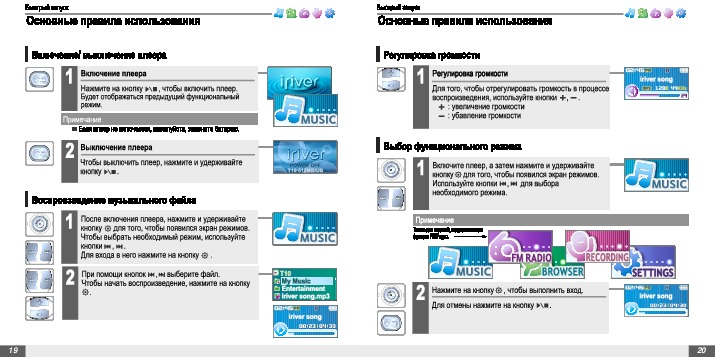
Quick start Quick start Basic Usage Basic Usage Turning on/off the player BROWSER Adjusting the volume BROWSER Turning on the player Adjusting the volume Press the button to turn on the player. During the music file playback, press BROWSER MUSIC MUSIC button to adjust volume level.
-
Page 10: Browser
Basic operation BROWSER MUSIC ……….19 Playing a music file ……….19 Changing playback mode ……..21 A-B Repeat …………22 Chapter Changing the sound EQ ……..22 MUSIC ……23 Getting music on your player Deleting a file or folder on the player ….25 Creating a iQuickList file on the player …..
-
Page 11: Browser
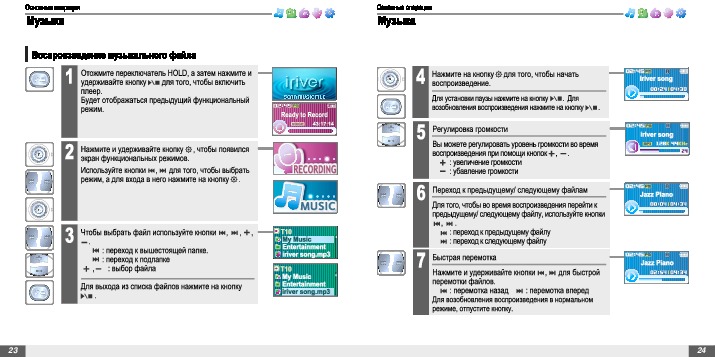
Basic operation Basic operation MUSIC MUSIC Playing a music file BROWSER BROWSER Release HOLD switch, then press button to Press the button to start music playback. turn on the player. Press to pause music playback. MUSIC MUSIC BROWSER Previous function mode will display. Press again to continue playing.
-
Page 12: Changing Playback Mode
Basic operation Basic operation MUSIC MUSIC Changing playback mode BROWSER A-B Repeat BROWSER While playing a music file, press the button to Press button while playing to select the display the playback mode select screen. beginning (A) point. MUSIC MUSIC Press button again to select the end (B) point.
-
Page 13: Getting Music On Your Player
If you prefer having your music library automatically synchronized to T10 : Entertainment Windows Media Player. a. Click the arrow below Sync tab, and select iriver MP3 T10 — Set Up Sync. b. Select «Sync this device automatically» option. b. Click “Sync” from the menu button near the top of the screen.
-
Page 14: Deleting A File Or Folder On The Player
Basic operation Basic operation MUSIC BROWSER Deleting a file or folder on the player BROWSER BROWSER You can create on-the-fly quicklist(iQuickList) on the device without a computer. Add Quick List Add Quick List While in stop mode, press the button to Press and hold the button to add the track display music list screen.
-
Page 15: Image Viewer
PC to a files are copying. Adding image file to player temporary folder in the iriver MP3 T10 portable device. 1. Connect the player and PC using the cable supplied with the player and power it (Refer to page 10.)
-
Page 16: Fm Radio
Basic operation Basic operation *FM RADIO *FM RADIO MUSIC * Only for models including FM Radio function * Only for models including FM Radio function Listening to FM radio BROWSER Searching for a FM radio frequency — Manual Scan BROWSER RECORDING Press and hold button to display the…
-
Page 17: Selecting Preset Memory
Basic operation Basic operation *FM RADIO *FM RADIO * Only for models including FM Radio function * Only for models including FM Radio function Saving an FM Radio frequency — Manually BROWSER Saving an FM Radio frequency — Automatically BROWSER If PRESET is displayed, first press the button to exit If PRESET is displayed, first press the…
-
Page 18: Deleting A Channel
Basic operation Basic operation *FM RADIO RECORDING * Only for models including FM Radio function Deleting a channel BROWSER To record *FM station BROWSER * Only for models including FM Radio function If PRESET is not displayed, first press the Press and hold the button to display function mode screen.
-
Page 19: Recording Voice
Basic operation Basic operation RECORDING RECORDING BROWSER Recording voice BROWSER Note for recording BROWSER MUSIC The recording will be stop if Press and hold the button to display function mode screen. — the amount of recorded data exceeds the MUSIC MUSIC Select the [RECORDING] by using the RECORDING…
-
Page 20: Music
Useful features BROWSER Menu configuration ……39 Menu operation ……… 40 Chapter Enter Settings Menu ……… 40 MUSIC Enter Sub Menu ……….40 Set the menu functions ……..41 Exit sub menu ……….. 41 Customizing the function settings ..42 RECORDING Sound …………..
-
Page 21: Only For Models Including Fm Radio Function
RECORDING Useful features Useful features Menu configuration Menu operation Functions are subject to change with different firmware versions. Users can configure their own settings. FM RADIO FM RADIO BROWSER Enter Settings Menu BROWSER SRS Setting User EQ Press and hold the button to display the Mode screen.
-
Page 22: Customizing The Function Settings
Useful features Useful features Menu operation Customizing the function settings (Menu) Set the menu functions BROWSER Sound BROWSER Press the button to select sub menu. 1. SRS Setting Sets the 3D sound effect. SRS, FOCUS, TruBass, and MUSIC MUSIC Boost are available. Press the button to enter Sub Menu setting screen.
-
Page 23: Display
<OFF>, <10 SEC>, <30 SEC>, <1 MIN>, or <3 MIN> . (Displayed as lyrics, Tag information or file name order) The TYPE can be set to : CAPTION OFF : Display Tag information. <IRIVER>, <SPECTRUM> or <WAVEFORM>. (Lyrics function does not activate) OFF : Display file name of music file.
-
Page 24
Useful features Useful features Customizing the function settings (Menu) Customizing the function settings (Menu) Display BROWSER Display BROWSER 5. Language 7. Name Select the language to display the file name, lyrics and You can input your name or custom text. MUSIC MUSIC Tag information. -
Page 25: Recording
Useful features Useful features Customizing the function settings (Menu) Customizing the function settings (Menu) Display BROWSER Recording BROWSER 8. LCD Contrast 1. *FM Setting Adjust the LCD screen contrast. You can set recording quality (<HIGH>, <MIDDLE> or MUSIC MUSIC <LOW>) when recording FM. The LCD contrast can be adjust from <-10>…
-
Page 26: Timer
Useful features Useful features Customizing the function settings (Menu) Customizing the function settings (Menu) Recording BROWSER Timer BROWSER 3. Voice Detect 1. Power Off Timer The voice recording mode will automatically pause Automatically turns the power off at the stop mode. MUSIC MUSIC during silence.
-
Page 27
Useful features Useful features Customizing the function settings (Menu) Customizing the function settings (Menu) Timer BROWSER Timer BROWSER 3. Date & Time 5. Set Alarm Set the current date and time. Set the alarm time. MUSIC MUSIC RECORDING RECORDING FM RADIO FM RADIO 4. -
Page 28: Advanced
Useful features Useful features Customizing the function settings (Menu) Customizing the function settings (Menu) Advanced BROWSER Advanced BROWSER 1. Resume 3. Scan Speed ON : Playback will resume from the previous location in Adjust the speed of FF/RW(fast-forward/fast-rewind). MUSIC MUSIC a song when the player is stopped or powered off.
-
Page 29
Useful features Useful features Customizing the function settings (Menu) Customizing the function settings (Menu) Advanced Advanced BROWSER BROWSER 5. Study Mode 7. Format While playing, press and hold button will skip Memory is formatted and all saved files are deleted. MUSIC MUSIC the set time ahead or current track . -
Page 30: Listening To Audible Tm Files
To transfer Audible files to T10, you should use AudibleManager. Please visit Audible.com ® at http://www.audible.com, in the Device Center. — Click to browse for the bookmark you want to listen to, and click to play from the bookmark.
-
Page 31: Customer Support
Customer Support BROWSER Chapter Chapter MUSIC Firmware Upgrade ……. 61 Troubleshooting ……..62 RECORDING Specification ……… 63 www.iriveramerica.com Safety Information …….. 64 FCC Certification ……..65 FM RADIO FM RADIO…
-
Page 32: Firmware Upgrade
Customer Support Firmware Upgrade Troubleshooting To update the firmware in T10, your computer need to be connected to the internet. Should any problem persist after you have checked these symptoms, consult your iriver dealer or contact support at www.iriveramerica.com. Firmware Upgrade…
-
Page 33: Specification
2 GB* Memory Capacity 1 GB* Avoid dropping or impacting the player. Model No. T10 1GB T10 2GB The player is designed to operate while walking or running, but dropping or excessively impacting the player may be cause damage. Category…
-
Page 34: Fcc Certification
FCC Certification Memo BROWSER BROWSER THIS DEVICE COMPLIES WITH PART 15 OF THE FCC RULES. OPERATION IS SUBJECT TO THE FOLLOWING TWO CONDITIONS: (1) THIS DEVICE MAY NOT CAUSE HARMFUL INTERFERENCE, AND (2) THIS DEVICE MUST ACCEPT ANY INTERFERENCE, RECEIVED, INCLUDING MUSIC MUSIC INTERFERENCE THAT MAY CAUSE UNDESIRED OPERATION.
-
Page 35
Memo Memo BROWSER BROWSER MUSIC MUSIC RECORDING RECORDING FM RADIO FM RADIO FM RADIO FM RADIO…
Перед вами файл pdf, где представлена инструкция (руководство) на русском для iRIVER T10. Вы можете скачать ее либо изучить в онлайн режиме.
Подробные сведения об инструкции:
Устройство из раздела: портативный плеер
Бренд-производитель: iRIVER
Наименование модели: iRIVER T10
Инструкция на английском языке
Файл: pdf
Размер файла: 3,03 MB
Скачать инструкцию к HARPER HDT2-1110
ЗАГРУЗИТЬ
Просмотр инструкции онлайн
(скачивание инструкции бесплатно)
Формат файла: PDF
Доступность: Бесплатно как и все руководства на сайте. Без регистрации и SMS.
Дополнительно: Чтение инструкции онлайн

Instruction Manual
T10
Thank you for your purchase.
Please read this manual carefully
before using your new player.
T10
http://www.iriver.com
Страница:
(1 из 35)
навигация

1

2

3

4

5

6

7

8

9

10

11

12

13

14

15

16

17

18

19

20

21

22

23

24

25

26

27

28

29

30

31

32

33

34

35
Оглавление инструкции
- Страница 1 из 36
Instruction Manual T10 T10 Thank you for your purchase. Please read this manual carefully before using your new player. http://www.iriver.com - Страница 2 из 36
Contents z Some features might not be available in every region. Before using the product Welcome ………………………………………………………………………………………. 03 Homepage - Страница 3 из 36
Before using the product Before using the product Welcome Copyrights/Certification/Trademarks/Limited Liability Thank you for your iriver purchase Thank you for your iriver purchase. The T10 comes complete with a long list of advanced features. It is important that you read the manual to ensure - Страница 4 из 36
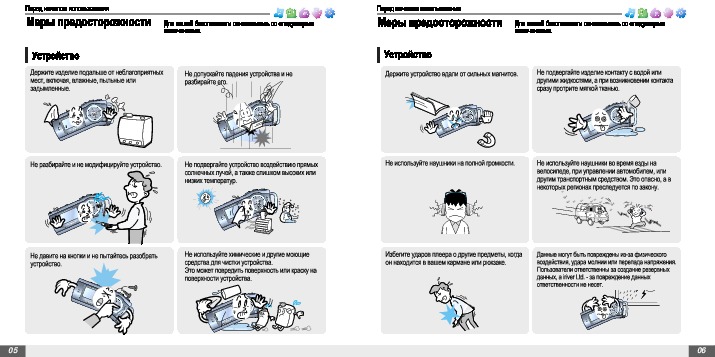
Before using the product Before using the product Safety Instructions For your safety, please read before use. Safety Instructions For your safety, please read before use. Product Product Do not drop or subject the device to impact. Keep the player away from strong magnets. Do not disassemble or - Страница 5 из 36
Getting started 1 Chapter www.iriver.com 07 Components ………………………………….. 09 Locating the controls ……………………….. 10 Product ……………………………………………………….. 10 LCD Screen display - Страница 6 из 36
Getting started Getting started Components Locating the controls Accessories subject to change without notice and may vary from image shown. BROWSER Earphone USB cable Your player may differ sightly from that shown in the illustrations. BROWSER Product Installation CD MUSIC 1 2 3 User Manual/ - Страница 7 из 36
Getting started Getting started Locating the controls Connection/Installation Connecting to the PC LCD Screen display 1. Connect the USB cable(provided) to the USB port on the player and to your PC. 1. MUSIC Mode Time Play Mode Hold Battery indicator Title name Playing time Total Playing time - Страница 8 из 36
Getting started Getting started Connection/Installation Connection/Installation Connecting the earphones 1. Connect the earphones jack to the earphone socket on the player. WMP 10 installation 1. The program installation process will start automatically after inserting the Installation CD to the - Страница 9 из 36
Quick start 2 Chapter www.iriver.com 15 Basic Usage ………………………………… 17 Turning on/off the player …………………………… 17 Playing a music file …………………………………… 17 Adjusting the volume ………………………………… 18 Selecting - Страница 10 из 36
Quick start Quick start Basic Usage Basic Usage Adjusting the volume Turning on/off the player 1 Turning on the player Press the / button to turn on the player. 1 Previous function mode will be displayed. Adjusting the volume During the music file playback, press button to adjust volume level. , : - Страница 11 из 36
* Only for models including FM Radio function 3 Chapter www.iriver.com 19 Basic operation MUSIC ………………………………………….. 21 Playing a music file ………………………………………. 21 Changing playback mode …………………………….. 23 A-B Repeat - Страница 12 из 36
Basic operation Basic operation MUSIC MUSIC Playing a music file 1 Release HOLD switch, then press turn on the player. / button to 4 Previous function mode will display. 5 2 Press and hold button to display the function mode screen. , button to select [MUSIC] mode, Press then press button to enter. - Страница 13 из 36
Basic operation Basic operation MUSIC MUSIC A-B Repeat Changing playback mode While playing a music file, press the button to display the playback mode select screen. 1 Press button while playing to select the beginning (A) point. 2 1 Press point. button again to select the end (B) Play a selected - Страница 14 из 36
Basic operation Basic operation MUSIC MUSIC Download Music & Playlists Get the latest version of Windows Media Player In order to copy music & playlists to your player, you must use Windows Media Player 10. The installation CD-ROM should include the proper version of Windows Media Player. Windows - Страница 15 из 36
Basic operation Basic operation MUSIC BROWSER/IMAGE VIEWER Deleting a file or folder on the player 1 While in stop mode, press the button to display music list screen. Select a file or folder to delete by using the , , button. , : to go the upper folder : to select a file BROWSER 1 Press and hold - Страница 16 из 36
Basic operation Basic operation BROWSER/IMAGE VIEWER BROWSER/IMAGE VIEWER IMAGE VIEWER 1 While BROWSER mode, select a image file by using the , , , button. Press the button to to view . , : to go the upper folder : to select a file : to execute image viewer 3. Locate your image files(BMP), usually - Страница 17 из 36
Basic operation Basic operation *FM RADIO * Only for models including FM Radio function Listening to FM radio 1 *FM RADIO * Only for models including FM Radio function Searching for a FM radio frequency — Manual Scan Press and hold button to display the function mode Screen. , button to select [FM - Страница 18 из 36
Basic operation Basic operation *FM RADIO * Only for models including FM Radio function Saving an FM Radio frequency — Manually 1 If PRESET is displayed, first press the PRESET mode. Press the station. 2 Press the : not used 1 If PRESET is displayed, first press the PRESET mode. button to exit - Страница 19 из 36
Basic operation Basic operation *FM RADIO RECORDING * Only for models including FM Radio function To record *FM station Deleting a channel 1 If PRESET is not displayed, first press the button to enter PRESET mode. Press the button to display Delete Channel screen. 2 Select the channel to delete by - Страница 20 из 36
Basic operation Basic operation RECORDING RECORDING Recording voice 1 Note for recording The recording will be stop if Press and hold the button to display function mode screen. , Select the [RECORDING] by using the button, then press button. — the amount of recorded data exceeds the capacity. — - Страница 21 из 36
Useful features 4 Chapter www.iriver.com 39 Menu configuration ………………………. 41 Menu operation …………………………… 42 Enter Settings Menu ………………………………….. 42 Enter Sub Menu ………………………………………… 42 Set the menu - Страница 22 из 36
Useful features Useful features Menu configuration Functions are subject to change with different firmware versions. Users can configure their own settings. SRS Setting User EQ Backlight Timer Screen Saver Scroll Speed Tag Info. Language Battery Select Name LCD Contrast Menu operation Enter - Страница 23 из 36
Useful features Useful features Menu operation Customizing the function settings (Menu) Set the menu functions 1 Press the , button to select sub menu. 2 Press the screen. 3 You can set, cancel or change sub menu by pressing the , , , , button . button to enter Sub Menu setting Sound 1. SRS Setting - Страница 24 из 36
Useful features Useful features Customizing the function settings (Menu) Customizing the function settings (Menu) Display 1. Backlight You can adjust the time that the Backlight stays on. The Backlight can be set to: <5 SEC>, <10 SEC>, <30 SEC>, <1 MIN>, <5 MIN>, <10 MIN> or <ALWAYS ON>. 2. Screen - Страница 25 из 36
Useful features Useful features Customizing the function settings (Menu) Customizing the function settings (Menu) Display 5. Language Select the language to display the file name and ID3 tag information. Display 7. Name You can input your name or custom text. 1 Select the character by using , - Страница 26 из 36
Useful features Useful features Customizing the function settings (Menu) Customizing the function settings (Menu) Display 8. LCD Contrast Adjust the LCD screen contrast. Recording 1. *FM Setting You can set recording quality (<HIGH>, <MIDDLE> or <LOW>) when recording FM. The LCD contrast can be - Страница 27 из 36
Useful features Useful features Customizing the function settings (Menu) Customizing the function settings (Menu) Recording 3. Voice Detect The voice recording mode will automatically pause during silence. This is useful for recording over a long period of time to save memory. Timer 1. Power Off - Страница 28 из 36
Useful features Useful features Customizing the function settings (Menu) Customizing the function settings (Menu) Timer 3. Date & Time Set the current date and time. 4. Alarm/*FM Rec. Timer 5. Set Alarm Set the alarm time. 6. *FM Rec. Reserve OFF : The Alarm and FM Record functions are disabled and - Страница 29 из 36
Useful features Useful features Customizing the function settings (Menu) Customizing the function settings (Menu) Advanced 1. Resume ON : Playback will resume from the previous location in a song when the player is stopped or powered off. OFF : Playback begins from the first track after the player - Страница 30 из 36
Useful features Useful features Customizing the function settings (Menu) Customizing the function settings (Menu) Advanced Advanced 5. Study Mode While playing, press and hold , the current track set time ahead. 7. Format button will skip Time range can be set from <OFF>, <3 SEC>, <10 SEC>, <20 - Страница 31 из 36
Customer Support 5 Chapter www.iriver.com 59 Firmware Upgrade …………………………. 61 Troubleshooting ……………………………… 62 Specification ………………………………….. 63 Safety Information ………………………….. 64 FCC Certification - Страница 32 из 36
Customer Support Customer Support Firmware Upgrade Troubleshooting Firmware Upgrade Trouble 1 2 3 Download the latest firmware upgrade file from www.iriver.com/support. 4 Solution No Power. Check whether the HOLD switch on the player is ON (Switch to OFF position) Check the condition of the - Страница 33 из 36
Customer Support Customer Support Specifications Safety Information For Safety Memory Capacity Model No. Category Audio **FM Tuner File Playback 256 MB* T10 256MB Item Frequency range Headphone Output S/N ratio FM Frequency range S/N ratio Antenna File Type Bit Rate Tag Info Max. Playtime Recording - Страница 34 из 36
FCC Certification THIS DEVICE COMPLIES WITH PART 15 OF THE FCC RULES. OPERATION IS SUBJECT TO THE FOLLOWING TWO CONDITIONS: (1) THIS DEVICE MAY NOT CAUSE HARMFUL INTERFERENCE, AND (2) THIS DEVICE MUST ACCEPT ANY INTERFERENCE, RECEIVED, INCLUDING INTERFERENCE THAT MAY CAUSE UNDESIRED OPERATION. Note - Страница 35 из 36
Memo Memo - Страница 36 из 36