
- Manuals
- Brands
- Makeblock Manuals
- Cutter
- laserbox
- User manual
-
Contents
Table of Contents -
Bookmarks
Quick Links
User Manual
Makeblock Co., Ltd.
Address: 4th Floor, Building C3, Nanshan iPark,
No.1001 Xueyuan Avenue, Nanshan District,
Shenzhen, Guangdong Province, China
www.makeblock.com
D1.1.2_KD010204000
D1.3.5_KD010098000
Related Manuals for Makeblock laserbox
Summary of Contents for Makeblock laserbox
-
Page 1
User Manual Makeblock Co., Ltd. Address: 4th Floor, Building C3, Nanshan iPark, No.1001 Xueyuan Avenue, Nanshan District, Shenzhen, Guangdong Province, China www.makeblock.com D1.1.2_KD010204000 D1.3.5_KD010098000… -
Page 2
(Shenzhen) will bear no responsibility for any loss resulting therefrom, except for losses due to improper installa- tion or operation by Makeblock professional maintenance personnel. Makeblock Co., Ltd. (Shenzhen) has collated the Manual rigorously and carefully, but we cannot guarantee that the Manual is completely free of error or omission. -
Page 3: Table Of Contents
Technical support: support@makeblock.com Note: The above information may be subject to change due to objective factors, and please refer to the latest release of Makeblock. If you use the internet or phone call to get our support, additional fees may apply.
-
Page 4
Please keep the inside of the Laserbox clean. Residues and chippings accumulated during cutting and Laser operation is prohibited when the lid/tray is li ed. Make sure that the Laserbox is closed by the lid/tray during operation and do not tamper with engraving are dangerous and may cause fire. -
Page 5
Never leave the Laserbox unattended during operation. There is a risk of fire if the Laserbox is started due to Power button of the Laserbox is at the rear of it. Pressing (-) to power it on and pressing “o” to power it o . -
Page 6: List Of Items
List of Items Meet Your Laserbox Laserbox Button Annular Indicator Power Button Power Interface USB Interface Ethernet Cable Interface Smoke Outlet Laserbox × 1 Smart Smoke Purifier × 1 Power Cord × 1 USB Cable × 1 Aviation Interface Push User Manual Aviation Connector ×…
-
Page 7
Smart Smoke Purifier Camera HEPA Composite Filter Laser Head Indicator Tray Aviation Interface Honeycomb Panel Smoke Inlet Laser Tube Smoke Outlet… -
Page 8: Quick Operation Guide
Connect the smart smoke purifier 1.Connect the purifier with the 2m-exhaust pipe and lay the pipe to the window. 2.Connect the Laserbox and purifier with the 1.5m-exhaust pipe. 3.Connect the Laserbox and purifier with the aviation connector. 4.Connect the power supply.
-
Page 9
The startup following website. process takes a while, and please https://www.makeblock.com/maker-tools/laserbox be patient. There are three ways to connect a computer to the Laserbox. Choose the best according to your situation. Ethernet Wi-Fi… -
Page 10
Finish Cancel Next Connect with the USB cable 1. Connect a computer to the Laserbox with the USB cable. 2. Open the so ware, select “Connect to a 3. Select “USB” and click “Next” to start the 4. Successful connection. -
Page 11
Connect with an Ethernet cable (not included in the package) 2. Open the so ware, select “Connect to a 3. Select “Ethernet” and click “Next” to start 1. Connect your computer to the Laserbox with an Ethernet cable. 4. Successful connection. new Laserbox” and click “Next”. -
Page 12
Next Back Next Wi-Fi wireless connection 1. Connect a computer to the Laserbox with the USB cable. 2. Open the so ware, select “Connect to a 3. Select “Wi-Fi” and click “Next”. 4. Connect to the existing Wi-Fi network. new Laserbox” and click “Next”. -
Page 13
Place the o icial materials in the Laserbox working area. Start cutting / engraving Note: Cutting/Engraving Material Requirements can be found in the appendix. -
Page 14
Open the Laserbox Click «Send» to send the image to the Laserbox. A er the transmis- so ware and select the sion is completed, the Laserbox sample image. You can also would be ready, and the annular import or draw images yourself. -
Page 15
5 seconds. the button on the Laserbox to Method 2: Method 3: continue with the task. Note: A er starting cutting/engraving, you can also cancel the task by clicking “Pause -> Cancel” in the Laserbox so ware interface. -
Page 16: More Features
1. Draw an image, preferably with a Deli S550 oil-based marker. 2. Place the material and close the lid. 3. Press the button on the Laserbox to start the task. Note: For optimal cutting / engraving e ect, it is recommended to use the Deli S550 oil-based marker, draw the image as far as possible from the ring code and the edge of the material, and place the material in the center of the honeycomb panel.
-
Page 17: Image Extraction
Image extraction 2. Start the Laserbox and select “Marquee” to put the image you want to extract in a selection box. The Laserbox has a built-in camera that extracts the surface image for further creation. 1. Place the object for image extraction.
-
Page 18: Appendix 1: Cutting/Engraving Material Requirements
Solid purple The Laserbox firmware is being upgraded. Note: The use of poor quality materials may result in poor cutting/engraving. It is recommended to use Makeblock o icial materials. The use of the materials not recommended above may damage the device, and the resulting damages are not covered by…
-
Page 19: Product Warranty Information
②Warranty service mode is specified by Makeblock or an appropriately certified technical testing personnel based upon the technician’s judgement of the problem. On-site service is only provided for hardware failures. So ware failures will not be eligible for on-site service.
-
Page 20
(such as casing, components, and circuits etc.) due to insect, rat bites, or any foreign materials; Failure or damage due to installation, repair, alteration, addition or removal by any agency or personnel not authorized by Makeblock;…
Makeblock LaserBox Pro умный настольный лазерный резак/гравировщик
Специально разработанный для обучения и творчества, Laserbox переосмысливает и переопределяет рабочие характеристики лазера, используя сверхширокоугольную камеру высокого разрешения вместе с визуальным алгоритмом AI. Машина может автоматически идентифицировать любой официальный материал и затем соответствующим образом настроить параметры гравировки. Laserbox — это революционный лазерный станок, определяющий операции с помощью ручного рисования. Makeblock Laserbox делает работу лазера простым и увлекательным!
Простота использования
С помощью Makeblock Laserbox вы можете воплотить творение в жизнь всего за 3 шага. Благодаря визуальному алгоритму искусственного интеллекта Laserbox может следовать схеме, нарисованной на куске материала, и автоматически программировать лазерный путь, и никакого программного обеспечения для работы не требуется! Просто вырезать или гравировать одним нажатием кнопки!
Makeblock Laserbox может обрабатывать десятки различных материалов, включая бумагу, гофрированную бумагу, дерево, акрил, ткань, пластик, кожу, ПЭТФ, резину, стекловолокно, ABS пластик, кориан и т.д.
Курсы и учебный план
Помимо расходных материалов, каждый Makeblock Laserbox включает в себя 15 структурированных классов и галерею проектов. В рамках хорошо продуманной учебной программы студенты узнают об основах лазерных технологий и достигнут базовый уровень владения промышленным дизайном. Учебный план состоит из 3 частей: базовые знания, структурное обучение и проектное обучение. Будь то для личного творчества или проектов в классе, эти материалы служат источником вдохновения, которое может быть адаптировано к потребностям учащегося.
Предназначен для класса
Благодаря компактным размерам Makeblock Laserbox его можно легко разместить в классе или дома, не занимая много места. Makeblock Laserbox и интеллектуальный очиститель дыма могут быть соединены только одним кабелем и одной трубой. Как только питание включено, оно готово к использованию, никаких более сложных настроек!
5-мегапиксельная ультра-широкоугольная камера
Makeblock Laserbox имеет расширенную функцию распознавания изображения. В Laserbox есть встроенная 5-мегапиксельная ультра-широкоугольная камера, показывает предварительный просмотр вашего дизайна на материале. Просто загрузите свой дизайн, используя наше программное обеспечение, и разместите его именно там, где вы хотите, с помощью мыши или сенсорной панели.
Извлечение изображения
Makeblock Laserbox может извлечь изображение на любой поверхности объекта для дальнейшего создания. Просто используйте Marquee Tool, чтобы выбрать понравившееся изображение, а затем используйте его для создания собственного дизайна.
Программное обеспечение
Программное обеспечение Makeblock Laserbox может спланировать оптимальный путь резки и гравировки для каждого проекта. Перед резкой Laserbox позволяет вам предварительно просмотреть, какие пути были нанесены.
С поддержкой программного обеспечения и материалов вы можете получить больше удовольствия, создавая с помощью Makeblock Laserbox. Мощное и удобное программное обеспечение (доступно только для ПК), разработанное Makeblock, позволит вам вставлять файлы JPG, PNG, BMP, TIF, DXF, SVG, CR2 или дизайн с помощью инструментов, поставляемых с Makeblock Laserbox.
Минимальная конфигурация
Операционная система: 64-битная Windows 7 / macOS Mojave10.13
Процессор: Core i3 / AMD A6 2,4 ГГц
Память: 4 ГБ ОЗУ
Место для хранения: 5 ГБ свободного места
Проверьте прогресс в режиме реального времени
Он может спланировать оптимальный путь резки и гравировки для каждого проекта. Перед резкой Makeblock Laserbox позволяет вам предварительно просмотреть, какие пути он наметил. Он также показывает статус вашего проекта в режиме реального времени, а также оставшееся время текущей работы.
Индивидуальные настройки экономят время для творчества
Попрощайтесь со сложными процедурами фокусировки, не нужно настраивать лазерную головку вручную. Makeblock Laserbox имеет три простых режима автофокусировки для достижения оптимальной фокусировки. Вы также можете использовать программное обеспечение Laserbox для настройки библиотеки параметров для часто используемых материалов. В следующий раз, когда вы будете использовать тот же материал, вы можете автоматически выбрать подходящие параметры для резки или гравировки.
Makeblock Laserbox Работа останавливается всякий раз, когда вы открываете крышку.
Безопасный и экологичный, подходит даже для детей
Функция автоматической паузы
Makeblock Laserbox перестает работать, когда вы открываете крышку, что совершенно безопасно для использования даже детьми. Когда вы закроете крышку, возобновите проект, нажав кнопку.
Умный очиститель дыма, нулевые выбросы
Makeblock Laserbox, оснащенный очистителем дыма, абсолютно безопасен для классных комнат и даже для вашего дома. Умный очиститель дыма автоматически открывается и регулирует вентиляцию в соответствии с рабочим состоянием Laserbox, что обеспечивает экологически чистую вентиляцию. Фильтр для очистителя дыма можно легко заменить.
Система раннего оповещения
Makeblock Laserbox контролируется в режиме реального времени с помощью набора высокопроизводительных датчиков и имеет несколько уведомлений о безопасности, которые немедленно предупреждают вас о таких проблемах, как перегрев и ошибки системы водяного охлаждения.
Сертификация безопасности
Makeblock Laserbox имеет сертификаты CE, FCC и FDA. Лазер был классифицирован, как лазер класса 1 FDA, который не представляет опасности.
инструкцияMakeblock Laserbox Pro

D1.3.5_KD010098000
Makeblock Co., Ltd.
Address: 4th Floor, Building C3, Nanshan iPark,
No.1001 Xueyuan Avenue, Nanshan District,
Shenzhen, Guangdong Province, China
www.makeblock.com
D1.1.2_KD010218000
User Manual
Посмотреть инструкция для Makeblock Laserbox Pro бесплатно. Руководство относится к категории резальные машины, 1 человек(а) дали ему среднюю оценку 9.3. Руководство доступно на следующих языках: английский. У вас есть вопрос о Makeblock Laserbox Pro или вам нужна помощь? Задайте свой вопрос здесь
Свойства
| Тип продукта | Электронный |
| Bluetooth | Нет |
| Беспроводное подключение | Да |
| USB порт | Да |
| Поддерживаемые форматы изображения | BMP, DXF, JPG, PNG, SVG |
| Максимальная ширина резания | — mm |
| Подходит для материалов | Cardstock, Paper, Rubber |
Энергопитание
| Мощность | 40 W |
| Входящее напряжение сети | 220 V |
| Частота входящего переменного тока | 60 Hz |
Экран
Системные требования
| Поддерживаемые операционные системы Windows | Да |
| Совместимость с Mac | Да |
| Поддерживаемые операционные системы Mac | Да |
Содержимое упаковки
| Поставляемые кабели | USB |
| Инструкция | Да |
Вес и размеры
| Ширина | 958 mm |
| Глубина | 528 mm |
| Высота | 268 mm |
показать больше
Не можете найти ответ на свой вопрос в руководстве? Вы можете найти ответ на свой вопрос ниже, в разделе часто задаваемых вопросов о Makeblock Laserbox Pro.
Какая высота Makeblock Laserbox Pro?
Какая ширина Makeblock Laserbox Pro?
Какая толщина Makeblock Laserbox Pro?
Инструкция Makeblock Laserbox Pro доступно в русский?
Не нашли свой вопрос? Задайте свой вопрос здесь
Last Updated OnMay 2, 2022
List of items
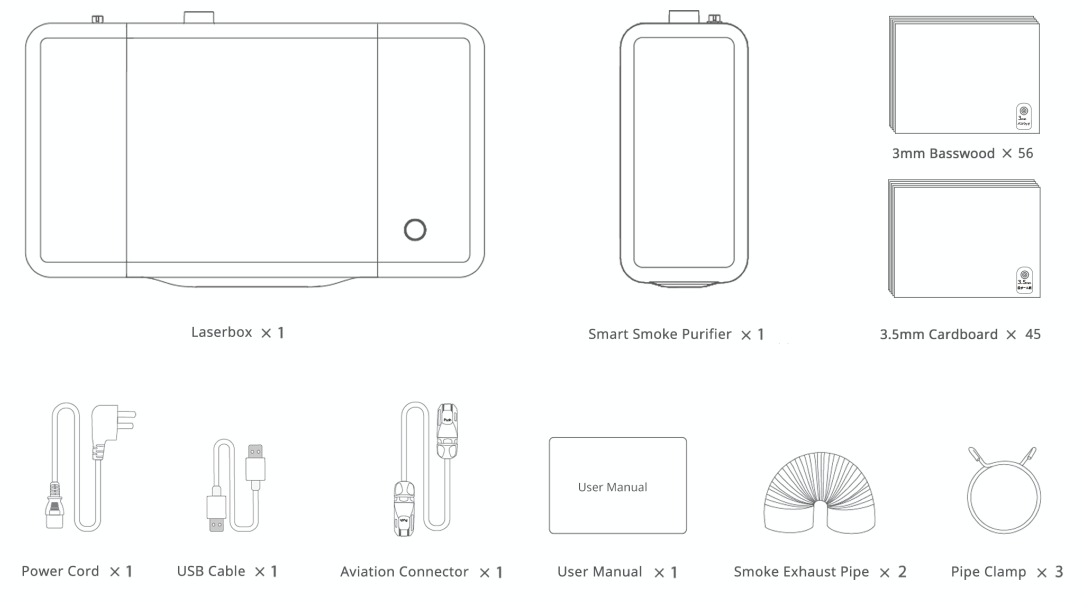
Meet your Laserbox
Laserbox
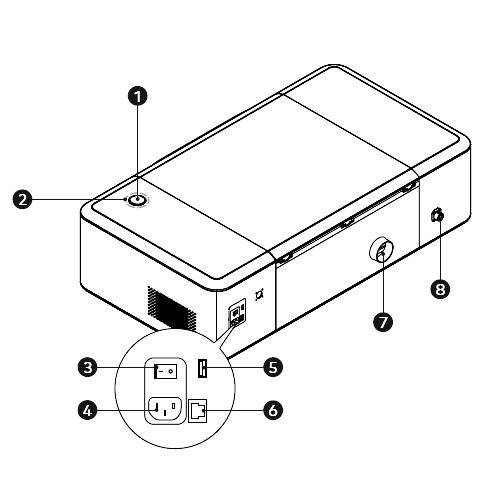
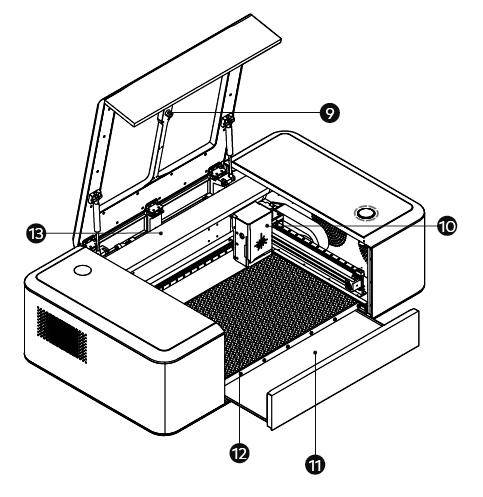
| 1 | Button | 2 | Annular indicator | 3 | Power button | 4 | Power interface | 5 | USB interface |
| 6 | Ethernet cable interface | 7 | Smoke outlet | 8 | Aviation interface | 9 | Camera | 10 | Laser head |
| 11 | Tray | 12 | Honeycomb panel | 13 | Laser tube |
Smart smoke purifier
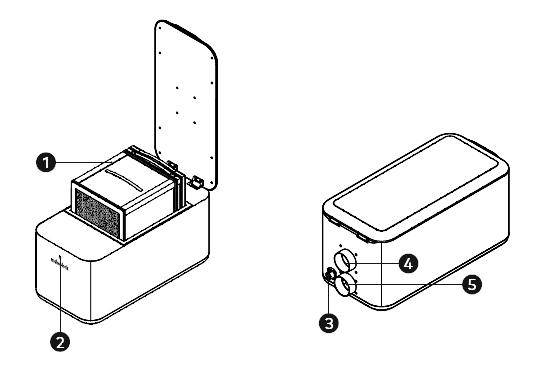
| 1 | Filter | 2 | Indicator | 3 | Aviation interface | 4 | Smoke inlet | 5 | Smoke outlet |
Annular indicator status
| Indicator status | Description |
| Flashing white | The system gets started. |
| Solid white | Waiting to connect |
| Flashing blue | It is ready and the image has been sent successfully |
| Solid blue | It is in the standby mode and the Laserbox has been connected to the computer |
| Six indicators light up gradually | It is in the working status, and the number of indicators that are ON indicates the current progress |
| Solid green | Complete |
| Green breathing indicator | Sleep mode. It goses into the sleep mode from the standby mode after 10 minutes idle. |
| Solid red | Abnormal |
| Solid purple | The Laserbox firmware is being upgraded |
Download and install software
Download Laserbox
Laserbox is the laser engraving software designed by Makeblock.
The software features many capabilities that let you make the most out of Laserbox. It also provides essential design tools that you can depend on to create different shapes and add filters to your design. Download Laserbox at: https://www.makeblock.com/maker-tools/laserbox-2#Software
Install Laserbox
1.Run installer
Run the Laserbox installer you just downloaded.
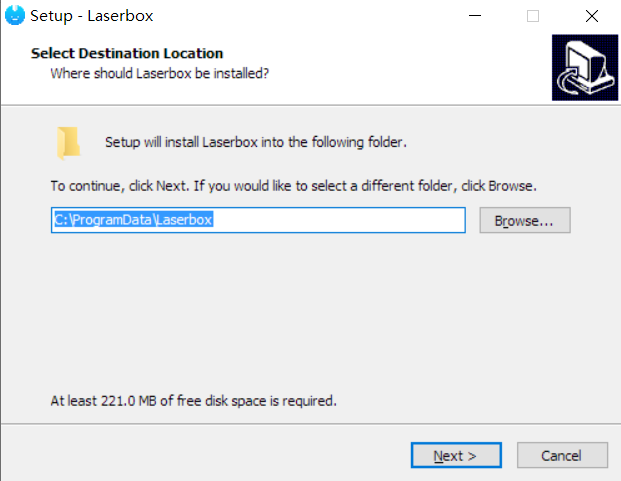
2.Choose destination location
Choose the folder into which you’re going to install Laserbox. Click Next to continue.
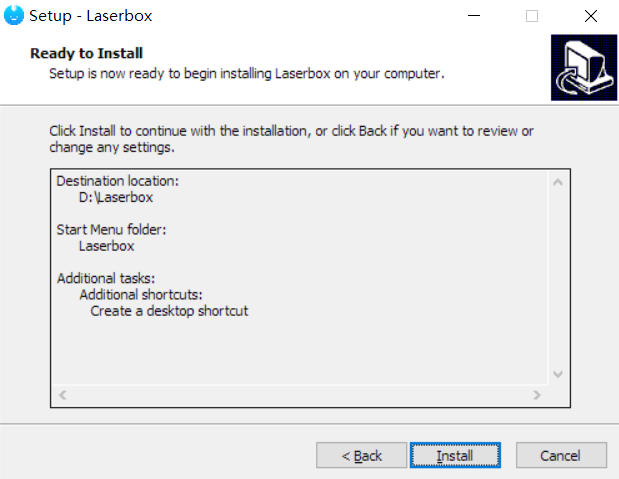
3.Select additional tasks
Follow the on-screen prompts to select any of the additional tasks you want to perform, including adding a folder to the Start menu or creating a desktop shortcut. Click Install to start the installation.
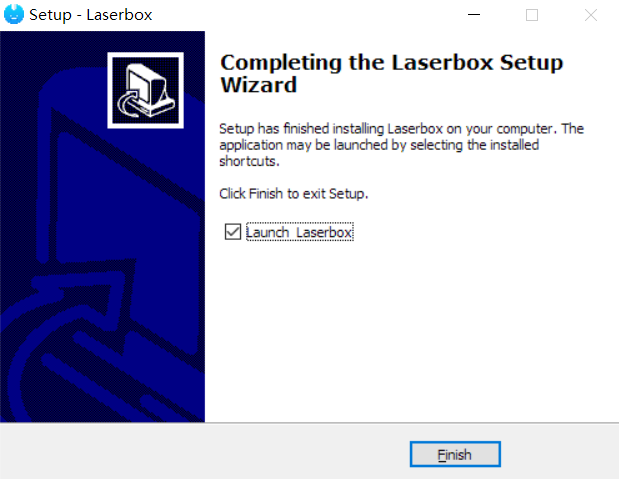
4.Finish
After the installation is complete, click Finish to exit the installer.
Connect devices
Connect the smart smoke purifier to Laserbox.
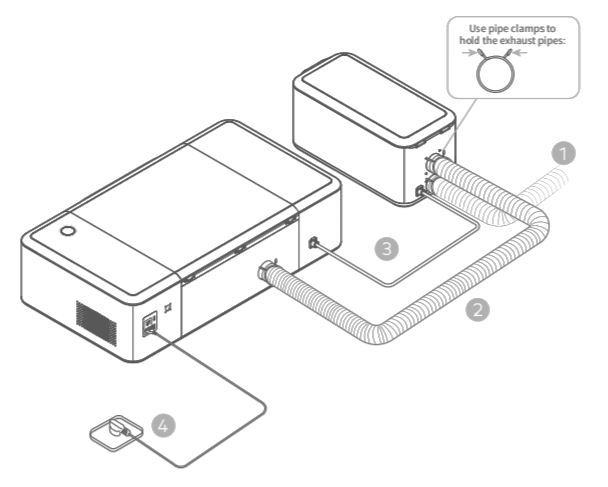
- Plug the 2m exhaust pipe into the purifier and lead the pipe to the window.
- Connect Laserbox and the purifier with the 1.5m exhaust pipe.
- Connect Laserbox and the purifier with the aviation connector.
- Connect to a power supply.
Start Laserbox for the first time
The laser head automatically resets and calibrates after you press the power button. When the first startup is complete, the annular indicator will turn solid white. The startup process takes a while, so please be patient.
Connect laserbox to a computer
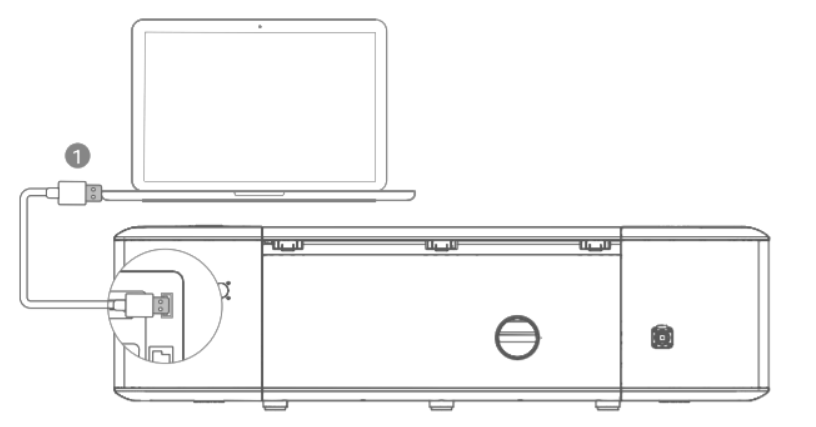
Connect via a USB cable
- Use a USB cable to connect Laserbox to your computer.
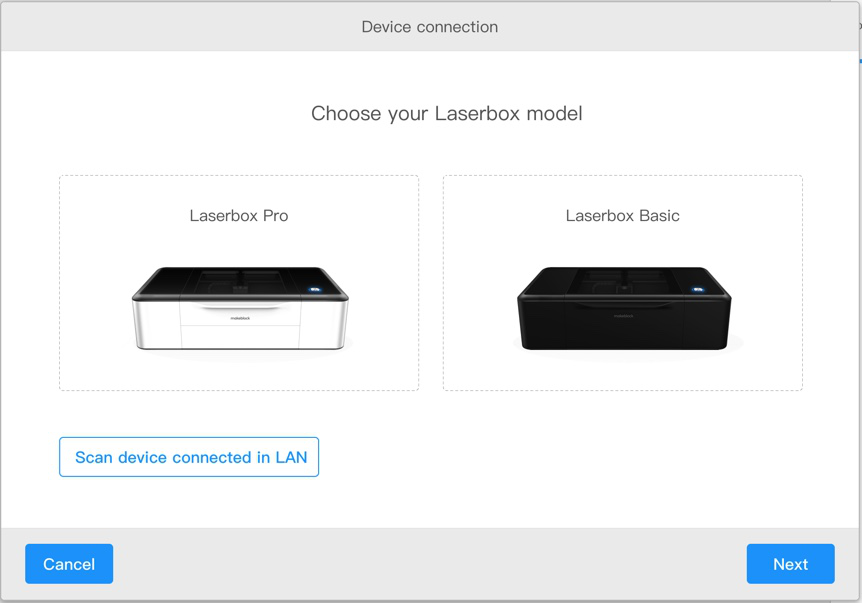
- Open the software Laserbox, choose your Laserbox model, then click Next.
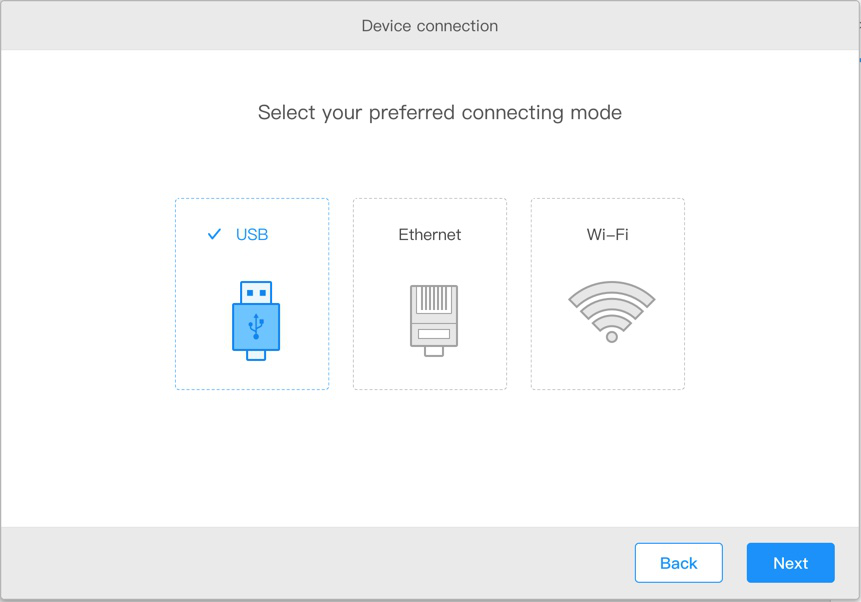
- Select USB, then click Next to connect Laserbox to the computer.
- Connected successfully.
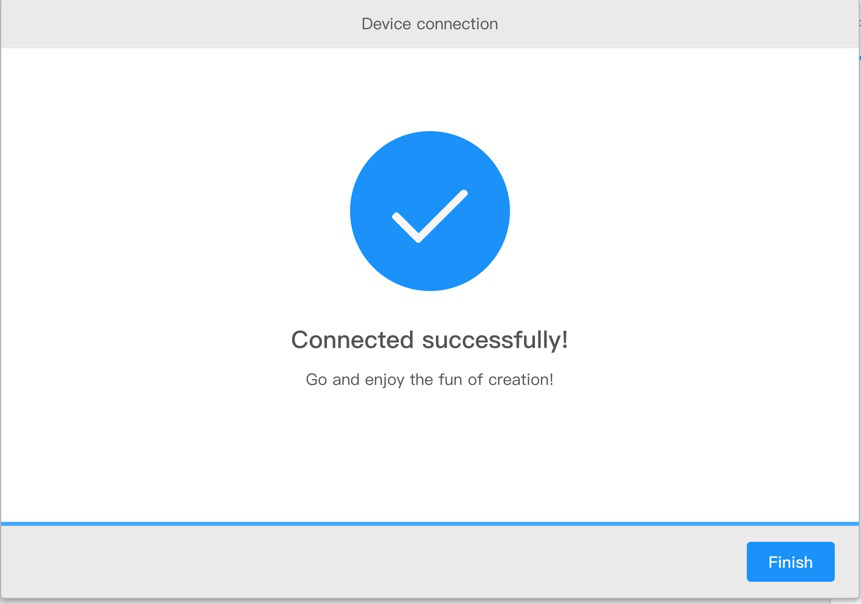
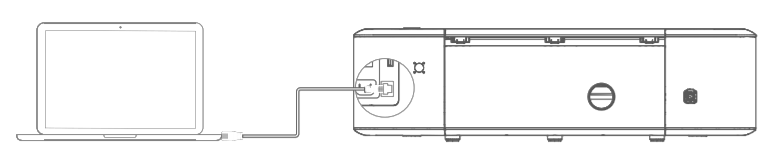
Connect via an Ethernet cable (not included in the package)
- Use an Ethernet cable to connect Laserbox to your computer.
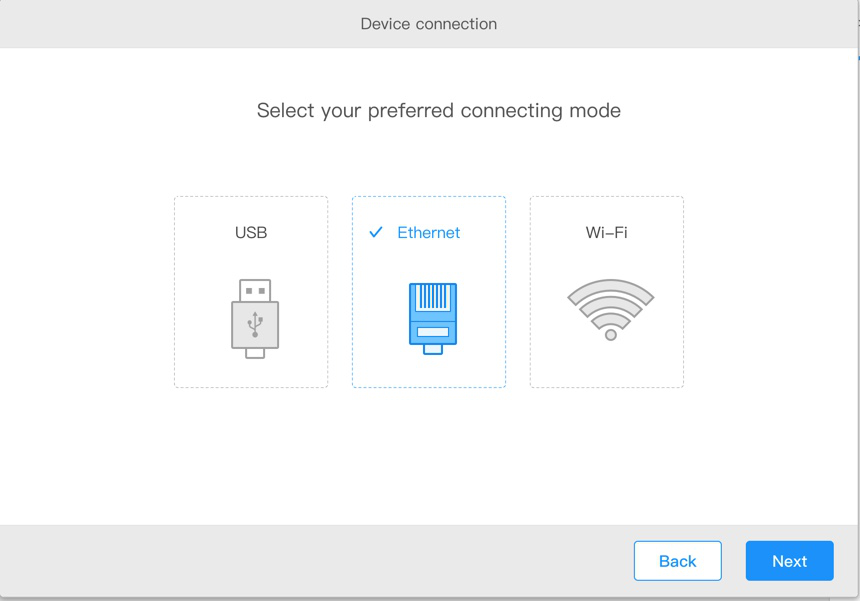
- Open the software Laserbox, select choose your Laserbox model, then click Next.
- Select Ethernet, then click Next to connect Laserbox to the computer.
- Connected successfully.
Connect via Wi-Fi.
- Use a USB cable to connect Laserbox to your computer.
- Open the software Laserbox, choose your Laserbox model, then click Next.
- Select Wi-Fi, then click Next to connect Laserbox to the computer.
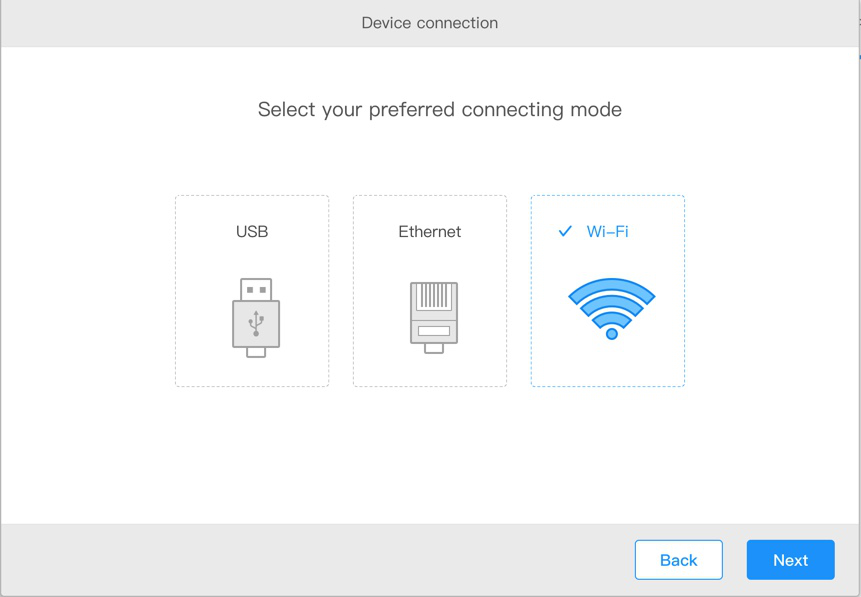
- Connect to an available Wi-Fi network.
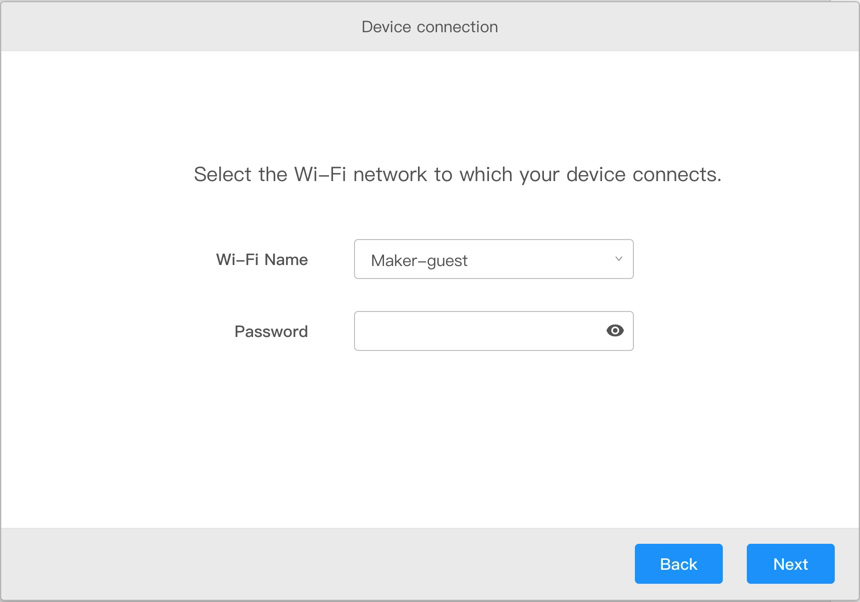
- Remove the USB cable when successfully connected to a Wi-Fi network. When the computer and the laser cutter are on the same Wi-Fi network, you can wirelessly control the laser cutter using the software Laserbox.
Connect to a networked Laserbox.
- Ensure your computer and the laser cutter are on the same Wi-Fi network.
- Open the software Laserbox, select Scan device connected in LAN.
- Select the device you’d like to connect from the list. Click Next.
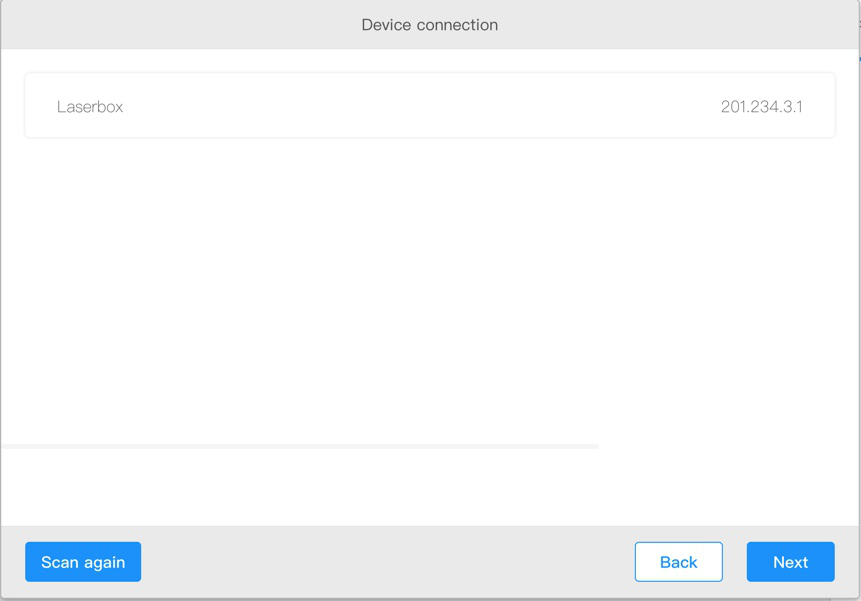
- Connected successfully.
Смотреть руководство для Makeblock Laserbox Pro ниже. Все руководства на ManualsCat.com могут просматриваться абсолютно бесплатно. Нажав кнопку «Выбор языка» вы можете изменить язык руководства, которое хотите просмотреть.

MANUALSCAT | RU
Вопросы и ответы
У вас есть вопрос о Makeblock Laserbox Pro, но вы не можете найти ответ в пользовательском руководстве? Возможно, пользователи ManualsCat.com смогут помочь вам и ответят на ваш вопрос. Заполните форму ниже — и ваш вопрос будет отображаться под руководством для Makeblock Laserbox Pro. Пожалуйста, убедитесь, что вы опишите свои трудности с Makeblock Laserbox Pro как можно более детально. Чем более детальным является ваш вопрос, тем более высоки шансы, что другой пользователь быстро ответит на него. Вам будет автоматически отправлено электронное письмо, чтобы проинформировать вас, когда кто-то из пользователей ответит на ваш вопрос.
Задать вопрос о Makeblock Laserbox Pro
- Бренд:
- Makeblock
- Продукт:
- резальные машины
- Модель/название:
- Laserbox Pro
- Тип файла:
- Доступные языки:
- английский