
Цикл Do While… Loop в VBA Excel, его синтаксис и описание отдельных компонентов. Примеры использования цикла Do While… Loop.
Цикл Do While… Loop в VBA Excel предназначен для повторения блока операторов пока выполняется заданное условие (возвращается значение True). Синтаксис этого цикла аналогичен синтаксису цикла Do Until… Loop, который повторяется до тех пор, пока условие не выполняется (возвращается значение False).
Синтаксис цикла Do While… Loop существует в двух вариантах, определяющих, когда проверяется условие.
Условие проверяется до выполнения операторов:
|
Do While condition [ statements ] [ Exit Do ] [ statements ] Loop |
Условие проверяется после выполнения операторов:
|
Do [ statements ] [ Exit Do ] [ statements ] Loop While condition |
В квадратных скобках указаны необязательные атрибуты цикла Do While… Loop.
Компоненты цикла Do While… Loop
| Компонент | Описание |
|---|---|
| condition | Обязательный атрибут. Условие выполнения цикла. Выражение, возвращающее значение типа Boolean. |
| statements | Необязательный* атрибут. Операторы вашего кода. |
| Exit Do | Необязательный атрибут. Оператор выхода** из цикла до его окончания. |
*Если не использовать в цикле свой код, смысл применения цикла теряется.
**Очень полезный оператор для цикла Do While… Loop, так как при некоторых обстоятельствах он может стать бесконечным. Если такой риск существует, следует предусмотреть возможность выхода из бесконечного цикла VBA с помощью оператора Exit Do.
Примеры циклов Do While… Loop
Простейшие циклы
Цикл Do While… Loop с условием до исполняемых операторов:
|
Sub test1() Dim a As Byte Do While a < 10 a = a + 1 Loop MsgBox a End Sub |
Цикл Do While… Loop с условием после исполняемых операторов:
|
Sub test2() Dim a As Byte Do a = a + 1 Loop While a < 10 MsgBox a End Sub |
В обоих случаях окно MsgBox выведет число 10. Когда значение переменной a будет равно 10, проверяемое условие выдаст значение False, и цикл будет остановлен.
Проход по строкам листа
У двух белок дупла расположены напротив друг друга. В каждом дупле по 100 шишек. В свободное время они бросают шишки в дупло напротив, попадают не всегда. Ниже, в таблице, указано количество шишек, брошенных каждой белкой, и сколько их попало в цель.
| Дни | Игрок | Брошено | Попало в цель |
|---|---|---|---|
| 1 день | Белка 1 | 15 | 6 |
| 1 день | Белка 2 | 12 | 7 |
| 2 день | Белка 1 | 14 | 8 |
| 2 день | Белка 2 | 16 | 7 |
| 3 день | Белка 1 | 20 | 9 |
| 3 день | Белка 2 | 14 | 6 |
| 4 день | Белка 1 | 26 | 10 |
| 4 день | Белка 2 | 13 | 5 |
| 5 день | Белка 1 | 17 | 4 |
| 5 день | Белка 2 | 21 | 7 |
Исходя из этих данных необходимо узнать, сколько шишек осталось у Белки 1 в дупле. Для этого необходимо вычесть из 100 шишек количество выброшенных Белкой 1 и прибавить шишки, заброшенные в ее дупло Белкой 2. Вычисления начинаем со второй строки (в первой заголовки) и в условии для цикла Do While… Loop указываем «первая ячейка текущей строки не является пустой». Таблица должна начинаться с первой ячейки рабочего листа «A1», и под ней, как минимум, одна строка должна быть пустой, точнее, первая ячейка этой строки.
|
Sub test3() Dim i As Long, n As Long i = 2 n = 100 Do While Cells(i, 1) <> «» If Cells(i, 2) = «Белка 1» Then n = n — Cells(i, 3) Else n = n + Cells(i, 4) End If i = i + 1 Loop MsgBox n End Sub |
Результат, выведенный в информационном сообщении MsgBox, будет равен 40. Вы можете скопировать таблицу на рабочий лист книги Excel и поэкспериментировать с кодом VBA.
Бесконечный цикл и Exit Do
Пример бесконечного цикла:
|
Sub test4() Dim a As Byte Do While a < 10 a = a + 1 If a = 9 Then a = 0 End If Loop End Sub |
При запуске этой процедуры цикл Do While… Loop начинает выполняться бесконечно. Мне приходилось останавливать бесконечные циклы VBA в Excel 2000 и Excel 2016. В Excel 2000 помогло сочетание клавиш Ctrl+Break, а в Excel 2016 при закрытии редактора VBA крестиком появляется окно:

Информационное окно «Microsoft Excel не отвечает»
Ожидать отклика программы нет смысла, поэтому нажимаем «Перезапустить программу» или «Закрыть программу».
Совет: перед запуском процедуры с циклом Do While… Loop, который может стать бесконечным, обязательно сохраните книгу, иначе, при принудительном закрытии редактора VBA ваши изменения будут утеряны. Кроме того, при принудительном закрытии редактора VBA, Excel может отключить макросы. Включите их в окне «Центр управления безопасностью», открыть которое можно по ссылке «Безопасность макросов» на ленте в разделе «Разработчик». Подробнее о включении макросов в разных версиях Excel читайте в статье: Как разрешить выполнение макросов в Excel?.
Пример использования оператора Exit Do:
|
Sub test5() Dim a As Byte, n As Long Do While a < 10 a = a + 1 n = n + 1 If a = 9 Then a = 0 End If If n = 1000 Then Exit Do End If Loop MsgBox n End Sub |
Когда число итераций цикла дойдет до 1000, он будет завершен, и информационное сообщение MsgBox выведет на экран число повторений цикла Do While… Loop из этого примера.
Improve Article
Save Article
Like Article
Improve Article
Save Article
Like Article
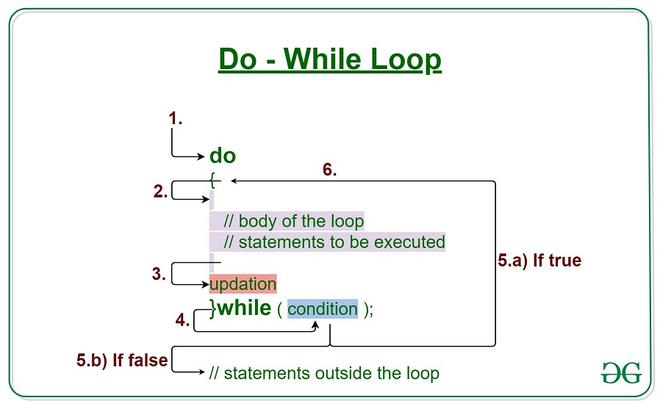
A Do…While loop is used when we want to repeat certain set of statements as long as the condition is true. The condition may be checked at the starting or at the end of the loop
Flowchart:
Uses of Do-While loop:
The Do While loop is used in two ways:
- Do…while loop which checks the condition at the STARTING of the loop.
- Do…while loop which checks the condition at the END of the loop.
Syntax 1:
Do While condition
  [statements]
  [Exit Do]
  [statements]
Loop
Syntax 2:
Do While
 [statements]
[Exit Do]
[statements]
Loop  condition
Implementing a Do While loop:
Follow the below steps to implement a Do-While loop:
Step 1: Define a Macro
Private Sub Demo_Loop()
End Sub
Step 2: Define variables
j=2
i=1
Step 3: Write Do While Loop. You can write condition at the beginning or at the end
Do While i < 5
Step 4: Write statements to be executed in loop
msgbox "Table of 2 is : " & (j*i)
     i=i+1
Step 5: End loop.
Now let’s take a look at some of the examples.
Example 1: Do…while loop which checks the condition at the STARTING of the loop. The below example uses Do…while loop to check the condition at the starting of the loop. The statements inside the loop are executed, only if the condition is True. We will print Table of 2 using Do…while loop;
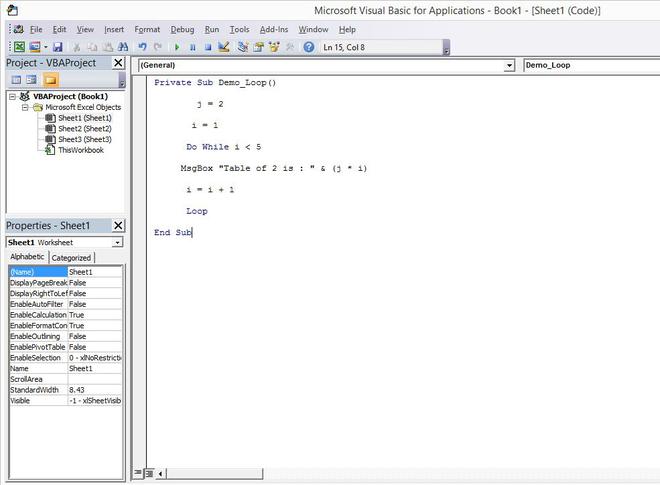
Private Sub Demo_Loop()
        j=2
       i=1
      Do While i < 5
     msgbox "Table of 2 is : " & (j*i)
      i=i+1
      Loop
End Sub
Output:
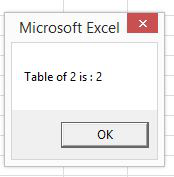
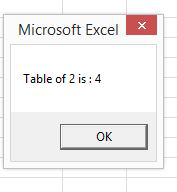
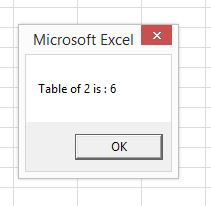
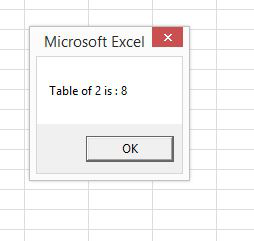
Example 2: Do…while loop which checks the condition at the END of the loop. The below example checks the condition at the end of the loop. The major difference between these two syntax is explained in the following example.
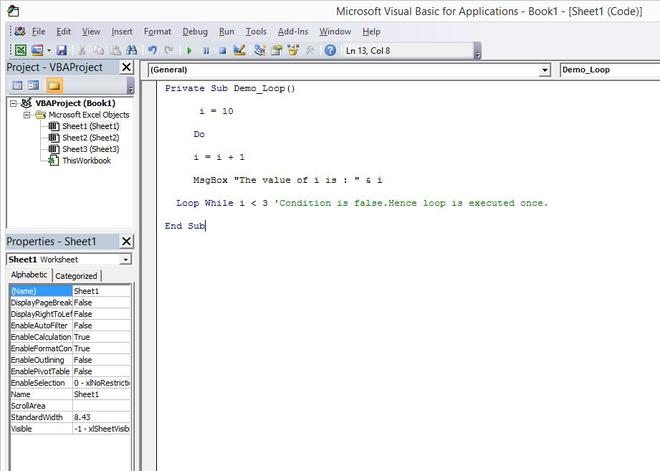
Private Sub Demo_Loop()
      i = 10
     Do
     i = i + 1
     MsgBox "The value of i is : " & i
  Loop While i < 3 'Condition is false.Hence loop is executed once.
End Sub
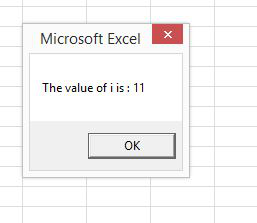
When the above code is executed, it prints the following output in a message box.
Output:
Last Updated :
30 Jul, 2021
Like Article
Save Article
На чтение 13 мин. Просмотров 28.8k.

Uses of Do-While loop:
The Do While loop is used in two ways:
- Do…while loop which checks the condition at the STARTING of the loop.
- Do…while loop which checks the condition at the END of the loop.
Syntax 1:
Do While condition
  [statements]
  [Exit Do]
  [statements]
Loop
Syntax 2:
Do While
 [statements]
[Exit Do]
[statements]
Loop  condition
Implementing a Do While loop:
Follow the below steps to implement a Do-While loop:
Step 1: Define a Macro
Private Sub Demo_Loop()
End Sub
Step 2: Define variables
j=2
i=1
Step 3: Write Do While Loop. You can write condition at the beginning or at the end
Do While i < 5
Step 4: Write statements to be executed in loop
msgbox "Table of 2 is : " & (j*i)
     i=i+1
Step 5: End loop.
Now let’s take a look at some of the examples.
Example 1: Do…while loop which checks the condition at the STARTING of the loop. The below example uses Do…while loop to check the condition at the starting of the loop. The statements inside the loop are executed, only if the condition is True. We will print Table of 2 using Do…while loop;
Private Sub Demo_Loop()
        j=2
       i=1
      Do While i < 5
     msgbox "Table of 2 is : " & (j*i)
      i=i+1
      Loop
End Sub
Output:
Example 2: Do…while loop which checks the condition at the END of the loop. The below example checks the condition at the end of the loop. The major difference between these two syntax is explained in the following example.
Private Sub Demo_Loop()
      i = 10
     Do
     i = i + 1
     MsgBox "The value of i is : " & i
  Loop While i < 3 'Condition is false.Hence loop is executed once.
End Sub
When the above code is executed, it prints the following output in a message box.
Output:
Last Updated :
30 Jul, 2021
Like Article
Save Article
На чтение 13 мин. Просмотров 28.8k.
Рамакришна, Источники индийской мудрости
Сейчас … мы идем по кругу
Эта статья содержит полное руководство по VBA Do While и VBA While Loops. (Если вы ищете информацию о циклах VBA For и For Each, перейдите сюда)
Цикл VBA While существует, чтобы сделать его совместимым со старым кодом. Однако Microsoft рекомендует использовать цикл Do Loop, поскольку он более «структурирован и гибок». Оба этих цикла рассматриваются в этом посте.
Для быстрого ознакомления с этими циклами перейдите к таблице быстрого руководства ниже.
Если вы ищете что-то конкретное, вы можете посмотреть содержание ниже.
Содержание
- Краткое руководство по VBA While Loops
- Введение
- Цикл For против цикла Do While
- Условия
- Формат цикла Do
- Цикл Exit Do
- While Wend
- Бесконечный цикл
- Использование функций Worksheet вместо циклов
- Резюме
Краткое руководство по VBA While Loops
| Формат цикла | Описание | Пример |
| Do While … Loop | Запускается 0 или более раз, пока условие выполняется | Do While result = «Верно» Loop |
| Do … Loop While | Запускается 1 или более раз, пока условие выполняется | Do Loop While result = «Верно» |
| Do Until … Loop | Запускается 0 или более раз, пока условие не будет выполнено | Do Until result <> «Верно» Loop |
| Do … Until Loop | Запускается 1 или более раз, пока условие не будет выполнено | Do Loop Until result <> «Верно» |
| While … Wend R |
Запускается 0 или более раз, пока условие истинно. Примечание: этот цикл считается устаревшим. |
While result = «Верно» Wend |
| Exit the Do Loop | Завершает Do | Do While i < 10 i = GetTotal If i < 0 Then Exit Do End If Loop |
Введение
Если вы никогда ранее не использовали циклы, тогда вы можете прочитать «Что такое циклы и зачем они вам нужны» из моего поста в журнале For Loop.
Я собираюсь сосредоточиться в основном на Do Loop в этой статье. Как я упоминал выше, мы видели, что цикл While Wend считается устаревшим. Для полноты информации я все равно его включил в эту статью.
Итак, во-первых, зачем нам нужны циклы Do While, когда у нас уже есть циклы For?
Цикл For против цикла Do While
Когда мы используем цикл For Loop, мы заранее знаем, сколько раз мы хотим его запустить. Например, мы можем захотеть запустить цикл один раз для каждого элемента в коллекции, массиве или словаре.
В следующем примере кода мы видим в начале каждого цикла, сколько раз он будет выполняться.
' запускается 5 раз
For i = 1 To 5

' запускается один раз для каждого элемента коллекции
For i = 1 To coll.Count

' запускается один раз для каждого элемента в arr
For i = LBound(arr) To coll.lbound(arr)

' запускается один раз для каждого значения от 1 до значения в lastRow
For i = 1 To lastRow

' запускается один раз для каждого элемента в коллекции
For Each s In coll
Цикл Do другой. Он работает:
- В то время как условие верно
- Пока условие не будет выполнено
Другими словами, количество циклов в большинстве случаев не имеет значения.
Итак, что такое условие и как мы их используем?
Условия
Условие — это утверждение, которое оценивается как истинное или ложное. Они в основном используются с операторами Loops и If. При создании условия вы используете такие знаки, как >, <, <>,> =, =.
Ниже приведены примеры условий
| Условие | Истина, когда… |
| x < 5 | x меньше 5 |
| x <= 5 | x меньше либо равен 5 |
| x > 5 | x больше 5 |
| x >= 5 | x больше либо равен 5 |
| x = 5 | x равен 5 |
| x <> 5 | x не равен 5 |
| x > 5 And x < 10 | x больше 5 И меньше 10 |
| x = 2 Or x >10 | x равен 2 ИЛИ больше 10 |
| Range(«A1») = «Иван» | Ячейка A1 содержит текст «Иван» |
| Range(«A1») <> «Иван» | Ячейка A1 не содержит текст «Иван» |
Вы могли заметить x = 5 как условие. Его следует путать с х = 5, при использовании в качестве назначения.
Например
' означает: значение 6 будет храниться в х
x = 6

' означает: х равен 6?
If x = 6

' означает: х равен 6?
Do While x = 6
В следующей таблице показано, как «=» используется в условиях и назначениях.
| Использование «=» | Тип | Имеется в виду |
| Loop Until x = 5 | Условие | x равен 5? |
| Do While x = 5 | Условие | x равен 5? |
| If x = 5 Then | Условие | x равен 5? |
| For x = 1 To 5 | Присваивание | Установите значение x = 1, затем = 2 и т.д. |
| x = 5 | Присваивание | Установите значение x=5 |
| b = 6 = 5 | Присваивание и условие |
Присвойте b результату условия 6 = 5 |
| x = MyFunc(5,6) | Присваивание | Присвойте х значение, возвращаемое функцией |
Формат цикла Do
Цикл Do можно использовать четырьмя способами, и это часто вызывает путаницу. Однако в каждом из этих четырех способов есть только небольшая разница.
Do всегда в начале первой строки, а Loop всегда в конце последней строки.
Мы можем добавить условие после любой строки.
Do [условие]
Loop

Do
Loop [условие]
Условию предшествует While или Until, которое дает нам эти четыре возможности
Do While [условие]
Loop

Do Until [условие]
Loop

Do
Loop While [условие]

Do
Loop Until [условие]
Давайте посмотрим на некоторые примеры, чтобы прояснить это.
Примеры цикла Do
Представьте, что вы хотите, чтобы пользователь ввел список элементов. Каждый раз, когда пользователь вводит элемент, вы печатаете его в «Immediate Window». Когда пользователь вводит пустую строку, вы хотите, чтобы приложение закрывалось.
В этом случае цикл For не подойдет, поскольку вы не знаете, сколько элементов будет вводить пользователь. Пользователь может ввести пустую строку первым или с сотой попытки. Для этого типа сценария вы бы использовали цикл Do.
Следующий код показывает это
 Dim sCommand As String

    Do
        ' Получить пользовательский ввод
        sCommand = InputBox("Пожалуйста, введите элемент")

        ' Печать в Immediate Window (Ctrl + G для просмотра)
        Debug.Print sCommand

    Loop While sCommand <> ""
Код входит в цикл и продолжается до тех пор, пока не достигнет строки «Loop While». На этом этапе он проверяет, оценивается ли условие как истинное или ложное.
Если условие оценивается как ложное, то код выходит из цикла и продолжается.
Если условие оценивается как истинное, то код возвращается к строке Do и снова проходит через цикл.
Разница между наличием условия на линии Do и на линии Loop очень проста.
Когда условие находится в строке Do, цикл может вообще не работать. Так что он будет работать ноль или более раз.
Когда условие находится на линии Loop, цикл всегда будет запущен хотя бы один раз. Так что он будет запущен один или несколько раз.
В нашем последнем примере условие находится в строке Loop, потому что мы всегда хотим получить хотя бы одно значение от пользователя. В следующем примере мы используем обе версии цикла. Цикл будет выполняться, пока пользователь не введет букву «н».
Sub GetInput()

    Dim sCommand As String

    ' Условие в начале
    Do While sCommand <> "н"
        sCommand = InputBox("Пожалуйста, введите элемент для цикла 1")
    Loop

    ' Условие в конце
    Do
        sCommand = InputBox("Пожалуйста, введите элемент для цикла 2")
    Loop While sCommand <> "н"

End Sub
В приведенном выше примере оба цикла будут вести себя одинаково.
Однако, если мы установим для sCommand значение «н» до запуска цикла «Do While», код не войдет в цикл.
Sub GetInput2()

    Dim sCommand As String
    sCommand = "н"

    ' Цикл не будет работать, поскольку команда "н"
    Do Whilel sCommand <> "н"
        sCommand = InputBox("Пожалуйста, введите элемент для цикла 1")
    Loop

    ' Цикл все равно будет запущен хотя бы один раз
    Do
        sCommand = InputBox("Пожалуйста, введите элемент для цикла 2")
    Loop While sCommand <> "н"

End Sub
Второй цикл в вышеприведенном примере (то есть Loop While) всегда будет запускаться хотя бы один раз.
While против Until
При использовании Do Loop условию должно предшествовать Until или While.
Until и While, по сути, противоположны друг другу. Они используются в VBA аналогично тому, как они используются в английском языке.
Например:
- Оставьте одежду, пока не пойдет дождь
- Оставь одежду, пока не идет дождь
Другой пример:
- Оставайся в постели, пока не станет светло
- Оставайся в постели, пока темно
Еще один пример:
- повторять, пока число не станет больше или равно десяти
- повторить пока счет меньше десяти
Как видите, использование Until и While — это просто противоположный способ написания одного и того же условия.
Примеры Until и While
Следующий код показывает циклы «While» и «Until» рядом. Как видите, единственная разница в том, что условие полностью изменено.
Примечание: знаки <> означают «не равно».
Sub GetInput()

    Dim sCommand As String

    ' Условие в начале
    Do Until sCommand = "н"
        sCommand = InputBox("Пожалуйста, введите элемент для цикла 1")
    Loop

    Do While sCommand <> "н"
        sCommand = InputBox("Пожалуйста, введите элемент для цикла 1")
    Loop

    ' Условие в конце
    Do
        sCommand = InputBox("Пожалуйста, введите элемент для цикла 2")
    Loop Until sCommand = "н"

    Do
        sCommand = InputBox("Пожалуйста, введите элемент для цикла 2")
    Loop While sCommand <> "н"

End Sub
- Первый цикл: запускается только в том случае, если sCommand не равен ‘н’.
- Второй цикл: запускается только в том случае, если sCommand не равен ‘н’.
- Третий цикл: будет запущен хотя бы один раз перед проверкой sCommand.
- Четвертый цикл: будет запущен хотя бы один раз перед проверкой sCommand.
Пример: проверка объектов
Примером использования Until и While является проверка объектов. Когда объект не был назначен, он имеет значение Nothing.
Поэтому, когда мы объявляем переменную книги в следующем примере, она имеет значение Nothing, пока мы не назначим ее Workbook.
Противоположностью Nothing не является Nothing, что может сбить с толку.
Представьте, что у нас есть две функции: GetFirstWorkbook и GetNextWorkbook, которые возвращают некоторые объекты книги. Код будет печатать имя рабочей книги до тех пор, пока функции больше не вернут действительную рабочую книгу.
Вы можете увидеть пример кода здесь:
Dim wrk As Workbook
    Set wrk = GetFirstWorkbook()

    Do Until wrk Is Nothing
        Debug.Print wrk.Name
        Set wrk = GetNextWorkbook()
    Loop
Написание этого кода с использованием Do While было бы более запутанным, так как условие Not Is Nothing
Dim wrk As Workbook
    Set wrk = GetFirstWorkbook()

    Do While Not wrk Is Nothing
        Debug.Print wrk.Name
        Set wrk = GetNextWorkbook()
    Loop
Это делает код более понятным, и наличие четких условий — всегда хорошо. Честно говоря, разница маленькая, и выбор между «While» и «Until» действительно сводится к личному выбору.
Цикл Exit Do
Мы можем выйти из любого цикла Do с помощью оператора Exit Do.
Следующий код показывает пример использования Exit Do
Do While i < 1000
     If Cells(i,1) = "Найдено" Then
         Exit Do
     End If
     i = i + 1
Loop
В этом случае мы выходим из цикла Do Loop, если ячейка содержит текст «Найдено».
While Wend
Этот цикл в VBA, чтобы сделать его совместимым со старым кодом. Microsoft рекомендует использовать циклы Do, поскольку они более структурированы.
Из MSDN: «Оператор Do… Loop обеспечивает более структурированный и гибкий способ выполнения циклов».
Формат цикла VBA While Wend
Цикл VBA While имеет следующий формат:
While <Условие>
Wend
While Wend против Do
Разница между циклами VBA While и VBA Do заключается в следующем:
- While может иметь условие только в начале цикла.
- While не имеет версии Until.
- Не существует оператора для выхода из цикла While, как Exit For или Exit Do.
Условие для цикла VBA While такое же, как и для цикла VBA Do While. Два цикла в приведенном ниже коде работают точно так же.
Sub GetInput()

    Dim sCommand As String

    Do While sCommand <> "н"
        sCommand = InputBox("Пожалуйста, введите элемент для цикла 1")
    Loop

    While sCommand <> "н"
        sCommand = InputBox("Пожалуйста, введите элемент для цикла 2")
    Wend

End Sub
Бесконечный цикл
Даже если вы никогда не писали код в своей жизни, я уверен, что вы слышали фразу «Бесконечный цикл». Это цикл, в котором условие никогда не будет выполнено. Обычно это происходит, когда вы забыли обновить счетчик.
Следующий код показывает бесконечный цикл
Dim cnt As Long
    cnt = 1

    'это бесконечный цикл
    Do While cnt <> 5

    Loop
В этом примере cnt установлен в 1, но он никогда не обновляется. Поэтому условие никогда не будет выполнено — cnt всегда будет меньше 5.
В следующем коде cnt обновляется каждый раз, поэтому условие будет выполнено.
Dim cnt As Long
    cnt = 1

    Do While cnt <> 5
        cnt = cnt + 1
    Loop
Как вы можете видеть, использование For Loop безопаснее для подсчета, поскольку оно автоматически обновляет счет в цикле. Ниже приведен тот же цикл с использованием For.
Dim i As Long
    For i = 1 To 4

    Next i
Это явно лучший способ сделать это. Цикл For устанавливает начальное значение, условие и счет в одну строку.
Конечно, можно использовать бесконечный цикл, используя For — это потребует немного больше усилий 🙂
 Dim i As Long
    ' Бесконечный цикл
    For i = 1 To 4
        ' i никогда не достигнет 4
        i = 1
    Next i
Работа с бесконечным циклом
Когда у вас бесконечный цикл — VBA не выдаст ошибку. Ваш код будет продолжать работать, а редактор Visual Basic не будет отвечать.
Раньше вы могли выйти из цикла, просто нажав Ctrl и Break. В настоящее время разные ноутбуки используют разные комбинации клавиш. Полезно знать, как это настроено в вашем ноутбуке, чтобы в случае возникновения бесконечного цикла вы могли легко остановить код.
Вы также можете выйти из цикла, убив процесс. Нажмите Ctrl + Shift + Esc. На вкладке Процессы найдите Excel / Microsoft Excel. Щелкните правой кнопкой мыши по этому и выберите «Завершить процесс». Это закроет Excel, и вы можете потерять часть работы — так что гораздо лучше использовать Ctrl + Break или его эквивалент.
Использование функций Worksheet вместо циклов
Иногда вы можете использовать функцию листа вместо цикла.
Например, представьте, что вы хотите добавить значения в список ячеек. Вы можете сделать это с помощью цикла, но было бы более эффективно использовать функцию таблицы Sum. Это быстрее и экономит много кода.
Использовать функции рабочего листа очень просто. Ниже приведен пример использования Sum и Count.
Sub WorksheetFunctions()

    Debug.Print WorksheetFunction.Sum(Range("A1:A10"))

    Debug.Print WorksheetFunction.Count(Range("A1:A10"))

End Sub
В следующем примере используется цикл для выполнения того же действия. Как видите, это гораздо более длинный способ достижения той же цели.
Sub SumWithLoop()

    Dim total As Long, count As Long
    Dim rg As Range
    For Each rg In Range("A1:A10")
        ' Total
        total = total + rg
        ' Count
        If rg <> "" Then
            count = count + 1
        End If
    Next rg

    Debug.Print total
    Debug.Print count

End Sub
Резюме
Цикл Do While
- Цикл Do можно использовать 4 способами.
- Его можно использовать в начале или в конце, Do While .. Loop, Do … Loop While
- Может использоваться с Until в начале или в конце, Do Until .. Loop, Do … Loop Until
- While и Until используют противоположные условия друг к другу.
- Бесконечный цикл происходит, если ваше условие выхода никогда не будет выполнено.
- Иногда использование функции рабочего листа более эффективно, чем использование цикла.
Цикл While Wend
- Цикл Wend Wend устарел, и вы можете вместо этого использовать цикл Do.
“Now… We are going in a loop” ― Ramakrishna, Springs of Indian Wisdom
This post provides a complete guide to the VBA Do While and VBA While Loops. (If you’re looking for information about the VBA For and For Each loops go here)
The VBA While loop exists to make it compatible with older code. However, Microsoft recommends that you use the Do Loop as it is more “structured and flexible”. Both of these loops are covered in this post.
For a quick guide to these loops check out the Quick Guide Table below.
If you are looking for something in particular, you can check out the Table of Contents below(if it’s not visible click on the post header).
Contents
- 1 A Quick Guide to VBA While Loops
- 2 Introduction
- 3 For Loops Versus Do While Loops
- 4 Conditions
- 5 The Do Loop Format
- 5.1 A Do Loop Example
- 5.2 While Versus Until
- 5.3 Examples of While and Until
- 5.4 Example: Checking Objects
- 6 Exit Do Loop
- 7 While Wend
- 7.1 Format of the VBA While Wend Loop
- 7.2 While Wend vs Do
- 8 Infinite Loop
- 8.1 Dealing With an Infinite Loop
- 9 Using Worksheet Functions Instead of Loops
- 10 Summary
- 10.1 The Do While Loop
- 10.2 The While Wend Loop
- 11 What’s Next?
A Quick Guide to VBA While Loops
| Loop format | Description | Example |
|---|---|---|
| Do While … Loop | Runs 0 or more time while condition is true | Do While result = «Correct» Loop |
| Do … Loop While | Runs 1 or more times while condition is true | Do Loop While result = «Correct» |
| Do Until … Loop | Runs 0 or more times until condition is true | Do Until result <> «Correct» Loop |
| Do … Until Loop | Runs 1 or more times until condition is true | Do Loop Until result <> «Correct» |
| While … Wend | Runs 0 or more times while condition is true.
Note: this loop is considered obsolete. |
While result = «Correct» Wend |
| Exit the Do Loop | Exit Do | Do While i < 10 i = GetTotal If i < 0 Then Exit Do End If Loop |
Introduction
If you have never use loops before then you may want to read What are Loops and Why Do You Need Them from my post on the For Loop.
I am going to be mainly concentrating on the Do Loop in this post. As I mentioned above, we have seen the While Wend loop is considered obsolete. For completeness, I have included a section on While Wend later in the post.
So first of all why do we need Do While loops when we already have For loops?
For Loops Versus Do While Loops
When we use a For Loop, we know in advance how many times we want to run it. For example, we may want to run the loop once for each item in a Collection, Array or Dictionary.
In the following code example, we know at the start of each loop, how many times it will run.
' runs 5 times
For i = 1 To 5

' runs once for each item in the collection
For i = 1 To coll.Count

' runs once for each item in the arr
For i = LBound(arr) To coll.lbound(arr)

' runs once for each value between 1 and the value in lastRow
For i = 1 To lastRow

' runs once for each item in the collection
For Each s In coll
The Do Loop is different. The Do Loop runs
- While a conditon is true
- Until a condition is true
Or
In other words, the number of times the loops runs is not relevant in most cases.
So what is a condition and how do we use them?
Conditions
A condition is a statement that evaluates to true or false. They are mostly used with Loops and If statements. When you create a condition you use signs like >,<,<>,>=,=.
The following are examples of conditions
| Condition | This is true when |
|---|---|
| x < 5 | x is less than 5 |
| x <= 5 | x is less than or equal to 5 |
| x > 5 | x is greater than 5 |
| x >= 5 | x is greater than or equal to 5 |
| x = 5 | x is equal to 5 |
| x <> 5 | x does not equal 5 |
| x > 5 And x < 10 | x is greater than 5 AND x is less than 10 |
| x = 2 Or x >10 | x is equal to 2 OR x is greater than 10 |
| Range(«A1») = «John» | Cell A1 contains text «John» |
| Range(«A1») <> «John» | Cell A1 does not contain text «John» |
You may have noticed x=5 as a condition. This should not be confused with x=5 when used as an assignment.
For example
' means: the value 6 will be stored in x
x = 6

' means: is x equal to 6?
If x = 6

' means: is x equal to 6?
Do While x = 6
The following table demonstrates how equals is used in conditions and assignments
| Using Equals | Statement Type | Meaning |
|---|---|---|
| Loop Until x = 5 | Condition | Is x equal to 5 |
| Do While x = 5 | Condition | Is x equal to 5 |
| If x = 5 Then | Condition | Is x equal to 5 |
| For x = 1 To 5 | Assignment | Set the value of x to 1, then to 2 etc. |
| x = 5 | Assignment | Set the value of x to 5 |
| b = 6 = 5 | Assignment and Condition | Assign b to the result of condition 6 = 5 |
| x = MyFunc(5,6) | Assignment | Assign x to the value returned from the function |
The Do Loop Format
The Do loop can be used in four ways and this often causes confusion. However, there is only a slight difference in each of these four ways.
Do is always at the start of the first line and Loop is always at the end of the last line
Do
Loop
We can add a condition after either line
Do [condition]
Loop

Do
Loop [condition]
The condition is preceded by While or Until which gives us these four possibilities
Do While [condition]
Loop

Do Until [condition]
Loop

Do
Loop While [condition]

Do
Loop Until [condition]
Let’s have a look at some examples to make this clearer.
A Do Loop Example
Imagine you want the user to enter a list of items. Each time the user enters an item you print it to the Immediate Window. When the user enters a blank string, you want the application to end.
In this case the For loop would not be suitable as you do not know how many items the user will enter. The user could enter the blank string first or on the hundredth attempt. For this type of scenario, you would use a Do loop.
The following code shows an example of this
    Dim sCommand As String

    Do
        ' Get user input
        sCommand = InputBox("Please enter item")

        ' Print to Immediate Window(Ctrl G to view)
        Debug.Print sCommand

    Loop While sCommand <> ""
The code enters the loop and continues until it reaches the “Loop While” line. At this point, it checks whether the condition evaluates to true or false.
- If the condition evaluates to false then the code exits the loop and continues on.
- If the condition evaluates to true then the code returns to the Do line and runs through the loop again.
The difference between having the condition on the Do line and on the Loop line is very simple
When the condition is on the Do line, the loop may not run at all. So it will run zero or more times.
When the condition is on the Loop line, the loop will always run at least once. So it will run one or more times.
In our the last example, the condition is on the Loop line because we always want to get at least one value from the user. In the following example, we use both versions of the loop. The loop will run while the user does not the enter the letter ‘n’
' https://excelmacromastery.com/
Sub GetInput()

    Dim sCommand As String

    ' Condition at start
    Do While sCommand <> "n"
        sCommand = InputBox("Please enter item for Loop 1")
    Loop

    ' Condition at end
    Do
        sCommand = InputBox("Please enter item for Loop 2")
    Loop While sCommand <> "n"

End Sub
In the above example, both loops will behave the same.
However, if we set sCommand to ‘n’ before the Do While loop starts, then the code will not enter the loop.
' https://excelmacromastery.com/
Sub GetInput2()

    Dim sCommand As String
    sCommand = "n"

    ' Loop will not run as command is "n"
    Do Whilel sCommand <> "n"
        sCommand = InputBox("Please enter item for Loop 1")
    Loop

    ' Loop will still run at least once
    Do
        sCommand = InputBox("Please enter item for Loop 2")
    Loop While sCommand <> "n"

End Sub
The second loop in the above example(i.e. Loop While) will always run at least once.
While Versus Until
When you use the Do Loop the condition mush be preceded by Until or While.
Until and While are essentially the opposite of each other. They are used in VBA in a similar way to how they are used in the English language.
For example
- Leave the clothes on the line Until it rains
- Leave the clothes on the line While it does not rain
another example
- Stay in bed Until it is light
- Stay in bed While it is dark
yet another example
- repeat Until the count is greater than or equals ten
- repeat While the count is less than ten
As you can see – using Until and While is just the opposite way of writing the same condition.
Examples of While and Until
The following code shows the ‘While’ and ‘Until’ loops side by side. As you can see the only difference is the condition is reversed. Note: The signs <> means ‘does not equal’.
' https://excelmacromastery.com/
Sub GetInput()

    Dim sCommand As String

    ' Condition at start
    Do Until sCommand = "n"
        sCommand = InputBox("Please enter item for Loop 1")
    Loop

    Do While sCommand <> "n"
        sCommand = InputBox("Please enter item for Loop 1")
    Loop

    ' Condition at end
    Do
        sCommand = InputBox("Please enter item for Loop 2")
    Loop Until sCommand = "n"

    Do
        sCommand = InputBox("Please enter item for Loop 2")
    Loop While sCommand <> "n"

End Sub
First loop: will only start if sCommand does not equal ‘n’.
Second loop: will only start if sCommand does not equal ‘n’.
Third loop: will run at least once before checking sCommand.
Fourth loop: will run at least once before checking sCommand.
Example: Checking Objects
An example of where Until and While are useful is for checking objects. When an object has not been assigned it has the value Nothing.
So when we declare a workbook variable in the following example it has a value of nothing until we assign it to a valid Workbook
Dim wrk As Workbook
The opposite of Nothing is Not Nothing which can be confusing.
Imagine we have two functions called GetFirstWorkbook and GetNextWorkbook which return some workbook objects. The code will print the name of the workbook until the functions no longer return a valid workbook.
You can see the sample code here
    Dim wrk As Workbook
    Set wrk = GetFirstWorkbook()

    Do Until wrk Is Nothing
        Debug.Print wrk.Name
        Set wrk = GetNextWorkbook()
    Loop
To write this code using Do While would be more confusing as the condition is Not Is Nothing
    Dim wrk As Workbook
    Set wrk = GetFirstWorkbook()

    Do While Not wrk Is Nothing
        Debug.Print wrk.Name
        Set wrk = GetNextWorkbook()
    Loop
This makes the code clearer and having clear conditions is always a good thing. To be honest this is a very small difference and choosing between While and Until really comes down to a personal choice.
Exit Do Loop
We can exit any Do loop by using the Exit Do statement.
The following code shows an example of using Exit Do
Do While i < 1000
     If Cells(i,1) = "Found" Then
         Exit Do
     End If
     i = i + 1
Loop
In this case we exit the Do Loop if a cell contains the text “Found”.
While Wend
This loop is in VBA to make it compatible with older code. Microsoft recommends that you use the Do loops as they are more structured.
From MSDN: “The Do…Loop statement provides a more structured and flexible way to perform looping.”
Format of the VBA While Wend Loop
The VBA While loop has the following format
While <Condition>
Wend
While Wend vs Do
The different between the VBA While and the VBA Do Loop is :
- While can only have a condition at the start of the loop.
- While does not have a Until version.
- There is no statement to exit a While loop like Exit For or Exit Do.
The condition for the VBA While loop is the same as for the VBA Do While loop. The two loops in the code below perform exactly the same way
' https://excelmacromastery.com/
Sub GetInput()

    Dim sCommand As String

    Do While sCommand <> "n"
        sCommand = InputBox("Please enter item for Loop 1")
    Loop

    While sCommand <> "n"
        sCommand = InputBox("Please enter item for Loop 2")
    Wend

End Sub
Infinite Loop
Even if you have never written code in your life I’m sure you’ve heard the phrase Infinite Loop. This is a loop where the condition will never be met. It normally happens when you forget to update the count.
The following code shows an infinite loop
    Dim cnt As Long
    cnt = 1

    ' Do not run - this is an infinite loop
    Do While cnt <> 5

    Loop
In this example cnt is set to 1 but it is never updated. Therefore the condition will never be met – cnt will always be less than 5.
In the following code the cnt is being updated each time so the condition will be met.
    Dim cnt As Long
    cnt = 1

    Do While cnt <> 5
        cnt = cnt + 1
    Loop
As you can see using a For Loop is safer for counting as it automatically updates the count in a loop. The following is the same loop using For.
    Dim i As Long
    For i = 1 To 4

    Next i
This is clearly a better way of doing it. The For Loop sets the initial value, condition and count in one line.
Of course it is possible to have an infinite loop using For – It just takes a bit more effort 🙂
    Dim i As Long
    ' DO NOT RUN - Infinite Loop
    For i = 1 To 4
        ' i will never reach 4
        i = 1
    Next i
Dealing With an Infinite Loop
When you have an infinite loop – VBA will not give an error. You code will keep running and the Visual Basic editor will not respond.
In the old days you could break out of a loop by simply pressing Ctrl and Break. Nowadays different Laptops use different key combinations. It is a good idea to know what this is for your laptop so that if an infinite loop occurs you can stop the code easily.
You can also break out of a loop by killing the process. Press Ctrl+Shift+Esc. Under the Processes tab look for Excel/Microsoft Excel. Right-click on this and select “End Process”. This will close Excel and you may lose some work – so it’s much better to use Ctrl+Break or it’s equivalent.
Using Worksheet Functions Instead of Loops
Sometimes you can use a worksheet function instead of using a loop.
For example, imagine you wanted to add the values in a list of cells. You could do this using a loop but it would be more efficient to use the worksheet function Sum. This is quicker and saves you a lot of code.
It is very easy to use the Worksheet functions. The following is an example of using Sum and Count
' https://excelmacromastery.com/
Sub WorksheetFunctions()

    Debug.Print WorksheetFunction.Sum(Range("A1:A10"))

    Debug.Print WorksheetFunction.Count(Range("A1:A10"))

End Sub
The following example use a loop to perform the same action. As you can see it is a much longer way of achieving the same goal
' https://excelmacromastery.com/
Sub SumWithLoop()

    Dim total As Long, count As Long
    Dim rg As Range
    For Each rg In Range("A1:A10")
        ' Total
        total = total + rg
        ' Count
        If rg <> "" Then
            count = count + 1
        End If
    Next rg

    Debug.Print total
    Debug.Print count

End Sub
Summary
The Do While Loop
- The Do loop can be used in 4 ways.
- It can be used with While at the start or end, Do While .. Loop, Do … Loop While
- It can be used with Until at the start or end, Do Until .. Loop, Do … Loop Until
- While and Until use the opposite condition to each other.
- An Infinite loop occurs if your exit condition will never be met.
- Sometimes using a worksheet function is more efficient than using a loop.
The While Wend Loop
- The While Wend loop is obsolete and you can use the Do Loop instead.
What’s Next?
Free VBA Tutorial If you are new to VBA or you want to sharpen your existing VBA skills then why not try out the The Ultimate VBA Tutorial.
Related Training: Get full access to the Excel VBA training webinars and all the tutorials.
(NOTE: Planning to build or manage a VBA Application? Learn how to build 10 Excel VBA applications from scratch.)
VBA Do while is a loop in which you need to specify a condition and that condition must remain true for the loop to run. In simple words, first, it checks that the condition you have specified is true or not and if that condition is true it runs the loop, otherwise nothing.
In each iteration, it tests for the condition and only then executes the statement. Imagine, you want to add worksheets in Excel while the full account of the worksheets is 12 or below. In this case, you can use the do-while loop to write that code.
Syntax
Following is the syntax for the VBA For Each Next Loop.
Do While Condition
    [statements]
Loop
- Condition: It is the condition that you specify, and this condition must be true to run the loop.
- Statement: The line(s) of code are you want Do While Loop to execute condition is true.
- Loop: It’s the end statement for one iteration of the loop and tells VBA to move back to test the condition again.
Example to Understand the DO While Loop
To understand Do While Loop, let’s write a code to add worksheets in a workbook hey while the total count of the worksheets is below twelve. You do not need to tell VBA how many sheets to add and you will always have a total of 12 sheets every time when you run this code.
Use the following steps:
- First, you need to type the keyboard “Do While”.

- Next you need to write a condition that can check if the total number of worksheets in the workbook are lower than twelve.
- For this, you need to use the below code, that count the total count of the worksheets then compare it with the number twelve.

- Next you need to write the code to add a worksheet. This code will run when the condition that you have specified is true.

- And, in the end, type the keyword “Loop” to end the code.


Here is the full code that you have just written:
Sub vba_do_while_loop()

    Do While ActiveWorkbook.Worksheets.Count < 12
        Sheets.Add
    Loop

End Sub
Now let me tell you how this code works: The condition you have specified checks for the total number of worksheets in the workbook and then you have a lower-than operator that checks for the count of the worksheets against twelve.
When the count of the worksheet is below twelve the loop will continue to run and keep on adding new worksheets but once the count of the worksheets will reach twelve it will stop the loop.
It’s in simple words the loop will continue to run while the count of the worksheets is below twelve.
Here’s the thing, with the code that you have just written, you don’t need to specify the count of the worksheets that you want to add, but if you go with the next loop you need to specify the count of the worksheets that you want to add.
Do Loop While is an extended version of Do While Loop as it works in the same way but there is a slight difference while testing the condition.
In Do Loop While, it runs one iteration of the loop before testing the condition that you have specified and if the condition is true it will continue to loop.
Let’s say, you want to write a code to verify a password to run a code and continue to loop while the password is incorrect (we see it in the example).
Syntax
Following is the syntax for the VBA Do Loop While.

- Do: It is the starting keyword for the Do Loop While.
- Statement: It is the line(s) of the code that you want to run in the loop.
- Loop While: It’s the keyword to continue the loop and test the condition that you have specified.
- Condition: it is the condition that you want to test before the loop starts its second iteration and carries on the loop.
As you can see in the syntax of Do Loop While, it will first run the statement once and after that, it will go to the condition and test it, and if that condition is true, it will start the loop and continue it while the condition is true.
Example to Understand the DO Loop While
To understand the do loop while, let’s write a code to show an input box and ask the user to enter the password.
That input box will continue to show well the password entered by the user is incorrect up to five attempts and after that, the input box will disappear without running the procedure.
- First, declare two variables that you need for storing the password and the counter for the attempts.

- After that, type the “Do” keyword. Here you don’t need to define the condition first as you have seen in the syntax.

- Next, you need to write a line of code to show the input box that asks the user to enter the password.

- From here, you need to define a counter that can count upto five (adds up with each interation of loop).

- Now, type the keyword “Loop While” and define two conditions that can verify the value entered by the user and into the input box and can test the value of the counter if it’s lower then than 5.

- In the end, write the code that you want to run. Here I’m using the IF statement that will show a message box if the password entered by the user is correct.


Sub vba_do_loop_while()

Dim varPassword As Variant, i As Double
Do
    varPassword = InputBox _
    ("Enter the password to start the procedure:", _
    "Check Password 1.0")
    i = i + 1
Loop While varPassword <> "CorrectPassword" And i < 5
If varPassword = "CorrectPassword" Then
    MsgBox "Your Password is Correct"
End If

End Sub
Let me explain this code.
- In the first part of this code, you have the do loop while which will show an input box to the user and ask for a password.
- And if the password is incorrect it will continue to run the loop until the user enters the correct password.
- But as you are using a counter to count the iterations of the loop and once that counter reaches the 5, the loop will stop.
What is VBA
- VBA Loops (Beginner to Advanced)
- VBA Select Case
- Loop Through All the Sheets using VBA in Excel
- Loop Through a Range using VBA (Columns, Row, and UsedRange)
- VBA FOR LOOP (For Next, For Each)
- VBA GoTo Statement