
INTRODUCTION
We wish you a great FREECOM 4+ experience and encourage you to visit www.cardosystems.com/support/freecom-4-plus/ regarding any questions, suggestions or comments you may have.
If you have not yet installed the FREECOM 4+ unit on your helmet, please install it as described in the Installation Guide provided in the package.
And don’t forget to register your FREECOM 4+ at www.cardosystems.com/update.
Register your FREECOM 4+
Registering your device allows you to download software patches, enjoy new features that are offered from time to time, and most importantly, assures smooth handling of any warranty issues you may have. Your registered FREECOM4+ is also eligible for free product upgrades.
It’s easy, just visit www.cardosystems.com/update and you’ll be done in no time. Also, rest assured: Cardo does not share your details with others.
Be SMART, register your FREECOM 4+.
GETTING STARTED
GETTING TO KNOW YOUR FREECOM 4+
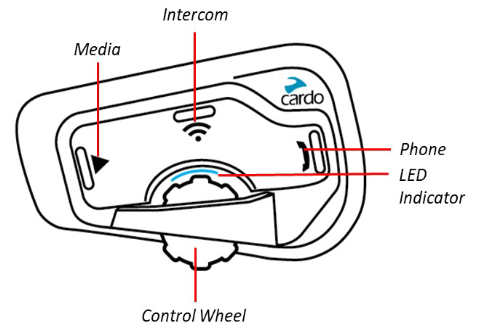
CHARGING THE FREECOM 4+
Make sure that your FREECOM 4+ battery is charged for at least 4 hours before initial use.
To charge the unit:
- Using the supplied USB cable, connect your computer or wall charger to the USB port on your FREECOM 4+.

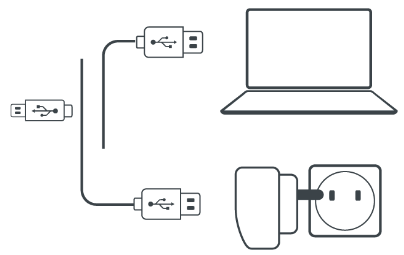
- Charging with the wall charger is faster than via a computer USB port.
- Charging your unit switches it off automatically. To use your unit while it is being charged, switch it on. (see Switching Your Unit On/Off).
While charging, the LED indicates the charging status as follows:
- Red LED on — charging
- Red LED off — charging complete
TIP: You can check the battery charge at any time by saying «Hey Cardo, battery status.«
SWITCHING YOUR UNIT ON/OFF
To switch your FREECOM 4+ on:
The LED confirms your FREECOM 4+ is on:
- Normal and low battery — LED flashes blue three times.
- Charging — LED flashes red and purple three times.
To switch your FREECOM 4+ off:
USING YOUR FREECOM 4+
You can operate the various features of your FREECOM 4+ in the following ways:
- Press a button or combination of buttons on the unit.
- Use the Cardo Mobile App on your mobile device (once it is paired with the unit).
- Use automatic voice recognition (by saying a command, for example «Hey Cardo, Radio On»).
You can also configure your unit by connecting it to a computer with the supplied USB cable and running the Cardo Updater while your computer is connected to the Cardo Update website.
PAIRING YOUR UNIT TO BLUETOOTH DEVICES
Your FREECOM 4+ has two Bluetooth channels for connection to Bluetooth devices such as mobile phones, GPS devices, and Bluetooth music players with A2DP.
To connect your unit to a Bluetooth device, you must first pair them. Once paired, they automatically recognize each other whenever they are within range.
If you are pairing more than one device, Cardo recommends that you pair the mobile phone to channel 1, and the additional device (such as GPS, music player or additional mobile phone) to channel 2.
If you are pairing the unit to more than one mobile phone, the phone paired with channel 1 is the default phone for outgoing calls.
To pair Bluetooth channel 1 to a mobile phone:
- Enable Bluetooth on the mobile phone.
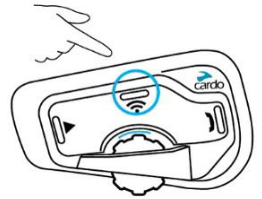
- On the unit in standby mode, press
 for 5 seconds. The LED flashes red and blue.
 - On your mobile phone, search for Bluetooth devices.
- When your FREECOM 4+ appears in the list of available devices, select it. If prompted for a PIN or Passkey, enter 0000 (four zeros).
The phone confirms that pairing has succeeded and the LED flashes purple for 2 seconds.
 for 5 seconds. The LED flashes red and blue.
To pair Bluetooth channel 2 to another Bluetooth device:
- Enable Bluetooth on the device (for example, your mobile phone, GPS device, or music player).
- On the unit in standby mode, press for 5 seconds. The LED flashes red and blue.
- Tap twice. The LED flashes red and green.
- If you are pairing a GPS device, roll the control wheel forward.
The LED flashes slower. - On the device you are pairing, search for Bluetooth devices.
- When your FREECOM 4+ appears in the list of available devices, select it. If prompted for a PIN or Passkey, enter 0000 (four zeros).
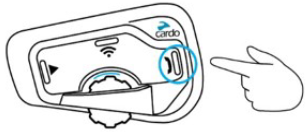
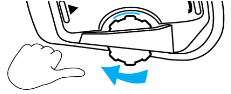
The device confirms that pairing has succeeded and the LED flashes purple for 2 seconds.
- If pairing is not completed within 2 minutes, the unit automatically returns to Standby.
- If you have paired two different mobile phones directly to your FREECOM 4+, set one as default for making calls (see Setting the Default Mobile Phone).
- Not all Bluetooth mobile phones broadcast Bluetooth Stereo music (A2DP) even if the phone has an MP3 player function. Consult your mobile phone’s user manual for more information.
- Not all Bluetooth GPS devices allow connection to Bluetooth audio devices. Consult your GPS User Manual for more information.
To cancel the pairing process:
To reset all Bluetooth device pairing:
- Press for 5 seconds.
The LED flashes red and blue. - Press
 and for 2 seconds.
The LED flashes purple 5 times, confirming that pairing has been reset.
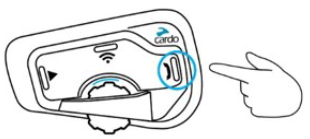
 and
and  for 2 seconds.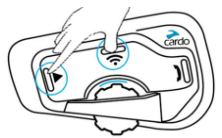
ON THE ROAD
FREECOM 4+ makes it easy for you to receive phone calls and listen to music in a convenient and safe manner.
BASIC AUDIO FUNCTIONS
The basic audio functions are the same whether you are listening to music, speaking on the intercom, or having a phone conversation.
To turn the volume up:
- Roll the Control Wheel forward.
An increasingly louder tone is played on the speaker until you reach the maximum volume, as indicated by the maximum volume tone.
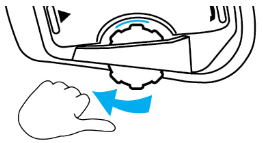
To turn the volume down:
- Roll the Control Wheel backward.
An increasingly quieter tone is played on the speaker until you reach the minimum volume, as indicated by the minimum volume tone.
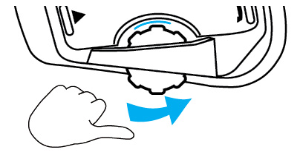
To mute the microphone and lower the speaker volume to the minimal level:
- Roll the Control Wheel backward, then forward.
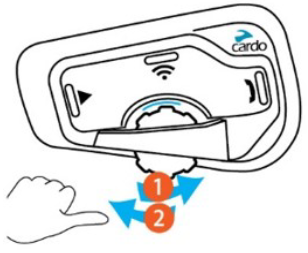
To unmute the microphone and raise the speaker volume to the previous level:
- Roll the Control Wheel in any direction.
An ascending tone is played on the speaker.
MAKING AND RECEIVING PHONE CALLS
You can use your mobile phone to make and receive phone calls while paired to your FREECOM 4+.
You can make a hands-free call using your mobile phone’s voice dial option or using the Cardo speed dial or redial last call options.
To make a phone call:
- If you connected two mobile phones to your unit, you cannot make an additional phone call from the other phone while a phone call is already active.
- During Bluetooth intercom 3 or 4-way calls, riders that are connected on both channels A and B cannot receive phone calls.
To answer a call:
To reject a call:
To ignore a call:
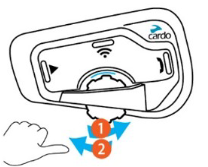
- Roll the Control Wheel backward, then forward, or say Ignore.
To end a call:
SWITCHING BETWEEN TWO CALLS ON TWO MOBILE PHONES
Your FREECOM 4+ can toggle between two calls on two mobile phones when both mobile phones are paired to your unit.
To toggle between two calls on two mobile phones (without disconnecting either call):
To disconnect the current call and switch to the other call:
- Tap .
STREAMING MUSIC
You can stream music from your paired device to your FREECOM 4+.
To start music streaming from your paired device:
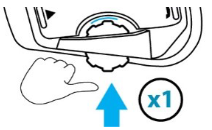
To stop music streaming:
- Press the edge of the Control Wheel upward or say «Hey Cardo, music off.»
To skip to the next track (while streaming):
- Tap or say «Hey Cardo, next track.»
To skip back to the previous track (while streaming):
- Tap twice or say «Hey Cardo, previous track.»
To toggle between FM and A2DP music:
- Press for 2 seconds.
SWITCHING MUSIC SOURCES
If two music (A2DP) audio sources are paired, FREECOM 4+ uses the audio source from which you last played music.
To switch to the other audio source:
- Stop music (A2DP) playback from the current device (see Streaming Music).
- Play music (A2DP) from the other device.
FREECOM 4+ automatically remembers your last played device.
LISTENING TO FM RADIO
The FREECOM 4+ is equipped with a built-in FM radio.
To turn on the FM radio:
When you switch on your FM radio, the station that was playing when you last switched off resumes playing.
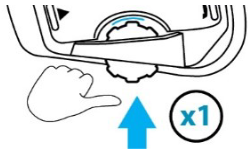
To turn the FM radio off:
- Press the edge of the Control Wheel upward or say «Hey Cardo, radio off.»
To skip to the next station:
- Tap or say «Hey Cardo, next station.»
To skip back to the previous station:
- Tap twice or say «Hey Cardo, previous station.»
To scan for and select a station:
- Press the edge of the Control Wheel upward and simultaneously roll it forward. The FM radio plays each station that it finds for several seconds.
- When you hear a station you want to select, tap .
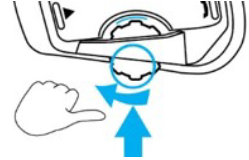
To store a scanned station in the active preset:
- Tap within 20 seconds of stopping the scan.
To toggle between FM and A2DP music:
- Press for 2 seconds.
VOICE COMMANDS
You can use voice commands for hands-free operation of certain FREECOM 4+ features. Voice commands use voice recognition. You say a command and FREECOM 4+ performs the action. Voice commands are available in various languages. English is the default language. You can change the language to another available language.
FREECOM 4+ uses the following predefined voice commands.
| To… | Say… |
| Turn on the radio | «Hey Cardo, radio on» |
| Turn off the radio | «Hey Cardo, radio off» |
| Skip to the next preset radio station | «Hey Cardo, next station» |
| Skip to the previous preset radio station | «Hey Cardo, previous station» |
| Turn on music | «Hey Cardo, music on» |
| Turn off music | «Hey Cardo, music off» |
| Play the next music track | «Hey Cardo, next track» |
| Play the previous music track | «Hey Cardo, previous track» |
| Raise volume | «Hey Cardo, volume up» |
| Lower volume | «Hey Cardo, volume down» |
| Mute audio | «Hey Cardo, mute audio» |
| Unmute audio | «Hey Cardo, unmute audio» |
| Call the default number (configurable) | «Hey Cardo, speed dial» |
| Redial the last number | «Hey Cardo, redial number» |
| Answer an incoming call | «Answer» |
| Ignore an incoming call | «Ignore» |
| Access Siri (when connected to an iOS device) | «Hey Siri» |
| Access Google (when connected to an Android device) | «OK Google» |
| Check the battery status | «Hey Cardo, battery status» |
| Open the call intercom | «Hey Cardo, call intercom» |
RIDING WITH OTHERS
BLUETOOTH INTERCOM
To connect your unit to another unit with a Bluetooth intercom, such as a Cardo Bluetooth unit or other Bluetooth-enabled devices, you must first pair their channels. Once paired, the units automatically recognize each other whenever they are in range (line of sight up to 1.2 km / 3,900 ft subject to terrain).
- Pairing a channel replaces any existing paired unit on that channel with the new unit.
- If you purchased the FREECOM 4+ DUO, the retail package contains two pre-paired units.
- The Intercom range with other models is limited to the distance of the unit with the shorter range.
SETTING UP BLUETOOTH INTERCOM GROUPS
You can use your FREECOM 4+ to create or join a Bluetooth group. The participating riders are connected in a chain with a maximum total of four riders.
To set up a Bluetooth group:
- Confirm your unit is in Standby mode (LED flashes blue slowly).
- To initiate 2-way pairing:
Bluetooth intercom pairing needs to be initiated on the other device.
The unit confirms that pairing has succeeded.
- To add a 3rd rider:
Bluetooth intercom pairing needs to be initiated on the other device.
The unit confirms that pairing has succeeded.
- To add a 4th rider, Rider 1 or Rider 2 connects to the additional rider.
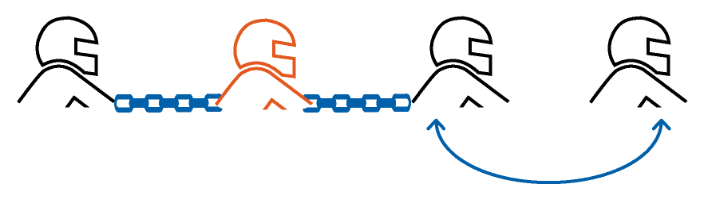
To pair a non-Cardo Bluetooth intercom group unit:
- Confirm your unit is in Standby mode (LED flashes blue slowly).
- To initiate 2-way pairing:
Mobile phone pairing needs to be initiated on the other device.
- The unit confirms that pairing has succeeded.
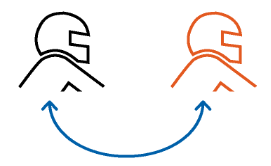
- To add a 3rd rider:
Mobile phone pairing needs to be initiated on the other device.
The unit confirms that pairing has succeeded.
- To add a 4th rider, Rider 1 or Rider 2 connects to the additional rider.
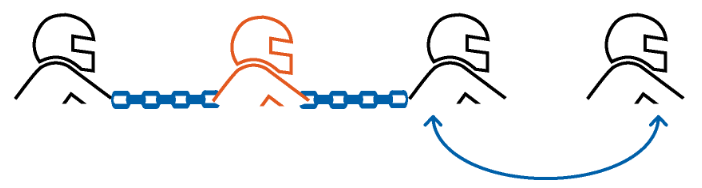
- To cancel the pairing process, press for 2 seconds. The LED stops flashing.
- If pairing is not completed within 2 minutes, the unit automatically returns to Standby.
STARTING/ENDING INTERCOM CALLS
You can initiate Bluetooth intercom calls with other riders, including non-Cardo riders.
To start or end communication with Rider 1:
To start or end communication with Rider 2:
To initiate a 4-way intercom conference:
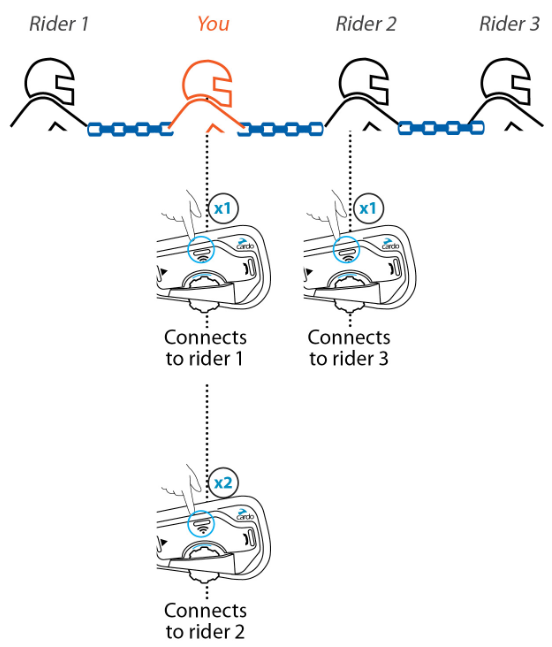
Optionally, FREECOM 4+ can pair a third rider directly.
To pair a third rider:
- Confirm your unit is in Standby mode (LED flashes blue slowly).
- To initiate pairing:
- Bluetooth intercom pairing needs to be initiated on the other device.
The unit confirms that pairing has succeeded.
To start or end communication with a rider on channel C:
- Tap 3 times.
*FREECOM 4+ supports direct, simultaneous connection with up to 2 riders. (Channels: A+B, A+C, B+C)
**Voice command can be used to start intercom calls to Channels A and/or B only.
You can also start the Bluetooth intercom by making a loud noise, for example, by saying «Hey.» If channels A and B are already paired, the conversation starts for both of them.
RECEIVING BLUETOOTH INTERCOM CALLS
If another paired unit calls you via Bluetooth intercom, the call begins instantly.
RESETTING BLUETOOTH INTERCOM PAIRING
Resetting Bluetooth intercom pairing also resets all Bluetooth device pairing.
To reset Bluetooth intercom pairing:
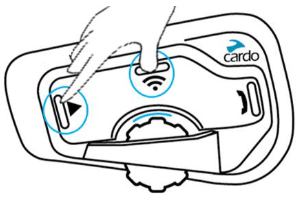
- Press for 5 seconds. The LED flashes red.
- Press and for 2 seconds.
The LED flashes purple 5 times slowly, confirming that pairing has been reset.
SHARING MUSIC AND RADIO
You can share music and FM radio with a passenger or other rider. Music sharing is more suitable for rider/passenger combinations, whereas FM radio is also intended for rider/rider combinations.
- Music and radio can be shared with only one passenger/rider.
- Bluetooth intercom calls are disabled when sharing music.
- FM radio sharing opens a Bluetooth intercom call automatically.
- If you paired your unit to two mobile phones, music will be shared from the mobile phone through which you last played music.
- When sharing FM radio, either passenger/rider can change station while the Bluetooth intercom call remains open.
- When you stop sharing FM radio, the Bluetooth intercom call remains open and the FM radio continues to play independently on each passenger/rider’s unit.
- When you stop sharing music, the music continues to play on your unit only.
To start/stop sharing:
- Start playing music or the FM radio.
- Press for 2 seconds to start sharing on Channel A (by default).
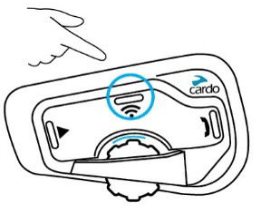
To manually select the channel on which to share music or radio:
- Start playing music or the FM radio.
- Start a Bluetooth intercom call on either channel (A or B).
- Press for 2 seconds.
To stop sharing:
- Press for 2 seconds.
TROUBLESHOOTING
SOFT RESET
If your FREECOM 4+ stops responding, reset it in one of these ways:
- Turning it off and then on again (see Getting Started).
- Using the supplied USB cable, connect your unit to the computer or wall charger for 30 seconds.
RESET PAIRING
The options below delete all paired units or devices.
To reset mobile device pairing:
- While in standby mode, press for 5 seconds. The LED flashes red and blue.
- Press and for 2 seconds.
The LED flashes purple 5 times slowly, confirming that pairing has been reset.
To reset intercom pairing:
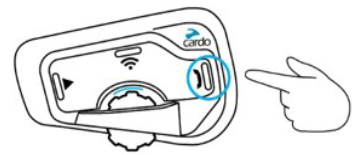
- While in standby mode, press for 5 seconds. The LED flashes red
- Press and for 2 seconds.
The LED flashes purple 5 times slowly, confirming that pairing has been reset.
RESET TO FACTORY SETTINGS
This option deletes all paired units, devices and all configuration settings.
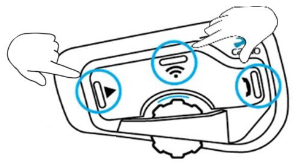
To perform a factory reset through the unit:
- Check that your FREECOM 4+ is in Standby mode (see FREECOM 4+ LED Indications).
- Simultaneously press ++ for 5 seconds.
The LED flashes purple 5 times slowly, confirming that pairing has been reset.
FAQ
Additional answers to common problems can be found at www.cardosystems.com/support/freecom-4-plus/.
PERSONALIZING YOUR DEVICE
Get the most out of your FREECOM 4+ by changing the settings and customizing your unit according to your own personal preferences, using either of the following methods:
- Cardo Mobile App on iOS or Android devices.
- Unit buttons.
Cardo recommends you customize your settings before going out on the road. You can adjust any of these settings as required after experiencing them under road conditions.
| Object | Default Value | Description | Cardo Mobile App (iOS/Android) |
| AGC sensitivity (Off/Low/Medium/High) | Medium | AGC automatically adjusts speaker volume according to ambient noise and riding speed. For example, when set to Low, higher ambient noise will cause the volume increase to kick in at a higher level. |  |
| Audio priority (A2DP/ Bluetooth intercom) | Bluetooth intercom | Priority of audio source playing through speakers. Either music is not interrupted by an intercom call, or vice-versa. | |
|
|||
| Background Audio Level | N/A | Sets the background audio volume when parallel audio streaming is on (see Parallel audio streaming in Bluetooth intercom (Enable/Disable)). | |
| Bluetooth friendly name | FREECOM 4+ | Sets the name that appears on your phone while pairing and in the Cardo app. | |
| FM Band | According to Your Region | If you are in Japan, select Japan. Otherwise, select Worldwide. | |
| Language | According to Your Region | Voice announcements and voice-assisted menus language (see Spoken Status Announcements). | |
| Mobile priority | Mobile 1 | If you paired your unit to two mobile phones, you must set one of them as the default phone for outgoing calls. | |
| Parallel audio streaming in Bluetooth intercom (Enable/Disable) | Disable | You can hear two audio sources simultaneously. For example, hear GPS while listening to music. NOTE: Parallel audio streaming may not work properly with some iOS devices (i.e., music player or GPS navigator) due to connected device limitations. |
|
| RDS (Enable/Disable) | Disable | Radio Data System allows the radio to automatically retune to the strongest frequency available for the FM station you are listening to when the signal becomes too weak. | |
| Set speed dial numbers | Empty | Pre-set phone numbers for automatic dialing. | |
| Set the 6 FM radio presets | 107.5 | Pre-set FM radio stations. | |
| Spoken Status Announcements (Enable/Disable) | Enable | Voice announcements inform you to whom or to what device you are connected. | |
AGC and voice control performance vary based on environmental conditions, including riding speed, helmet type and ambient noise. For improved voice control performance, minimize the wind impact on the microphone by closing the visor and using the large microphone sponge.
SETTING THE DEFAULT MOBILE PHONE
If you paired your unit to two mobile phones, you must set one of them as the default phone for outgoing calls.
If you do not set a default phone, the phone that you first paired with your unit is automatically set as the default phone.
To set the default phone:
USING PARALLEL AUDIO STREAMING
With parallel audio streaming, you can hear GPS instructions during a mobile or Bluetooth intercom call, or while listening to other audio sources, such as music or FM radio.
Parallel audio streaming may not work properly with some iOS devices (i.e., music player or GPS navigator) due to connected device limitations.
Your FREECOM 4+ sets the various audio sources to either foreground (volume remains the same) or background (volume reduced) as described in the following table:
| Mobile Phone 1/2 | GPS | Intercom 1 | Intercom 2 | Music | FM Radio |
| Foreground | Foreground | ||||
| Foreground1 | Foreground1 | ||||
| Foreground | Foreground | ||||
| Foreground | Background | ||||
| Foreground | Background | ||||
| Foreground | Background | ||||
| Foreground | Background | ||||
| Foreground2,3 | Foreground2,3 | Background | |||
| Foreground4 | |||||
| Foreground5 |
1 If you add an intercom call to a mobile phone call creating a conference call, the volume for both audio sources is the same.
2 If you make two intercom calls simultaneously creating an intercom conference call, the volume for both audio sources is the same.
3 If you make two intercom calls simultaneously creating an intercom conference call, you cannot hear the mobile phone or GPS.
4 If you play music only, the music volume is not reduced.
5 If you play the FM radio only, the FM radio volume is not reduced.
In some cases, parallel audio streaming may not work properly due to connected device limitations (music player or GPS navigator). For more information, see www.cardosystems.com/support/freecom-4-plus/.
Cardo recommends that during a 3-way or 4-way Bluetooth intercom conference call, the rider who is connected to only one intercom call listens for mobile phone and GPS announcements.
You cannot use music sharing for voice audio with riders during parallel audio streaming.
You can configure parallel audio streaming via the Cardo app.
AUDIO SOURCE PRIORITIES
If Parallel Audio Streaming is disabled, FREECOM 4+ manages the audio sources you hear through the speakers according to the following audio source priorities.
| Priority | Audio Source |
Higher Priority Lower Priority |
Mobile phone, GPS device instructions Intercom or Music1 Music or Intercom2 FM Radio |
1When audio priority is set to Intercom, you cannot hear navigation app or SMS messages from your phone during an ongoing intercom call.
2When audio priority is set to A2DP (music), the intercom is disabled while listening to music (via A2DP). A rider calling you by intercom hears a sound indicating you are not available.
Intercom modes all have the same priority, so ongoing intercom calls will not be interrupted by any other intercom call.
If you paired your unit to two mobile phones (see Setting the Default Mobile Phone), music will be shared from the mobile phone through which you last played music.
UPDATING YOUR DEVICE
Always keep your unit updated. Stay up-to-date by downloading software updates whenever a new version is available.
- Cardo Update on Windows / Mac — minimum requirements — Windows® 7 / macOS X 10.8
To upgrade your FREECOM 4+ unit:
- Download and install the Cardo Update tool https://www.cardosystems.com/update
- Open the app.
- Register (first time only).
- Connect the unit to the computer using an USB cable and update the firmware.
FREECOM 4+ LED INDICATIONS
Your FREECOM 4+ operates in various modes. Each mode consists of a group of features currently available for your use. For example, when FREECOM 4+ plays music, it will be in music playing mode, enabling features related to playing music such as skipping to the next and previous tracks.
Events are considered to occur whenever you operate a feature and when FREECOM 4+ responds. For example, turning on music is an event.
The device’s current mode is indicated by the unit LEDs. You also hear voice announcements on your unit for mode changes and events.
The following table shows LED indications for modes and events according to the current battery state.
| LED | Flashing | Battery State | Mode or Event |
| Blue | For 2 seconds | Normal |
|
| Blue | Fast (three times) | Normal Low Battery Charging |
|
| Blue | Fast (repeating fast) | Normal, Low Battery Charging |
|
| Blue | Slow (repeated at 3-second intervals) | Normal |
|
| Blue | Slow twice (repeated at 3-second intervals) | Normal |
|
| Purple | For 2 seconds | Normal Low Battery Charging |
|
| Purple | Slow (5 times) | Normal Low Battery |
|
| Purple/Red | Purple twice slowly, then red | Charging |
|
| Purple/Red | Slow purple and red (repeating) | Charging |
|
| Red | Slow twice (repeated at 3-second intervals) | Low Battery |
|
| Red | Fast (repeated at 3-second intervals) | Low Battery |
|
| Red | Fast (repeating fast) | Normal Low Battery Charging |
|
| Red | Fast (3 times) | Normal Low Battery Charging |
|
| Red | For 2 seconds | Normal Low Battery Charging |
|
| Red | Remains on | Charging |
|
| Red/Blue | Alternating fast | Normal Low Battery Charging |
|
| Red/Blue | Alternating slow | Normal Low Battery |
|
| Red/Green | Alternating fast | Normal Low Battery Charging |
|
| Red/Green | Alternating slow | Normal Low Battery |
|
| Yellow | For 2 seconds | Normal Low Battery Charging |
|
GLOSSARY
| Term/Abbreviation | Description |
| A2DP | Advanced Audio Distribution Profile (for music). A protocol for playing music over Bluetooth. |
| AGC sensitivity | AGC (Automatic Gain Control) automatically adjusts speaker volume and microphone sensitivity according to ambient noise and riding speed. |
| Device | Mobile phone, GPS or music player. |
| Language | Voice announcements and voice commands language. |
| Unit | Cardo or non- Cardo Bluetooth Communication system. |
| Voice control | Voice activation (by saying a word or phrase) of certain features for handsfree operation. |
| Voice control sensitivity | Adjusts your microphone sensitivity for voice activation while you are riding. |
SUPPORT
For additional information: www.cardosystems.com/support/freecom-4-plus/
To avoid potential problems and to receive our support and warranty coverage, we strongly recommend buying our products only from authorized Cardo dealers.
Your favorite brick-and-mortar store is always your best bet. Unauthorized online resellers and online auction sites such as eBay are not among Cardo’s authorized dealers, and purchasing our products from such sites will be at your own risk. Cardo strives to provide quality products and exceptional customer service. We select dealers who share that vision. Buying grey market items from unauthorized online dealers is counterproductive and also adversely affects unsuspecting online consumers who may be purchasing used, counterfeit or defective products or devices whose warranties are void. Protect your investment by purchasing genuine Cardo products only from authorized dealers.
© 2021 Cardo Systems
All rights reserved. Cardo, the Cardo logo and other Cardo marks are owned by Cardo and may be registered. All other trademarks are the property of their respective owners. Cardo Systems assumes no responsibility for any errors that may appear in this document. Information contained herein is subject to change without notice.

Here you can download full pdf version of manual, it may contain additional safety instructions, warranty information, FCC rules, etc.
инструкцияCardo Scala Rider Freecom 4

 for 5 seconds. The LED flashes red and blue.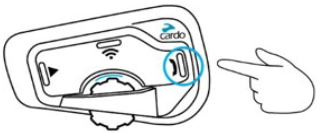
The phone confirms that pairing has succeeded and the LED flashes purple for 2 seconds.
To pair Bluetooth channel 2 to another Bluetooth device:
- Enable Bluetooth on the device (for example, your mobile phone, GPS device, or music player).
- On the unit in standby mode, press for 5 seconds. The LED flashes red and blue.
- Tap twice. The LED flashes red and green.
- If you are pairing a GPS device, roll the control wheel forward.
The LED flashes slower. - On the device you are pairing, search for Bluetooth devices.
- When your FREECOM 4+ appears in the list of available devices, select it. If prompted for a PIN or Passkey, enter 0000 (four zeros).
The device confirms that pairing has succeeded and the LED flashes purple for 2 seconds.
- If pairing is not completed within 2 minutes, the unit automatically returns to Standby.
- If you have paired two different mobile phones directly to your FREECOM 4+, set one as default for making calls (see Setting the Default Mobile Phone).
- Not all Bluetooth mobile phones broadcast Bluetooth Stereo music (A2DP) even if the phone has an MP3 player function. Consult your mobile phone’s user manual for more information.
- Not all Bluetooth GPS devices allow connection to Bluetooth audio devices. Consult your GPS User Manual for more information.
To cancel the pairing process:
To reset all Bluetooth device pairing:
- Press for 5 seconds.
The LED flashes red and blue. - Press and for 2 seconds.
The LED flashes purple 5 times, confirming that pairing has been reset.
ON THE ROAD
FREECOM 4+ makes it easy for you to receive phone calls and listen to music in a convenient and safe manner.
BASIC AUDIO FUNCTIONS
The basic audio functions are the same whether you are listening to music, speaking on the intercom, or having a phone conversation.
To turn the volume up:
- Roll the Control Wheel forward.
An increasingly louder tone is played on the speaker until you reach the maximum volume, as indicated by the maximum volume tone.
To turn the volume down:
- Roll the Control Wheel backward.
An increasingly quieter tone is played on the speaker until you reach the minimum volume, as indicated by the minimum volume tone.
To mute the microphone and lower the speaker volume to the minimal level:
- Roll the Control Wheel backward, then forward.
To unmute the microphone and raise the speaker volume to the previous level:
- Roll the Control Wheel in any direction.
An ascending tone is played on the speaker.
MAKING AND RECEIVING PHONE CALLS
You can use your mobile phone to make and receive phone calls while paired to your FREECOM 4+.
You can make a hands-free call using your mobile phone’s voice dial option or using the Cardo speed dial or redial last call options.
To make a phone call:
- If you connected two mobile phones to your unit, you cannot make an additional phone call from the other phone while a phone call is already active.
- During Bluetooth intercom 3 or 4-way calls, riders that are connected on both channels A and B cannot receive phone calls.
To answer a call:
To reject a call:
To ignore a call:
- Roll the Control Wheel backward, then forward, or say Ignore.
To end a call:
SWITCHING BETWEEN TWO CALLS ON TWO MOBILE PHONES
Your FREECOM 4+ can toggle between two calls on two mobile phones when both mobile phones are paired to your unit.
To toggle between two calls on two mobile phones (without disconnecting either call):
To disconnect the current call and switch to the other call:
- Tap .
STREAMING MUSIC
You can stream music from your paired device to your FREECOM 4+.
To start music streaming from your paired device:
To stop music streaming:
- Press the edge of the Control Wheel upward or say «Hey Cardo, music off.»
To skip to the next track (while streaming):
- Tap or say «Hey Cardo, next track.»
To skip back to the previous track (while streaming):
- Tap twice or say «Hey Cardo, previous track.»
To toggle between FM and A2DP music:
- Press for 2 seconds.
SWITCHING MUSIC SOURCES
If two music (A2DP) audio sources are paired, FREECOM 4+ uses the audio source from which you last played music.
To switch to the other audio source:
- Stop music (A2DP) playback from the current device (see Streaming Music).
- Play music (A2DP) from the other device.
FREECOM 4+ automatically remembers your last played device.
LISTENING TO FM RADIO
The FREECOM 4+ is equipped with a built-in FM radio.
To turn on the FM radio:
When you switch on your FM radio, the station that was playing when you last switched off resumes playing.
To turn the FM radio off:
- Press the edge of the Control Wheel upward or say «Hey Cardo, radio off.»
To skip to the next station:
- Tap or say «Hey Cardo, next station.»
To skip back to the previous station:
- Tap twice or say «Hey Cardo, previous station.»
To scan for and select a station:
- Press the edge of the Control Wheel upward and simultaneously roll it forward. The FM radio plays each station that it finds for several seconds.
- When you hear a station you want to select, tap .
To store a scanned station in the active preset:
- Tap within 20 seconds of stopping the scan.
To toggle between FM and A2DP music:
- Press for 2 seconds.
VOICE COMMANDS
You can use voice commands for hands-free operation of certain FREECOM 4+ features. Voice commands use voice recognition. You say a command and FREECOM 4+ performs the action. Voice commands are available in various languages. English is the default language. You can change the language to another available language.
FREECOM 4+ uses the following predefined voice commands.
| To… | Say… |
| Turn on the radio | «Hey Cardo, radio on» |
| Turn off the radio | «Hey Cardo, radio off» |
| Skip to the next preset radio station | «Hey Cardo, next station» |
| Skip to the previous preset radio station | «Hey Cardo, previous station» |
| Turn on music | «Hey Cardo, music on» |
| Turn off music | «Hey Cardo, music off» |
| Play the next music track | «Hey Cardo, next track» |
| Play the previous music track | «Hey Cardo, previous track» |
| Raise volume | «Hey Cardo, volume up» |
| Lower volume | «Hey Cardo, volume down» |
| Mute audio | «Hey Cardo, mute audio» |
| Unmute audio | «Hey Cardo, unmute audio» |
| Call the default number (configurable) | «Hey Cardo, speed dial» |
| Redial the last number | «Hey Cardo, redial number» |
| Answer an incoming call | «Answer» |
| Ignore an incoming call | «Ignore» |
| Access Siri (when connected to an iOS device) | «Hey Siri» |
| Access Google (when connected to an Android device) | «OK Google» |
| Check the battery status | «Hey Cardo, battery status» |
| Open the call intercom | «Hey Cardo, call intercom» |
RIDING WITH OTHERS
BLUETOOTH INTERCOM
To connect your unit to another unit with a Bluetooth intercom, such as a Cardo Bluetooth unit or other Bluetooth-enabled devices, you must first pair their channels. Once paired, the units automatically recognize each other whenever they are in range (line of sight up to 1.2 km / 3,900 ft subject to terrain).
- Pairing a channel replaces any existing paired unit on that channel with the new unit.
- If you purchased the FREECOM 4+ DUO, the retail package contains two pre-paired units.
- The Intercom range with other models is limited to the distance of the unit with the shorter range.
SETTING UP BLUETOOTH INTERCOM GROUPS
You can use your FREECOM 4+ to create or join a Bluetooth group. The participating riders are connected in a chain with a maximum total of four riders.
To set up a Bluetooth group:
- Confirm your unit is in Standby mode (LED flashes blue slowly).
- To initiate 2-way pairing:
Bluetooth intercom pairing needs to be initiated on the other device.
The unit confirms that pairing has succeeded.
- To add a 3rd rider:
Bluetooth intercom pairing needs to be initiated on the other device.
The unit confirms that pairing has succeeded.
- To add a 4th rider, Rider 1 or Rider 2 connects to the additional rider.
To pair a non-Cardo Bluetooth intercom group unit:
- Confirm your unit is in Standby mode (LED flashes blue slowly).
- To initiate 2-way pairing:
Mobile phone pairing needs to be initiated on the other device.
- The unit confirms that pairing has succeeded.
- To add a 3rd rider:
Mobile phone pairing needs to be initiated on the other device.
The unit confirms that pairing has succeeded.
- To add a 4th rider, Rider 1 or Rider 2 connects to the additional rider.
- To cancel the pairing process, press for 2 seconds. The LED stops flashing.
- If pairing is not completed within 2 minutes, the unit automatically returns to Standby.
STARTING/ENDING INTERCOM CALLS
You can initiate Bluetooth intercom calls with other riders, including non-Cardo riders.
To start or end communication with Rider 1:
To start or end communication with Rider 2:
To initiate a 4-way intercom conference:
Optionally, FREECOM 4+ can pair a third rider directly.
To pair a third rider:
- Confirm your unit is in Standby mode (LED flashes blue slowly).
- To initiate pairing:
- Bluetooth intercom pairing needs to be initiated on the other device.
The unit confirms that pairing has succeeded.
To start or end communication with a rider on channel C:
- Tap 3 times.
*FREECOM 4+ supports direct, simultaneous connection with up to 2 riders. (Channels: A+B, A+C, B+C)
**Voice command can be used to start intercom calls to Channels A and/or B only.
You can also start the Bluetooth intercom by making a loud noise, for example, by saying «Hey.» If channels A and B are already paired, the conversation starts for both of them.
RECEIVING BLUETOOTH INTERCOM CALLS
If another paired unit calls you via Bluetooth intercom, the call begins instantly.
RESETTING BLUETOOTH INTERCOM PAIRING
Resetting Bluetooth intercom pairing also resets all Bluetooth device pairing.
To reset Bluetooth intercom pairing:
- Press for 5 seconds. The LED flashes red.
- Press and for 2 seconds.
The LED flashes purple 5 times slowly, confirming that pairing has been reset.
SHARING MUSIC AND RADIO
You can share music and FM radio with a passenger or other rider. Music sharing is more suitable for rider/passenger combinations, whereas FM radio is also intended for rider/rider combinations.
- Music and radio can be shared with only one passenger/rider.
- Bluetooth intercom calls are disabled when sharing music.
- FM radio sharing opens a Bluetooth intercom call automatically.
- If you paired your unit to two mobile phones, music will be shared from the mobile phone through which you last played music.
- When sharing FM radio, either passenger/rider can change station while the Bluetooth intercom call remains open.
- When you stop sharing FM radio, the Bluetooth intercom call remains open and the FM radio continues to play independently on each passenger/rider’s unit.
- When you stop sharing music, the music continues to play on your unit only.
To start/stop sharing:
- Start playing music or the FM radio.
- Press for 2 seconds to start sharing on Channel A (by default).
To manually select the channel on which to share music or radio:
- Start playing music or the FM radio.
- Start a Bluetooth intercom call on either channel (A or B).
- Press for 2 seconds.
To stop sharing:
- Press for 2 seconds.
TROUBLESHOOTING
SOFT RESET
If your FREECOM 4+ stops responding, reset it in one of these ways:
- Turning it off and then on again (see Getting Started).
- Using the supplied USB cable, connect your unit to the computer or wall charger for 30 seconds.
RESET PAIRING
The options below delete all paired units or devices.
To reset mobile device pairing:
- While in standby mode, press for 5 seconds. The LED flashes red and blue.
- Press and for 2 seconds.
The LED flashes purple 5 times slowly, confirming that pairing has been reset.
To reset intercom pairing:
- While in standby mode, press for 5 seconds. The LED flashes red
- Press and for 2 seconds.
The LED flashes purple 5 times slowly, confirming that pairing has been reset.
RESET TO FACTORY SETTINGS
This option deletes all paired units, devices and all configuration settings.
To perform a factory reset through the unit:
- Check that your FREECOM 4+ is in Standby mode (see FREECOM 4+ LED Indications).
- Simultaneously press ++ for 5 seconds.
The LED flashes purple 5 times slowly, confirming that pairing has been reset.
FAQ
Additional answers to common problems can be found at www.cardosystems.com/support/freecom-4-plus/.
PERSONALIZING YOUR DEVICE
Get the most out of your FREECOM 4+ by changing the settings and customizing your unit according to your own personal preferences, using either of the following methods:
- Cardo Mobile App on iOS or Android devices.
- Unit buttons.
Cardo recommends you customize your settings before going out on the road. You can adjust any of these settings as required after experiencing them under road conditions.
| Object | Default Value | Description | Cardo Mobile App (iOS/Android) |
| AGC sensitivity (Off/Low/Medium/High) | Medium | AGC automatically adjusts speaker volume according to ambient noise and riding speed. For example, when set to Low, higher ambient noise will cause the volume increase to kick in at a higher level. | |
| Audio priority (A2DP/ Bluetooth intercom) | Bluetooth intercom | Priority of audio source playing through speakers. Either music is not interrupted by an intercom call, or vice-versa. | |
|
|||
| Background Audio Level | N/A | Sets the background audio volume when parallel audio streaming is on (see Parallel audio streaming in Bluetooth intercom (Enable/Disable)). | |
| Bluetooth friendly name | FREECOM 4+ | Sets the name that appears on your phone while pairing and in the Cardo app. | |
| FM Band | According to Your Region | If you are in Japan, select Japan. Otherwise, select Worldwide. | |
| Language | According to Your Region | Voice announcements and voice-assisted menus language (see Spoken Status Announcements). | |
| Mobile priority | Mobile 1 | If you paired your unit to two mobile phones, you must set one of them as the default phone for outgoing calls. | |
| Parallel audio streaming in Bluetooth intercom (Enable/Disable) | Disable | You can hear two audio sources simultaneously. For example, hear GPS while listening to music. NOTE: Parallel audio streaming may not work properly with some iOS devices (i.e., music player or GPS navigator) due to connected device limitations. |
|
| RDS (Enable/Disable) | Disable | Radio Data System allows the radio to automatically retune to the strongest frequency available for the FM station you are listening to when the signal becomes too weak. | |
| Set speed dial numbers | Empty | Pre-set phone numbers for automatic dialing. | |
| Set the 6 FM radio presets | 107.5 | Pre-set FM radio stations. | |
| Spoken Status Announcements (Enable/Disable) | Enable | Voice announcements inform you to whom or to what device you are connected. | |
AGC and voice control performance vary based on environmental conditions, including riding speed, helmet type and ambient noise. For improved voice control performance, minimize the wind impact on the microphone by closing the visor and using the large microphone sponge.
SETTING THE DEFAULT MOBILE PHONE
If you paired your unit to two mobile phones, you must set one of them as the default phone for outgoing calls.
If you do not set a default phone, the phone that you first paired with your unit is automatically set as the default phone.
To set the default phone:
USING PARALLEL AUDIO STREAMING
With parallel audio streaming, you can hear GPS instructions during a mobile or Bluetooth intercom call, or while listening to other audio sources, such as music or FM radio.
Parallel audio streaming may not work properly with some iOS devices (i.e., music player or GPS navigator) due to connected device limitations.
Your FREECOM 4+ sets the various audio sources to either foreground (volume remains the same) or background (volume reduced) as described in the following table:
| Mobile Phone 1/2 | GPS | Intercom 1 | Intercom 2 | Music | FM Radio |
| Foreground | Foreground | ||||
| Foreground1 | Foreground1 | ||||
| Foreground | Foreground | ||||
| Foreground | Background | ||||
| Foreground | Background | ||||
| Foreground | Background | ||||
| Foreground | Background | ||||
| Foreground2,3 | Foreground2,3 | Background | |||
| Foreground4 | |||||
| Foreground5 |
1 If you add an intercom call to a mobile phone call creating a conference call, the volume for both audio sources is the same.
2 If you make two intercom calls simultaneously creating an intercom conference call, the volume for both audio sources is the same.
3 If you make two intercom calls simultaneously creating an intercom conference call, you cannot hear the mobile phone or GPS.
4 If you play music only, the music volume is not reduced.
5 If you play the FM radio only, the FM radio volume is not reduced.
In some cases, parallel audio streaming may not work properly due to connected device limitations (music player or GPS navigator). For more information, see www.cardosystems.com/support/freecom-4-plus/.
Cardo recommends that during a 3-way or 4-way Bluetooth intercom conference call, the rider who is connected to only one intercom call listens for mobile phone and GPS announcements.
You cannot use music sharing for voice audio with riders during parallel audio streaming.
You can configure parallel audio streaming via the Cardo app.
AUDIO SOURCE PRIORITIES
If Parallel Audio Streaming is disabled, FREECOM 4+ manages the audio sources you hear through the speakers according to the following audio source priorities.
| Priority | Audio Source |
| Higher Priority Lower Priority |
Mobile phone, GPS device instructions Intercom or Music1 Music or Intercom2 FM Radio |
1When audio priority is set to Intercom, you cannot hear navigation app or SMS messages from your phone during an ongoing intercom call.
2When audio priority is set to A2DP (music), the intercom is disabled while listening to music (via A2DP). A rider calling you by intercom hears a sound indicating you are not available.
Intercom modes all have the same priority, so ongoing intercom calls will not be interrupted by any other intercom call.
If you paired your unit to two mobile phones (see Setting the Default Mobile Phone), music will be shared from the mobile phone through which you last played music.
UPDATING YOUR DEVICE
Always keep your unit updated. Stay up-to-date by downloading software updates whenever a new version is available.
- Cardo Update on Windows / Mac — minimum requirements — Windows® 7 / macOS X 10.8
To upgrade your FREECOM 4+ unit:
- Download and install the Cardo Update tool https://www.cardosystems.com/update
- Open the app.
- Register (first time only).
- Connect the unit to the computer using an USB cable and update the firmware.
FREECOM 4+ LED INDICATIONS
Your FREECOM 4+ operates in various modes. Each mode consists of a group of features currently available for your use. For example, when FREECOM 4+ plays music, it will be in music playing mode, enabling features related to playing music such as skipping to the next and previous tracks.
Events are considered to occur whenever you operate a feature and when FREECOM 4+ responds. For example, turning on music is an event.
The device’s current mode is indicated by the unit LEDs. You also hear voice announcements on your unit for mode changes and events.
The following table shows LED indications for modes and events according to the current battery state.
| LED | Flashing | Battery State | Mode or Event |
| Blue | For 2 seconds | Normal |
|
| Blue | Fast (three times) | Normal Low Battery Charging |
|
| Blue | Fast (repeating fast) | Normal, Low Battery Charging |
|
| Blue | Slow (repeated at 3-second intervals) | Normal |
|
| Blue | Slow twice (repeated at 3-second intervals) | Normal |
|
| Purple | For 2 seconds | Normal Low Battery Charging |
|
| Purple | Slow (5 times) | Normal Low Battery |
|
| Purple/Red | Purple twice slowly, then red | Charging |
|
| Purple/Red | Slow purple and red (repeating) | Charging |
|
| Red | Slow twice (repeated at 3-second intervals) | Low Battery |
|
| Red | Fast (repeated at 3-second intervals) | Low Battery |
|
| Red | Fast (repeating fast) | Normal Low Battery Charging |
|
| Red | Fast (3 times) | Normal Low Battery Charging |
|
| Red | For 2 seconds | Normal Low Battery Charging |
|
| Red | Remains on | Charging |
|
| Red/Blue | Alternating fast | Normal Low Battery Charging |
|
| Red/Blue | Alternating slow | Normal Low Battery |
|
| Red/Green | Alternating fast | Normal Low Battery Charging |
|
| Red/Green | Alternating slow | Normal Low Battery |
|
| Yellow | For 2 seconds | Normal Low Battery Charging |
|
GLOSSARY
| Term/Abbreviation | Description |
| A2DP | Advanced Audio Distribution Profile (for music). A protocol for playing music over Bluetooth. |
| AGC sensitivity | AGC (Automatic Gain Control) automatically adjusts speaker volume and microphone sensitivity according to ambient noise and riding speed. |
| Device | Mobile phone, GPS or music player. |
| Language | Voice announcements and voice commands language. |
| Unit | Cardo or non- Cardo Bluetooth Communication system. |
| Voice control | Voice activation (by saying a word or phrase) of certain features for handsfree operation. |
| Voice control sensitivity | Adjusts your microphone sensitivity for voice activation while you are riding. |
SUPPORT
For additional information: www.cardosystems.com/support/freecom-4-plus/
To avoid potential problems and to receive our support and warranty coverage, we strongly recommend buying our products only from authorized Cardo dealers.
Your favorite brick-and-mortar store is always your best bet. Unauthorized online resellers and online auction sites such as eBay are not among Cardo’s authorized dealers, and purchasing our products from such sites will be at your own risk. Cardo strives to provide quality products and exceptional customer service. We select dealers who share that vision. Buying grey market items from unauthorized online dealers is counterproductive and also adversely affects unsuspecting online consumers who may be purchasing used, counterfeit or defective products or devices whose warranties are void. Protect your investment by purchasing genuine Cardo products only from authorized dealers.
© 2021 Cardo Systems
All rights reserved. Cardo, the Cardo logo and other Cardo marks are owned by Cardo and may be registered. All other trademarks are the property of their respective owners. Cardo Systems assumes no responsibility for any errors that may appear in this document. Information contained herein is subject to change without notice.
Here you can download full pdf version of manual, it may contain additional safety instructions, warranty information, FCC rules, etc.
инструкцияCardo Scala Rider Freecom 4
Руководство пользователя
45 страниц(ы)
RU

Инструкция по установке
2 страниц(ы)
RU
Посмотреть инструкция для Cardo Scala Rider Freecom 4 бесплатно. Руководство относится к категории гарнитуры, 7 человек(а) дали ему среднюю оценку 9. Руководство доступно на следующих языках: русский. У вас есть вопрос о Cardo Scala Rider Freecom 4 или вам нужна помощь? Задайте свой вопрос здесь
- 1. Введение
- 2. Зарядка FREECOM 4
- 3. Начало работы
- 4. Перед поездкой
- 5. В пути
- 6. Устранение неисправностей
- 7. Служба поддержки
- 8. Словарь
- Приложение A. Режимы и события FREECOM 4 – светодиодная индикация
Нужна помощь?
У вас есть вопрос о Cardo а ответа нет в руководстве? Задайте свой вопрос здесь Дай исчерпывающее описание проблемы и четко задайте свой вопрос. Чем детальнее описание проблемы или вопроса, тем легче будет другим пользователям Cardo предоставить вам исчерпывающий ответ.
Количество вопросов: 0


Главная
| Cardo | |
| Scala Rider Freecom 4 | |
| гарнитура | |
| русский | |
| Руководство пользователя (PDF), Инструкция по установке (PDF) |
Не можете найти ответ на свой вопрос в руководстве? Вы можете найти ответ на свой вопрос ниже, в разделе часто задаваемых вопросов о Cardo Scala Rider Freecom 4.
Можно ли с помощью гарнитура совершать звонки без использования рук?
Что такое шумоподавление?
Когда звук считается слишком громким?
Инструкция Cardo Scala Rider Freecom 4 доступно в русский?
Не нашли свой вопрос? Задайте свой вопрос здесь
Нет результатов

Cardo Scala Rider Freecom 4 Plus
инструкция25 страниц(ы)

Cardo Freecom 4+
инструкция26 страниц(ы)

Cardo Scala Rider Freecom 2 Plus
инструкция34 страниц(ы)

Cardo Scala Rider Freecom 2
инструкция41 страниц(ы)

Cardo Scala Rider Q3
инструкция22 страниц(ы)

Cardo Freecom 4X
инструкция27 страниц(ы)

Cardo Freecom 2X
инструкция25 страниц(ы)

Cardo Scala Rider Freecom 1 Plus
инструкция24 страниц(ы)

Cardo Scala Rider Q1
инструкция21 страниц(ы)

Cardo Scala Rider Freecom 1
инструкция23 страниц(ы)
Посмотреть все Cardo руководства Посмотреть все Cardo гарнитура руководства
Freecom 4 Руководство
Язык по умолчанию английский. Языковой набор можно изменить в настройках приложения Cardo Connect или в сообществе Cardo.
Описание

Первые шаги


Сопряжение мобильных устройств

Особенности телефона

Аудио

Установить Кардо Домофон

Присоединиться / создать группу внутренней связи, отличную от Cardo

Внутренняя связь


Голосовые команды — всегда!

Мобильное приложение Cardo

- Для легкой настройки
- Пульт дистанционного управления
- Настройка параметров на ходу
www.cardosystems.com/product-manuals
Полная версия руководства
www.cardosystems.com/support
Сброс всех настроек

811 E. Plano Parkway, Suite 110A
Плано, Техас. 75074, США
© 2018 Кардо Системс, ООО.
Все права защищены. Cardo, логотип Cardo и другие товарные знаки Cardo принадлежат Cardo и могут быть зарегистрированы. Все остальные товарные знаки являются собственностью их соответствующих владельцев. Cardo Systems, Ltd. не несет ответственности за любые ошибки, которые могут появиться в этом документе. Информация, содержащаяся здесь, может быть изменена без предварительного уведомления.
Важная информация
Безопасность, соответствие требованиям и гарантия
Заявление Федеральной комиссии связи (FCC)
15.21
Предупреждаем, что изменения или модификации, прямо не одобренные стороной, ответственной за соответствие, могут лишить пользователя права на эксплуатацию оборудования.
15.105 (б)
Это оборудование было протестировано и признано соответствующим ограничениям для цифровых устройств класса B согласно части 15 правил FCC. Эти ограничения разработаны для обеспечения разумной защиты от вредных помех при установке в жилых помещениях. Это оборудование генерирует, использует и может излучать радиочастотную энергию и, если оно установлено и используется не в соответствии с инструкциями, может создавать вредные помехи для радиосвязи. Однако нет гарантии, что помехи не возникнут при конкретной установке. Если это оборудование действительно создает недопустимые помехи для приема радио или телевидения, что можно определить путем включения и выключения оборудования, пользователю рекомендуется попытаться устранить помехи одним или несколькими из следующих способов:
- Изменить ориентацию или местоположение приемной антенны.
- Увеличьте расстояние между оборудованием и приемником.
- Подключить оборудование к розетке в цепи, отличной от той, к которой подключен приемник.
- Обратитесь за помощью к дилеру или опытному радио / телевизионному технику.
Это устройство соответствует требованиям части 15 правил FCC. Эксплуатация возможна при соблюдении следующих двух условий:
1. Это устройство не должно вызывать вредных помех, и
2. Это устройство должно принимать любые помехи, включая помехи, которые могут вызвать сбои в работе.
Заявление FCC о радиационном облучении:
Это оборудование соответствует ограничениям по радиационному излучению FCC/IC, установленным для неконтролируемой среды. Конечные пользователи должны следовать конкретным инструкциям по эксплуатации для соблюдения требований к радиочастотному излучению. Антенна, используемая для этого передатчика, не должна вести передачу одновременно с какой-либо другой антенной или передатчиком, кроме как в соответствии с
Процедуры FCC/IC для продуктов с несколькими передатчиками.
Инструкции относительно воздействия радиочастотных электромагнитных полей на человека – в соответствии с разделом 1.310 FCC для воздействия на человека радиочастотных электромагнитных полей расстояние не менее 3 см. между оборудованием и всеми людьми должны быть сохранены во время работы оборудования.
Министерство промышленности Канады (IC) FVIN: V1.0.0
Это устройство соответствует стандарту(ам) RSS, не требующему лицензии Министерства промышленности Канады. Эксплуатация осуществляется при соблюдении двух условий:
(1) Это устройство не должно создавать вредных помех, и (2) это устройство должно принимать любые помехи, которые могут быть приняты или могут вызвать нежелательную работу.
(2) это устройство должно принимать любые помехи, включая помехи, которые могут вызвать нежелательную работу устройства.
Заявление IC о воздействии радиочастотного излучения:
Это оборудование соответствует освобождению RSS-102 от обычной оценки радиочастотного воздействия для использования в неконтролируемой среде.
Европейское уведомление CE
Ваш продукт Cardo («Продукт») соответствует следующим основным требованиям Директивы Совета 2014/53/ЕС: Статьи 3.1a, 3.1.b и 3.2. Продукт изготовлен в соответствии с Приложением II вышеуказанной директивы.
Полный текст Декларации о соответствии требованиям ЕС см. на веб-сайте Cardo Systems. webсайт: www.cardosystems.com
Рабочая температура: Устройство предназначено для работы при температуре от -20° до 55° C (от -4° до 131° F).
Температура зарядки: Пределы температуры зарядки аккумулятора: 0–40 °C (32–104 °F)
Адаптеры переменного/постоянного тока. При зарядке от настенной розетки убедитесь, что подключаемый адаптер переменного/постоянного тока соответствует следующим критериям:
Вход: 100–240 В, 50/60 Гц, максимум 0.2 А Выход: 5 В постоянного тока, максимум 1 А.
Декларация соответствия (DOC)
Продукт соответствует и принимает спецификацию Bluetooth® 4.1 и успешно прошел все тесты на совместимость, указанные в спецификации Bluetooth®. Однако совместимость устройства с другими продуктами с поддержкой Bluetooth® не гарантируется.
Авторские права
Содержание Руководства пользователя, включая весь текст, иллюстрации и чертежи, является исключительной интеллектуальной собственностью Cardo Systems, Inc. («Компания») и защищено законами об авторских правах. Их нет в открытом доступе. Любое частичное или полное воспроизведение, перевод и/или распространение без предварительного письменного разрешения Компании строго запрещены. Любые права, прямо не предоставленные здесь, защищены.
ПРЕДУПРЕЖДЕНИЕ:
Настоящим вы уведомлены о том, что при использовании устройства связи («Продукт») во время езды требуется ваше полное и безраздельное внимание. Неспособность избежать потенциально опасных ситуаций может привести к несчастному случаю, который может привести к серьезной травме или смерти.
Cardo советует вам принять все необходимые меры предосторожности и внимательно следить за движением транспорта, погодными условиями и всеми дорожными условиями. Не выполняйте сопряжение, связывание или любые сложные операции во время езды. Все публикации предназначены для описания технических возможностей и не должны толковаться как поощрение эксплуатации Продуктов Cardo каким-либо небезопасным или запрещенным законом способом.
Соблюдайте все меры предосторожности при использовании данного Продукта и соблюдайте все применимые правила дорожного движения. Всегда ездите и используйте Продукт безопасным образом и не отвлекайтесь на Продукт во время езды. Не используйте Продукт, если это становится небезопасным.
В некоторых регионах или штатах использование систем мобильной связи запрещено или ограничено. Перед использованием Продукта ознакомьтесь со всеми местными, государственными и федеральными законами и нормативными актами («Законы»), применимыми к вашему региону, и помните, что ответственность за соблюдение всех законов лежит на пользователе. Используйте Продукт в движении только в тех случаях и таким образом, когда такие устройства разрешены применимым законодательством.
Ни одна часть тела не должна соприкасаться с антенной во время работы оборудования. Используйте Продукт только там, где это безопасно, и избегайте использования на заправочных станциях, складах горючего или рядом со взрывчатыми веществами. Используйте со слуховыми аппаратами и медицинскими устройствами только после консультации с врачом или специалистом. Убедитесь, что продукт установлен и смонтирован стабильно.
Предупреждения о здоровье:
Потеря слуха: Аудиоустройства могут вызвать потерю слуха. Соблюдайте осторожность и избегайте чрезмерного уровня громкости, который может повредить или ухудшить слух или привести к потере слуха. Если Изделия используются на высокой громкости в течение длительного времени, может произойти необратимая потеря слуха.
Радиочастотные сигналы: Большая часть электронного оборудования защищена от радиочастотных сигналов. Однако определенное электронное оборудование может быть не защищено от радиочастотных сигналов, исходящих от вашего беспроводного оборудования.
Кардиостимуляторы: Ассоциация производителей индустрии здравоохранения рекомендует поддерживать минимальное расстояние около шести дюймов (или 16 см) между мобильным телефоном или беспроводным устройством и кардиостимулятором, чтобы избежать потенциальных помех для кардиостимулятора. Следите за тем, чтобы не мешать работе личных медицинских устройств.
Слуховые аппараты: Некоторые устройства могут мешать работе некоторых слуховых аппаратов. В случае таких помех вам следует проконсультироваться с производителем вашего слухового аппарата, чтобы обсудить альтернативы.
Другие медицинские устройства: Если вы используете какое-либо другое личное медицинское устройство, проконсультируйтесь с производителем вашего устройства и/или вашим врачом, чтобы определить, достаточно ли оно защищено от помех, вызванных внешней радиочастотной энергией. Ваш врач может помочь вам в получении этой информации.
ОГРАНИЧЕННАЯ ГАРАНТИЯ
В соответствии с применимыми законами и правилами вашей юрисдикции на ваш Продукт распространяется двухлетняя ограниченная гарантия на продукт с даты первоначальной покупки. Пожалуйста, сохраните и отправьте кассовый чек и ваши регистрационные данные для подтверждения покупки.
Ни при каких обстоятельствах Cardo не несет ответственности за любые случайные, особые, непрямые, штрафные, примерные или косвенные убытки, будь то в результате использования, неправильного использования или невозможности использования этого продукта или из-за дефектов в продукте, или за любой ущерб, возникший в результате использование продукта, независимо от того, было ли оно основано на нарушении договора, правонарушении (включая небрежность), ответственности за качество продукции или иным образом, даже если было сообщено о возможности таких убытков. Вы признаете и соглашаетесь с тем, что ограничения, изложенные выше, являются основополагающими элементами настоящего соглашения, с которыми вы соглашаетесь и без которых продукт не будет предоставлен вам при отсутствии таких ограничений. Cardo сохраняет за собой исключительное право ремонтировать или заменять (новым или недавно отремонтированным продуктом) устройство или программное обеспечение или возмещать покупную цену по своему усмотрению.
ТАКОЕ СРЕДСТВО ДОЛЖНО БЫТЬ ВАШИМ ЕДИНСТВЕННЫМ И ИСКЛЮЧИТЕЛЬНЫМ СРЕДСТВОМ ПРАВА ОТ ЛЮБОГО НАРУШЕНИЯ ГАРАНТИИ.
С учетом вышеизложенного Cardo настоящим заявляет, что данный Продукт гарантирует отсутствие дефектов материалов или изготовления. В течение указанного периода Cardo по своему усмотрению отремонтирует или заменит любые компоненты, вышедшие из строя при нормальном использовании. Такой ремонт или замена будут произведены
бесплатно для клиента за детали или работу, при условии, что клиент несет ответственность за любые расходы по доставке и применимые сборы любым официальным органам. Настоящая гарантия не распространяется на отказы, вызванные неправильным использованием, неправильным использованием, несчастным случаем, потерей или несанкционированным изменением или ремонтом.
Этот Продукт предназначен для использования только в качестве устройства связи и развлечения и не должен использоваться в любом месте или юрисдикции, где его использование запрещено.
Гарантии и средства правовой защиты, содержащиеся в настоящем документе, являются исключительными и заменяют все другие гарантии, явные, подразумеваемые или установленные законом, включая любую ответственность, вытекающую из любой гарантии товарного состояния или пригодности для определенной цели, установленной законом или иным образом, от которой Cardo прямо отказывается. Эта гарантия дает вам определенные юридические права, которые могут различаться в зависимости от юрисдикции. Cardo не дает никаких других явных или подразумеваемых гарантий, помимо тех, которые специально указаны в настоящем документе. Эта гарантия распространяется компанией Cardo исключительно на первоначального покупателя и не может быть переуступлена или передана другим лицам. Cardo не принимает на себя никаких обязательств или ответственности за дополнения или изменения настоящей гарантии, если они не сделаны в письменной форме и не подписаны должностным лицом компании.
Гарантия на батареи предоставляется только в том случае, если емкость батареи падает ниже 50 % от номинальной емкости или в случае утечки из батареи. Не храните Изделие без периодической подзарядки в течение более шести месяцев, так как это может привести к необратимому повреждению емкости аккумулятора. Ваша гарантия не распространяется на такие случаи.
Эта гарантия также становится недействительной, если:ampб) батарея используется в оборудовании, отличном от того, для которого она предназначена. в) Продукт используется не по назначению. г) Товар был приобретен на интернет-аукционах
Cardo не несет ответственности за использование компонентов, аксессуаров или устройств других производителей в сочетании с ее Продуктами. Внимание: не тamper с батареями, так как существует риск взрыва, если заменить батарею неподходящим типом.
Не покрывается гарантией:
- Дефекты или повреждения, возникшие в результате использования данного Продукта не по назначению.
- Дефекты или повреждения в результате неправильного использования, несчастного случая или небрежного обращения.
- Дефекты, вызванные неправильной эксплуатацией, обслуживанием, установкой, регулировкой или модификацией любого рода (в т.ч. длительное хранение без периодической подзарядки аккумулятора)
- Продукты вскрыты, разобраны или отремонтированы неуполномоченными сторонами.
- Дефекты или повреждения из-за воздействия чрезмерных температур, неблагоприятных погодных условий, внешних воздействий или разлития пищи или жидкости.
- Все пластиковые поверхности и все другие внешние детали, которые были поцарапаны или повреждены после покупки.
Отказ от гарантии
Устройство и его аксессуары предоставляются «как есть» и «как доступно» без каких-либо гарантий, кроме тех, которые предполагаются в прилагаемом руководстве.
Гарантийное обслуживание
Для получения гарантийного обслуживания предъявите Продукт вместе со своим регистрационным номером, товарный чек (чек) в любой авторизованный сервисный центр или магазин, в котором вы приобрели Продукт. Для получения гарантийного обслуживания обратитесь в службу поддержки продуктов Cardo и получите номер RMA для отслеживания или обратитесь к местному авторизованному дилеру Cardo. Отправляйте в целости и сохранности с копией оригинального товарного чека, который требуется в качестве доказательства покупки для гарантийного ремонта. Номер отслеживания RMA должен быть написан на внешней стороне упаковки. Отправьте предоплаченную стоимость доставки Продукта на адрес Cardo в соответствии с указаниями Cardo.
Покупки на онлайн-аукционах. Подтверждения на онлайн-аукционах не принимаются для проверки гарантии. Для получения гарантийного обслуживания требуется оригинал или копия товарного чека от первоначального продавца. Cardo не будет заменять отсутствующие компоненты на сайтах онлайн-аукционов.
ОТКАЗ И ОСВОБОЖДЕНИЕ
Используя Продукт, вы отказываетесь от существенных юридических прав, включая право на подачу иска. Пожалуйста, внимательно прочтите следующее перед использованием Продукта. Используя Продукт, вы безвозвратно освобождаете, освобождаете от любой ответственности, убытков, претензий и расходов (включая гонорары адвокатов) и ограждаете Cardo от любых телесных повреждений, вреда или смерти, а также утери или повреждения товаров в любых транспортных средствах, включая вашей собственности или любой собственности или активу, принадлежащему вам или третьим лицам, любой из которых может возникнуть в результате использования Продукта при любых обстоятельствах или условиях и независимо от юрисдикции.
- Вы, ваши наследники, законные представители, правопреемники или правопреемники, настоящим добровольно и навсегда освобождаете, освобождаете, возмещаете убытки и ограждаете Cardo от любых и всех судебных разбирательств, претензий, долгов, требований, действий и ответственности, которые могут возникнуть, прямо или косвенно, в результате использования продукт за любые страдания, боль, страдание, дискомфорт, потерю, травму, смерть, ущерб или ущерб любому лицу или имуществу, независимо от того, были ли они вызваны, НЕЗАВИСИМО ОТ НЕБРЕЖНОСТИ ИЛИ ИНЫМ ОБРАЗОМ, и которые впоследствии могут возникнуть у вас в будущем в результате указанного использования в максимально возможной степени, разрешенной законом.
- Вы полностью понимаете и принимаете на себя риски, связанные с использованием Продукта, включая риск небрежных действий или бездействия других лиц. Все риски, связанные с эксплуатацией Продукта, несет исключительно пользователь Продукта.
- Вы подтверждаете, что физически способны использовать Продукт и что у вас нет медицинских показаний или потребностей, которые могут помешать вам сделать это безопасным образом. Вы также подтверждаете, что не будете употреблять алкоголь, который может повлиять на вашу бдительность, или какие-либо вещества, изменяющие сознание, и не будете носить с собой, использовать или употреблять эти вещества до или во время использования Продукта.
- Вы полностью признаете наши предупреждения и понимаете, что:
а) существуют риски при использовании Продукта во время движения, включая, помимо прочего, травмы или заболевания, растяжения, переломы, частичный и/или полный паралич, смерть или другие заболевания, которые могут привести к серьезной инвалидности;
б) эти риски могут быть вызваны небрежностью производителей или их агентов или любой третьей стороны, связанной с Продуктом;
в) эти риски и опасности могут возникать по предвидимым или непредвиденным причинам.
Настоящим вы принимаете на себя все риски и опасности, а также всю ответственность за любые убытки и/или ущерб, вызванные полностью или частично небрежностью или иным поведением других лиц, включая Cardo.
5. Используя Продукт, вы подтверждаете, что прочитали настоящее освобождение от ответственности, полностью понимаете и принимаете его положения и условия.
Скачать
Freecom 4 Руководство — [ скачать PDF ]
Инструкции и Руководства для Cardo Systems Freecom 4.
Мы нашли 18
инструкции доступные для бесплатного скачивания:
Инструкция по установке, Руководство пользователя
Cardo Systems Freecom 4 Руководство пользователя
Бренд:
Cardo Systems
Размер:
4 MB
Страниц:
2
Язык(и):
Русский
Открыть в новой вкладке
Cardo Systems Freecom 4 Guide d’installation
Бренд:
Cardo Systems
Категория:
Microphones
Размер:
1 MB
Страниц:
2
Язык(и):
Немецкий, Английский, Испанский, Французский, Итальянский, Голландский, Португальский, Русский, Шведский
Открыть в новой вкладке
Cardo Systems Freecom 2+ Guide d’installation
Бренд:
Cardo Systems
Категория:
Microphones
Размер:
1 MB
Страниц:
2
Язык(и):
Немецкий, Английский, Испанский, Французский, Итальянский, Японский, Голландский, Португальский, Русский, Шведский
Открыть в новой вкладке
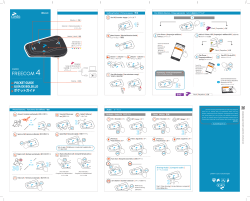
Cardo Systems Freecom 4 Pocket Guide
Бренд:
Cardo Systems
Категория:
Motorcycle Accessories
Размер:
1 MB
Страниц:
2
Язык(и):
Английский, Испанский, Японский
Открыть в новой вкладке
Cardo Systems Freecom 4 User Manual
Бренд:
Cardo Systems
Категория:
Motorcycle Accessories
Размер:
764 KB
Страниц:
25
Язык(и):
Английский
Открыть в новой вкладке
Cardo Systems Freecom 4 Benutzerhandbuch
Бренд:
Cardo Systems
Категория:
Motorcycle Accessories
Размер:
1 MB
Страниц:
2
Язык(и):
Немецкий, Английский, Французский, Итальянский
Открыть в новой вкладке

Cardo Systems Freecom 4 Benutzerhandbuch
Бренд:
Cardo Systems
Размер:
867 KB
Страниц:
26
Язык(и):
Немецкий
Открыть в новой вкладке
Cardo Systems Freecom 4 Manuel utilisateur
Бренд:
Cardo Systems
Категория:
Portable speakers
Размер:
789 KB
Страниц:
26
Язык(и):
Французский
Открыть в новой вкладке

Cardo Systems Freecom 4 Manuale utente
Бренд:
Cardo Systems
Размер:
873 KB
Страниц:
27
Язык(и):
Итальянский
Открыть в новой вкладке
Cardo Systems Freecom 4 Handleiding
Бренд:
Cardo Systems
Категория:
Motorcycle Accessories
Размер:
4 MB
Страниц:
2
Язык(и):
Голландский
Открыть в новой вкладке

Cardo Systems Freecom 4 Manual do usuário
Бренд:
Cardo Systems
Размер:
782 KB
Страниц:
2
Язык(и):
Португальский
Открыть в новой вкладке
Cardo Systems Freecom 4 Användarmanual
Бренд:
Cardo Systems
Размер:
4 MB
Страниц:
2
Язык(и):
Шведский
Открыть в новой вкладке
Cardo Systems Freecom 4 Användarmanual
Бренд:
Cardo Systems
Размер:
10 MB
Страниц:
39
Язык(и):
Шведский
Открыть в новой вкладке
Cardo Systems Freecom 4 מדריך למשתמש
Бренд:
Cardo Systems
Размер:
4 MB
Страниц:
2
Язык(и):
Иврит
Открыть в новой вкладке
Cardo Systems Freecom 4 מדריך למשתמש
Бренд:
Cardo Systems
Размер:
10 MB
Страниц:
38
Язык(и):
Иврит
Открыть в новой вкладке
Cardo Systems Freecom 4 ユーザーマニュアル
Бренд:
Cardo Systems
Размер:
1 MB
Страниц:
2
Язык(и):
zh
Открыть в новой вкладке
Cardo Systems Freecom 4 ユーザーマニュアル
Бренд:
Cardo Systems
Размер:
983 KB
Страниц:
24
Язык(и):
Японский
Открыть в новой вкладке

Cardo Systems Freecom 4 Manual de usuario
Бренд:
Cardo Systems
Категория:
Portable speakers
Размер:
874 KB
Страниц:
27
Язык(и):
Испанский
Открыть в новой вкладке
Смотреть руководство для Cardo Scala Rider Freecom 4 ниже. Все руководства на ManualsCat.com могут просматриваться абсолютно бесплатно. Нажав кнопку «Выбор языка» вы можете изменить язык руководства, которое хотите просмотреть.
Страница: 1
Для удобства в пути загрузите Краткое руководство по адресу cardosystems.com/quick-guides/.
Это версия 1.0 Руководства по FREECOM 4. Последние версии руководств на вашем языке и различные
справочные материалы можно загрузить по адресу cardosystems.com/product-manuals/.
2
Страница: 2
СОДЕРЖАНИЕ
1. Введение 4
2. Зарядка FREECOM4 5
3. Начало работы 6
3.1 Знакомство с устройством FREECOM 4 6
3.2 Включение и выключение устройства 6
3.3 Разные способы использования FREECOM 4 6
3.4 Основные функции 7
3.5 Подключение вашего устройства к устройствам Bluetooth 7
3.5.1 Подключение с помощью кнопок устройства 7
3.5.2 Подключение с помощью меню с голосовыми подсказками 9
3.6 Подключение Bluetooth-интеркома 9
3.6.1 Интерком-вызовы по Bluetooth с 3 или 4 абонентами 9
3.6.2 Подключение Bluetooth-интеркома к другим устройствам Cardo 10
3.6.3 Подключение Bluetooth-интеркома к устройствам сторонних производителей 12
4. Перед поездкой 14
4.1 Настройка FREECOM 4 с помощью приложения SmartSet 18
4.1.1 Настройка основных параметров FREECOM 4 с помощью приложения SmartSet 18
4.1.2 Настройка FM-радио 20
4.2 Настройка FREECOM 4 с помощью Cardo Community 23
4.2.1 Установка Cardo Updater на компьютер 23
4.2.2 Настройка основных параметров FREECOM 4 с помощью Cardo Community 23
4.2.3 Настройка FM-радио с помощью Cardo Community 24
4.3 Настройка FREECOM 4 с помощью голосового меню настройки 25
4.4 Использование параллельной потоковой передачи аудио 25
4.5 Приоритет аудиоисточников 27
4.6 Установка мобильного телефона по умолчанию 27
4.7 Проверка состояния аккумулятора с помощью SmartSet 28
5. В пути 29
5.1 Совершение и прием телефонных вызовов 29
5.1.1 Совершение телефонных вызовов 29
5.1.2 Прием телефонных вызовов 29
5.1.3 Отклонение телефонных вызовов 29
5.1.4 Завершение телефонных вызовов 30
5.1.5 Переключение между двумя вызовами на двух мобильных телефонах, подключенных к вашему устройству 30
5.1.6 Завершение текущего вызова и переключение на второй вызов 30
5.2 Совершение и прием интерком-вызовов по Bluetooth 30
5.2.1 Интерком-вызов по Bluetooth с 2 абонентами 30
5.2.2 Интерком-вызовы по Bluetooth с 3 или 4 абонентами 31
5.2.3 Прием интерком-вызовов по Bluetooth 32
5.2.4 Организация конференц-связи между вызовом по мобильному и интерком-вызовом по Bluetooth 33
5.2.5 Сигнал занятости Bluetooth-интеркома 33
5.2.6 Вызовы Click-To-Link 33
5.3 Прослушивание музыки и радио 34
5.3.1 Прослушивание музыки 34
5.3.2 Прослушивание FM-радио 36
5.3.3 Совместное прослушивание музыки и радио 38
6. Устранение неисправностей 40
6.1 Мягкий сброс 40
6.2 Сброс подключений 40
6.3 Сброс до заводских настроек 40
6.4 ВОПРОСЫ-ОТВЕТЫ 40
7. Служба поддержки 41
8. Словарь 42
Приложение A. Режимыи событияFREECOM4 – светодиоднаяиндикация 43
3
Страница: 3
1. ВВЕДЕНИЕ
Благодарим за выбор системы развлечений и связи по технологии Bluetooth® для мотоциклетных шлемов
Cardo FREECOM 4!
В данном руководстве описаны функции устройства FREECOM 4 и приведена справка по их использованию.
Желаем вам самых позитивных эмоций от использования FREECOM 4 и предлагаем писать нам на адрес
support@cardosystems.com, если у вас появятся какие-либо вопросы, предложения или замечания.
Если вы еще не установили устройство FREECOM 4 в свой шлем, установите его согласно Руководству по
установке, которое входит в комплект устройства.
4
Страница: 4
2. ЗАРЯДКА FREECOM 4
Аккумулятор FREECOM 4 следует заряжать в течение 4 часов перед первым использованием.
Чтобы зарядить FREECOM 4:
1. Подключите USB-разъем устройства FREECOM 4 с помощью поставляемого с ним USB-кабеля к
компьютеру или сетевому зарядному устройству.
● Зарядка с помощью сетевого зарядного устройства происходит быстрее, чем с помощью USB-порта
компьютера.
● При начале зарядки устройства оно автоматически выключается. Чтобы использовать устройство во
время зарядки, включите его. (см. раздел Включение и выключение устройства на стр. 6).
Во время зарядки светодиодный индикатор обозначает состояние зарядки следующим образом:
● красный светодиод включен – идет зарядка;
● красный светодиод выключен – зарядка завершена.
5
Страница: 5
3. НАЧАЛО РАБОТЫ
3.1 ЗНАКОМСТВО С УСТРОЙСТВОМ FREECOM 4
3.2 ВКЛЮЧЕНИЕ И ВЫКЛЮЧЕНИЕ УСТРОЙСТВА
Чтобы включить FREECOM 4:
● Нажмите и удерживайте и в течение 1 секунды. Динамик воспроизведет нарастающий сигнал и
голосовое сообщение «FREECOM 4 включен».
Независимо от заряда аккумулятора, светодиодный индикатор мигнет трижды голубым цветом, чтобы
обозначить, что устройство FREECOM 4 включено.
Чтобы выключить FREECOM 4:
● Коснитесь и .
Независимо от заряда аккумулятора, светодиодный индикатор мигнет трижды красным цветом, чтобы
обозначить, что устройство FREECOM 4 выключается. Динамик воспроизведет убывающий сигнал и
голосовое сообщение «До свидания».
При подключении устройства к зарядке оно выключается.
3.3 РАЗНЫЕ СПОСОБЫ ИСПОЛЬЗОВАНИЯ FREECOM 4
Различными функциями можно управлять любым из следующих способов:
● Нажатием кнопки или комбинации кнопок на устройстве.
● С помощью приложения SmartSet на мобильном устройстве (после его подключения к устройству).
● С помощью меню с голосовыми подсказками в сочетании с кнопками устройства или голосовым
управлением (VOX). Голосовое управление предназначено для управления FREECOM 4 без
использования рук. Когда меню с голосовыми подсказками перейдет на нужный вам пункт, произнесите
громко слово или фразу, и устройство FREECOM 4 выполнит соответствующее действие. Также можно
регулировать чувствительность микрофона для голосовой активации – см. Настройка основных
параметров FREECOM 4 с помощью приложения SmartSet на стр. 18.
В использовании функций FREECOM 4 будут помогать светодиодные индикаторы, звуковые сигналы и
голосовые уведомления, как описано в разделе Режимы и события FREECOM 4 – светодиодная индикация на
стр. 43.
В данном руководстве описан самый удобный способ или способы использования каждой функции.
6
Страница: 6
3.4 ОСНОВНЫЕ ФУНКЦИИ
Чтобы увеличить громкость текущего аудиоисточника:
● Коснитесь .
С каждым касанием динамик будет воспроизводить сигнал нарастающей громкости до тех пор, пока не
будет достигнута максимальная громкость, которой будет соответствовать сигнал максимальной
громкости.
Чтобы уменьшить громкость текущего аудиоисточника:
● Коснитесь .
С каждым касанием динамик будет воспроизводить более тихий сигнал до тех пор, пока не будет
достигнута минимальная громкость, которой будет соответствовать сигнал минимальной громкости.
Чтобы полностью заглушить микрофон и понизить громкость динамика до минимального уровня
при активном аудиоисточнике:
● Коснитесь и .
Динамик будет воспроизводить сигнал уменьшающейся громкости.
Технология автоматической регулировки усиления (AGC) используется для автоматической настройки
громкости устройства в зависимости от уровня окружающего шума и скорости движения. Чтобы изменить
чувствительность функции AGC, см. Настройка основных параметров FREECOM 4 с помощью приложения
SmartSet на стр. 18.
3.5 ПОДКЛЮЧЕНИЕ ВАШЕГО УСТРОЙСТВА К УСТРОЙСТВАМ BLUETOOTH
FREECOM 4 поддерживает два канала Bluetooth для подключения к устройствам Bluetooth, таким как
мобильные телефоны, GPS-навигаторы и музыкальные проигрыватели Bluetooth с поддержкой A2DP.
Подключение FREECOM 4 к устройству Bluetooth производится в режиме ожидания (см. Режимы и события
FREECOM 4 – светодиодная индикация на стр. 43). После подключения устройства, находящиеся в радиусе
действия, будут автоматически распознавать друг друга.
3.5.1 ПОДКЛЮЧЕНИЕ С ПОМОЩЬЮ КНОПОК УСТРОЙСТВА
Если вы подключаете несколько устройств, Cardo рекомендует подключать мобильный телефон к каналу 1,
а дополнительное устройство (например, GPS, музыкальный проигрыватель или второй мобильный
телефон) к каналу 2.
Чтобы подключить канал Bluetooth 1 к мобильному телефону:
1. Включите Bluetooth на мобильном телефоне.
2. Нажмите и удерживайте в течение 5 секунд. Светодиодный индикатор будет мигать красным и
голубым цветом.
3. Выполните поиск устройств Bluetooth на мобильном телефоне в соответствии с инструкциями к вашему
телефону.
4. Через несколько секунд FREECOM 4 появится в списке обнаруженных телефоном устройств. Выберите
его.
5. Если появится запрос на ввод PIN-кода или ключа доступа, введите «0000» (четыре нуля).
7
Страница: 7
6. На телефоне будет показано подтверждение об успешном подключении, а светодиодный индикатор
устройства будет мигать фиолетовым цветом в течение 2 секунд.
Чтобы подключить канал Bluetooth 2 к другому Bluetooth-устройству:
1. Включите Bluetooth на этом устройстве (например, мобильном телефоне, GPS-устройстве, музыкальном
проигрывателе).
2. Нажмите и удерживайте в течение 5 секунд. Светодиодный индикатор будет мигать красным и
голубым цветом.
3. Коснитесь дважды. Светодиод начинает мигать красным и зеленым.
Если вы подключаете GPS-устройство, обязательно выполните следующий шаг.
4. Если вы подключаете GPS-устройство, коснитесь . Светодиодный индикатор будет мигать медленнее.
5. Выполните поиск Bluetooth-устройств на том устройстве, которое вы подключаете (согласно
предоставленным с ним инструкциям).
6. Через несколько секунд FREECOM 4 появится в списке обнаруженных устройств. Выберите его.
7. Если появится запрос на ввод PIN-кода или ключа доступа, введите «0000» (четыре нуля).
8. На устройстве будет показано подтверждение об успешном подключении, а светодиодный индикатор
будет мигать фиолетовым цветом в течение 2 секунд.
● Если подключение не будет завершено в течение 2 минут, устройство автоматически перейдет в
режим ожидания.
● Если вы подключили два мобильных телефона напрямую к FREECOM 4, установите одно из них как
устройство по умолчанию для звонков (см. Установка мобильного телефона по умолчанию на стр. 27).
● Не все мобильные телефоны с Bluetooth поддерживают передачу музыки в режиме стерео по
Bluetooth (A2DP), даже если у телефона есть функция MP3-проигрывателя. Для получения более
подробной информации изучите руководство производителя вашего мобильного телефона.
● Не все GPS-устройства с функцией Bluetooth поддерживают подключение к аудиоустройствам
Bluetooth. Для получения более подробной информации изучите руководство GPS-устройства.
Чтобы отменить процесс подключения:
● Нажмите и удерживайте в течение 2 секунд. Светодиод перестает мигать красным и голубым или
красным и зеленым.
Чтобы сбросить все подключения устройств Bluetooth:
● Нажмите и удерживайте и в течение 5 секунд.
Независимо от состояния аккумулятора светодиод медленно мигнет пять раз, подтверждая сброс
подключений.
При сбросе всех подключений Bluetooth-устройств также выполняется сброс всех подключений
Bluetooth-интеркомов.
8
Страница: 8
3.5.2 ПОДКЛЮЧЕНИЕ С ПОМОЩЬЮ МЕНЮ С ГОЛОСОВЫМИ ПОДСКАЗКАМИ
Чтобы подключить FREECOM 4 к другим устройствам с помощью меню с голосовыми
подсказками:
1. Коснитесь и .
2. Находясь в меню с голосовыми подсказками на пункте «Дополнительные функции», коснитесь или
используйте голосовое управление.
3. Находясь в меню с голосовыми подсказками на нужном пункте, коснитесь или используйте голосовое
управление.
● Чтобы сбросить все подключения Bluetooth-интеркома, выберите пункт меню «Сбросить подключения
мобильных и GPS».
3.6 ПОДКЛЮЧЕНИЕ BLUETOOTH-ИНТЕРКОМА
Чтобы подключить ваше устройство к другому устройству с функцией интерком-связи по Bluetooth, сначала
нужно связать их каналы. После подключения устройства автоматически будут опознавать друг друга. Для
этого они должны находиться в диапазоне действия (в прямой видимости до 1,2 км / 3900 футов в
зависимости от местности).
● При наличии ранее подключенного устройства на канале, к которому выполняется подключение
нового устройства, старое подключение будет заменено новым.
● Если вы приобрели набор FREECOM 4 MultiSet, комплект включает два устройства, которые
изначально подключены друг к другу по каналу А.
● Устройство FREECOM 4 можно использовать совместно с большинством моделей Cardo для
совершения интерком-вызовов по Bluetooth. Кроме того, оно также совместимо с системой Schuberth
SRC-System™. Диапазон интерком-связи с другими моделями ограничен расстоянием, которое
поддерживается устройством с меньшим диапазоном.
Более подробные сведения о подключении и использовании вашего устройства FREECOM 4 с другими
устройствами Cardo см. по адресу www.cardosystems.com/freecomcompatibility.
3.6.1 ИНТЕРКОМ-ВЫЗОВЫ ПО BLUETOOTH С 3 ИЛИ 4 АБОНЕНТАМИ
В дополнение к стандартным интерком-вызовам по Bluetooth с 2 абонентами FREECOM 4 можно использовать
для организации интерком-вызовов по Bluetooth с 3 или 4 абонентами с устройствами как Cardo, так и
сторонних производителей. FREECOM 4 поддерживает полнодуплексную интерком-связь по Bluetooth с 3
водителями или 4 водителями/пассажирами на расстоянии до 1,2 км или 3900 футов в пределах прямой
видимости (зависит от местности).
При организации интерком-связи по Bluetooth с 3 абонентами вы подключаетесь к двум водителям или
пассажирам, а каждый из них подключен только к вам. Звонить можно любому из двух водителей или
пассажиров. Если вы уже общаетесь посредством интерком-вызова по Bluetooth с одним водителем или
пассажиром, просто добавьте еще одного. Все три водителя/пассажира теперь будут подключены к общему
интерком-вызову по Bluetooth.
9
Страница: 9
При организации интерком-связи с 4 абонентами вы подключаетесь к своему пассажиру, второй водитель
также подключается к своему пассажиру, а пассажиры подключаются друг к другу. Водителя звонят своим
пассажирам, а один из пассажиров звонит другому пассажиру. Все четыре мотоциклиста теперь будут
подключены к общему интерком-вызову по Bluetooth.
Cardo рекомендует, чтобы во время интерком-вызова по Bluetooth с 3 или 4 абонентами водители были
подключены только к одному интерком-вызову по Bluetooth, чтобы они могли слышать аудио с мобильного
телефона и указания GPS-навигатора.
Благодаря функции параллельной потоковой передачи аудио во время интерком-вызова по Bluetooth с
участием 3 или 4 абонентов можно одновременно разговаривать и слушать FM-радио. Громкость интерком-
вызова по Bluetooth не меняется, а FM-аудио воспроизводится с пониженной громкостью на фоне.
Дополнительные сведения о совершении интерком-вызовов по Bluetooth см. в разделе Совершение и прием
интерком-вызовов по Bluetooth на стр. 30
3.6.2 ПОДКЛЮЧЕНИЕ BLUETOOTH-ИНТЕРКОМА К ДРУГИМ УСТРОЙСТВАМ CARDO
Чтобы подключить ваше устройство к другим устройствам Cardo с помощью кнопок устройства:
1. Убедитесь, что ваше устройство находится в режиме ожидания (светодиодный индикатор медленно
мигает).
2. Нажмите и удерживайте в течение 5 секунд на вашем устройстве. Светодиодный индикатор будет
мигать красным цветом.
10
Страница: 10
3. Выберите канал Bluetooth-интеркома, по которому хотите установить подключение.
● Канал А – ничего не нажимайте (канал по умолчанию).
● Канал В – коснитесь дважды. Светодиодный индикатор будет мигать голубым цветом.
● Канал С – коснитесь три раза. Светодиодный индикатор будет мигать фиолетовым цветом.
4. На другом устройстве Cardo включите режим подключения Bluetooth-интеркома (см. руководство к
соответствующему устройству Cardo по адресу cardosystems.com/product-manuals/).
5. На устройстве будет показано подтверждение об успешном подключении, а светодиодный индикатор
будет мигать фиолетовым цветом в течение 2 секунд.
● Чтобы отменить процесс подключения, нажмите и удерживайте в течение 2 секунд. Светодиод
перестает мигать.
● Если подключение не будет завершено в течение 2 минут, устройство автоматически перейдет в
режим ожидания.
● Чтобы сбросить все подключения Bluetooth-интеркома, находясь в режиме подключения Bluetooth-
интеркома:
● Нажмите и удерживайте и в течение 5 секунд. Светодиод медленно мигнет 5 раз,
подтверждая сброс подключений.
Чтобы подключить устройство FREECOM 4 к другим устройствам Cardo с помощью приложения
SmartSet:
1. Убедитесь, что ваше устройство находится в режиме ожидания (светодиодный индикатор медленно
мигает).
1. Откройте приложение SmartSet и коснитесь .
2. Коснитесь Bluetooth.
3. В разделе Мотоциклисты коснитесь Добавить (или Изменить, если хотите подключить канал к другому
мотоциклисту) возле желаемого канала и следуйте указаниям в меню на экране.
4. На другом устройстве Cardo включите режим Bluetooth-интеркома (см. руководство к соответствующему
устройству Cardo по адресу cardosystems.com/product-manuals/).
5. На устройстве будет показано подтверждение об успешном подключении, а светодиодный индикатор
будет мигать фиолетовым цветом в течение 2 секунд.
● Чтобы сбросить все подключения Bluetooth-интеркома, коснитесь Удалить все.
Чтобы подключить устройство FREECOM 4 к другим устройствам Cardo с помощью меню с
голосовыми подсказками:
1. Убедитесь, что ваше устройство находится в режиме ожидания (светодиодный индикатор медленно
мигает).
2. Коснитесь и .
3. Находясь в меню с голосовыми подсказками на пункте «Дополнительные функции», коснитесь или
используйте голосовое управление.
11
Страница: 11
4. Находясь в меню с голосовыми подсказками на нужном пункте («Подключение интеркома А»,
«Подключение интеркома B» или «Подключение интеркома C»), коснитесь или используйте голосовое
управление.
5. На другом устройстве Cardo включите режим подключения Bluetooth-интеркома (см. руководство к
соответствующему устройству Cardo по адресу cardosystems.com/product-manuals/).
6. На устройстве будет показано подтверждение об успешном подключении, а светодиодный индикатор
будет мигать фиолетовым цветом в течение 2 секунд.
● Чтобы сбросить все подключения Bluetooth-интеркома, выберите пункт меню «Сбросить подключение
каналов интеркома».
3.6.3 ПОДКЛЮЧЕНИЕ BLUETOOTH-ИНТЕРКОМА К УСТРОЙСТВАМ СТОРОННИХ
ПРОИЗВОДИТЕЛЕЙ
С помощью Cardo Gateway устройства Cardo можно подключать к устройствам сторонних производителей по
Bluetooth.
Чтобы подключить устройство FREECOM 4 к устройствам сторонних производителей с помощью
кнопок устройства:
1. Убедитесь, что ваше устройство находится в режиме ожидания (светодиодный индикатор медленно
мигает).
2. Нажмите и удерживайте в течение 5 секунд на вашем устройстве. Светодиодный индикатор будет
мигать красным цветом.
3. Выберите канал Bluetooth-интеркома, по которому хотите установить подключение.
● Канал А – ничего не нажимайте (канал по умолчанию).
● Канал В – коснитесь дважды. Светодиодный индикатор будет мигать голубым цветом.
● Канал С – коснитесь три раза. Светодиодный индикатор будет мигать фиолетовым цветом.
4. Коснитесь , чтобы включить Cardo Gateway. Светодиодный индикатор будет мигать красным и голубым
цветом.
5. На стороннем устройстве включите режим подключения Bluetooth (см. руководство к соответствующему
устройству).
6. На устройстве будет показано подтверждение об успешном подключении, а светодиодный индикатор
будет мигать фиолетовым цветом в течение 2 секунд.
● Чтобы отменить процесс подключения, нажмите и удерживайте в течение 2 секунд. Светодиод
перестает мигать.
● Если подключение не будет завершено в течение 2 минут, устройство автоматически перейдет в
режим ожидания.
● Чтобы сбросить все подключения Bluetooth-интеркома, находясь в режиме подключения Bluetooth-
интеркома:
● Нажмите и удерживайте и в течение 5 секунд. Светодиод медленно мигнет 5 раз,
подтверждая сброс подключений.
12
Страница: 12
Чтобы подключить устройство FREECOM 4 к устройствам сторонних производителей с помощью
приложения SmartSet:
1. Убедитесь, что ваше устройство находится в режиме ожидания (светодиодный индикатор медленно
мигает).
2. Откройте приложение SmartSet и коснитесь .
3. Коснитесь Bluetooth.
4. В разделе Мотоциклисты коснитесь Добавить (или Изменить, если хотите подключить канал к другому
мотоциклисту) возле желаемого канала и следуйте указаниям в меню на экране.
5. На стороннем устройстве включите режим подключения Bluetooth (см. руководство к соответствующему
устройству).
6. На устройстве будет показано подтверждение об успешном подключении, а светодиодный индикатор
будет мигать фиолетовым цветом в течение 2 секунд.
● Чтобы сбросить все подключения Bluetooth-интеркома, коснитесь Удалить все.
Чтобы подключить устройство FREECOM 4 к устройствам сторонних производителей с помощью
меню с голосовыми подсказками:
● При использовании меню с голосовыми подсказками устройство автоматически выполняет
подключение по каналу В.
1. Убедитесь, что ваше устройство находится в режиме ожидания (светодиодный индикатор медленно
мигает).
2. Коснитесь и .
3. Находясь в меню с голосовыми подсказками на пункте «Дополнительные функции», коснитесь или
используйте голосовое управление.
4. Находясь в меню с голосовыми подсказками на пункте «Подключение Cardo Gateway», коснитесь или
используйте голосовое управление.
5. На стороннем устройстве включите режим подключения Bluetooth (см. руководство к соответствующему
устройству).
6. На устройстве будет показано подтверждение об успешном подключении, а светодиодный индикатор
будет мигать фиолетовым цветом в течение 2 секунд.
● Чтобы сбросить все подключения Bluetooth-интеркома, выберите пункт меню «Сбросить подключение
каналов интеркома».
13
Страница: 13
4. ПЕРЕД ПОЕЗДКОЙ
Настройте FREECOM 4 в соответствии с собственными предпочтениями одним из следующих способов:
● Приложение SmartSet для iOS / Android (см. Настройка FREECOM 4 с помощью приложения SmartSet на
стр. 18).
● Cardo Community для Windows / Mac — минимальные требования — Windows® 7 / Mac OS X 10.8 (см.
Настройка FREECOM 4 с помощью Cardo Community на стр. 23).
● Кнопки устройства.
● Голосовое меню настройки на устройстве.
Компания Cardo рекомендует производить настройку устройства не в пути, а заранее.
Объект
Значение по
умолчанию
Описание
Приложение
SmartSet
(iOS/Android)
Cardo
Community
Голосовое
меню
настройки
Чувствительность AGC
(выкл./низкая/средняя/высокая)
Средняя Технология AGC
используется для
автоматической
настройки
громкости
устройства в
зависимости от
уровня
окружающего
шума и скорости
движения.
Например, если
чувствительность
задана низкой,
громкость
увеличится при
более высоком
уровне шума.
ü ü ü
Приоритет аудио
(A2DP/Bluetooth-интерком)
Bluetooth-
интерком
Приоритет
аудиоисточника,
который
воспроизводится
через динамики.
Либо музыка не
прерывается
вызовом
интеркома, либо
наоборот.
ü ü ü
14
Страница: 14
Объект
Значение по
умолчанию
Описание
Приложение
SmartSet
(iOS/Android)
Cardo
Community
Голосовое
меню
настройки
Громкость фонового
аудиопотока
Н/П Громкость
фонового
аудиопотока,
если включена
параллельная
потоковая
передача аудио
(см.
Параллельная
потоковая
передача аудио
(вкл./выкл.) ниже).
ü û û
Название Bluetooth-устройства FREECOM 4 Название,
которое
отображается на
телефоне при
подключении, а
также в
приложении
SmartSet.
ü ü û
Параметры Click-to-Link
(вкл./выкл.)
Вкл. Быстрый способ
организовать
интерком-вызов
с другим
пассажиром или
водителем Cardo
без
необходимости
устанавливать
подключение.
ü ü ü
Загрузка обновлений
встроенного ПО
Н/П Чтобы на вашем
устройстве была
самая новая
версия ПО,
загружайте
обновления ПО
по мере их
появления (см.
Настройка
основных
параметров
FREECOM 4 с
помощью Cardo
Community на
стр. 23.
û ü û
15
Страница: 15
Объект
Значение по
умолчанию
Описание
Приложение
SmartSet
(iOS/Android)
Cardo
Community
Голосовое
меню
настройки
FM-диапазон В
соответствии
с вашим
регионом
Если вы
находитесь в
Японии,
выберите
Япония. В ином
случае выберите
Весь мир.
ü ü û
Язык В
соответствии
с вашим
регионом
Язык голосовых
оповещений и
меню с
голосовыми
подсказками (см.
«Голосовые
оповещения о
состоянии»
ниже).
Чтобы
выбрать язык,
который
отсутствует в
вашем
регионе,
сначала
нужно
изменить
регион в
Cardo
Community.
ü ü ü
Основной мобильный Мобильный 1 Если вы
подключили
устройство ко
двум мобильным
телефонам, один
из них нужно
установить в
качестве
основного
телефона для
исходящих
вызовов.
ü û û
16
Страница: 16
Объект
Значение по
умолчанию
Описание
Приложение
SmartSet
(iOS/Android)
Cardo
Community
Голосовое
меню
настройки
Параллельная потоковая
передача аудио (вкл./выкл.)
Вкл. Можно
прослушивать
два
аудиоисточника
одновременно.
Например,
получать
указания GPS во
время
прослушивания
музыки.
При
использовани
и некоторых
устройств iOS
могут
действовать
ограничения.
ü ü ü
RDS (вкл./выкл.) Выкл. Система
радиотрансляции
данных (RDS)
обеспечивает
автоматическую
перенастройку
радио на
наиболее
мощную частоту,
доступную для
FM-станции,
которую вы
прослушиваете,
когда сигнал
становится
слишком слабым.
ü ü ü
Заданные номера быстрого
набора
Пусто Предварительно
заданные номера
для
автоматического
набора.
ü û
6 предварительно сохраненных
FM-радиостанций
107.5 Предварительно
сохраненные FM-
радиостанции.
ü ü û
Голосовые оповещения о
состоянии (вкл./выкл.)
Вкл. Голосовые
оповещения
позволяют
определить, к
какому абоненту
или устройству
вы подключены.
ü ü ü
17
Страница: 17
Объект
Значение по
умолчанию
Описание
Приложение
SmartSet
(iOS/Android)
Cardo
Community
Голосовое
меню
настройки
Голосовое управление
(вкл./выкл.)
Вкл. Активация
определенных
функций с
помощью голоса
без
использования
рук.
ü ü ü
Чувствительность голосового
управления
(низкая/средняя/высокая)
Средняя Регулировка
чувствительности
микрофона при
использовании
голосового
управления в
поездке.
Например, при
большой
громкости
окружающего
шума и низкой
чувствительности
голосового
управления
говорить нужно
громко.
ü ü ü
Эффективность функций AGC и голосового управления может варьироваться в зависимости от внешних
условий, включая скорость движения, тип шлема и уровень шума. Для увеличения эффективности
рекомендуется уменьшить воздействие ветра на микрофон, закрыв визор шлема, а также использовать
микрофон с большой губкой.
4.1 НАСТРОЙКА FREECOM 4 С ПОМОЩЬЮ ПРИЛОЖЕНИЯ SMARTSET
FREECOM 4 можно настроить с помощью приложения SmartSet, которое можно установлить на мобильный
телефон с Google Play Store или Apple App Store.
Минимальные требования к операционной системе для работы SmartSet:
● Android: 4.0 и выше
● IOS: 8 и выше
4.1.1 НАСТРОЙКА ОСНОВНЫХ ПАРАМЕТРОВ FREECOM 4 С ПОМОЩЬЮ ПРИЛОЖЕНИЯ
SMARTSET
Чтобы настроить FREECOM 4 с помощью приложения SmartSet:
1. Убедитесь, что ваше устройство подключено к мобильному устройству, на котором установлено
приложение SmartSet.
18
Страница: 18
2. Откройте приложение SmartSet и коснитесь :
.
3. Будет показан следующий экран.
4. Используйте соответствующее меню для настройки параметров FREECOM 4:
● – функции FREECOM 4:
19
Страница: 19
Группа Описание/настройки
МОЕ УСТРОЙСТВО ● Изменение названия устройства.
ЯЗЫК ● Выбор языка.
Голосовые оповещения о состоянии ● Включение/выключение.
Голосовое управление ● Включение и выключение голосового управления.
● Настройка чувствительности голосового управления (низкая,
средняя или высокая).
AGC ● Включение и выключение AGC.
● Настройка чувствительности AGC (низкая, средняя или высокая).
ФУНКЦИИ ● Включение/выключение Click-to-link.
● Включение/выключение переключения от интеркома к
телефону.
● Включение/выключение параллельной потоковой передачи
аудио.
● Настройка приоритета A2DP/IC (A2DP или интерком).
● Настройка Региона FM-диапазона (весь мир или Япония).
Сброс до заводских настроек ● Сброс настроек устройства до заводских.
● – управление устройствами и пассажирами/водителями.
● – настройка уровня для каждого аудиоисточника (мобильный телефон, интерком,
музыка, FM-радио, уведомления, параллельная потоковая передача аудио).
● – настройки приложения SmartSet и общие сведения.
● – ЧаВо, отправить электронное письмо СЛУЖБЕ ПОДДЕРЖКИ Cardo,
ОТЗЫВЫ.
4.1.2 НАСТРОЙКА FM-РАДИО
FREECOM 4 включает встроенное FM-радио с возможностью сохранить до шести станций и системой
радиотрансляции данных (RDS). Эти функции описаны в следующих разделах.
4.1.2.1 НАСТРОЙКА FM-ДИАПАЗОНА
Частоты FM-диапазона по умолчанию установлены по стандарту «Весь мир». Если вы находитесь в Японии, FM-
диапазон нужно изменить.
Чтобы задать FM-диапазон:
1. Откройте приложение SmartSet и коснитесь :
2. Коснитесь .
20
Страница: 20
3. В разделе ФУНКЦИИ перейдите к пункту Регион FM-диапазона и коснитесь Весь мир или Япония.
4.1.2.2 РУЧНАЯ НАСТРОЙКА FM-РАДИО
Сохраненные FM-радиостанции можно настроить вручную или с помощью автоматической настройки (см.
Автоматическая настройка FM-радио на стр. 22).
Чтобы настроить шесть сохраненных FM-радиостанций вручную:
1. На главном экране коснитесь пункта FM.
2. Нажимайте нужный пункт, пока не появится следующий экран:
21
Страница: 21
3. Введите частоту FM-станцию и коснитесь кнопки «ОК».
4. Чтобы удалить сохраненную станцию, коснитесь кнопки УДАЛИТЬ.
● Сохраненную радиостанцию 1 нельзя удалить.
● Во время сканирования радиостанций удаленные радиостанции будут пропущены. При сканировании
станций автоматически выполняется переход на следующую сохраненную станцию. Более подробные
сведения см. в разделе Прослушивание FM-радио на стр. 36.
4.1.2.3 АВТОМАТИЧЕСКАЯ НАСТРОЙКА FM-РАДИО
Сохраненные FM-радиостанции FREECOM 4 можно настраивать с помощью автоматического сканирования,
при котором устройство автоматически находит FM-станции и временно сохраняет их.
Чтобы временно настроить шесть FM-радиостанций с помощью автоматической настройки:
1. На главном экране коснитесь пункта FM.
2. Нажмите . Будут временно сохранены шесть FM-радиостанций с самым сильным сигналом.
4.1.2.4 НАСТРОЙКА СИСТЕМЫ RDS FM-РАДИО С ПОМОЩЬЮ ПРИЛОЖЕНИЯ SMARTSET
Система радиотрансляции данных (RDS) обеспечивает автоматическую перенастройку FM-радио на наиболее
мощную частоту, доступную для FM-станции, которую вы прослушиваете, когда ее сигнал становится слишком
слабым.
22
Страница: 22
Чтобы включить или выключить RDS:
1. На главном экране коснитесь пункта FM.
2. Коснитесь . Система RDS будет включена или выключена.
4.2 НАСТРОЙКА FREECOM 4 С ПОМОЩЬЮ CARDO COMMUNITY
Один из способов настройки FREECOM 4: подключите устройство к компьютеру с помощью поставляемого с
ним USB-кабеля и запустите Cardo Updater, соединив компьютер с веб-сайтом Cardo Community.
Минимальные требования к операционной системе для работы Cardo Updater:
● Windows® 7;
● Mac OS X 10.8.
4.2.1 УСТАНОВКА CARDO UPDATER НА КОМПЬЮТЕР
Чтобы установить Cardo Updater на компьютер:
1. Перейдите по адресу http://cardosystems.com/cardo-community/, зарегистрируйтесь и выполните вход в
систему.
2. Загрузите приложение Cardo Update по предоставленной ссылке и установите его на компьютер.
4.2.2 НАСТРОЙКА ОСНОВНЫХ ПАРАМЕТРОВ FREECOM 4 С ПОМОЩЬЮ CARDO COMMUNITY
Чтобы настроить FREECOM 4 с помощью Cardo Community:
1. Запустите Cardo Updater.
2. С помощью поставляемого с устройством USB-кабеля подключите FREECOM 4 к USB-разъему
компьютера.
3. Если вы подключаете устройство впервые, появится экран Редактировать мой профиль. Выберите
пункт НАСТРОЙКИ.
23
Страница: 23
4. Откроется окно ОБЩИЕ НАСТРОЙКИ:
5. Задайте предпочитаемые настройки для каждой функции, руководствуясь приведенным описаниям.
Если появится новая версия встроенного ПО, следуйте указаниям на экране, чтобы устройство FREECOM 4
получило самые новые функции.
4.2.3 НАСТРОЙКА FM-РАДИО С ПОМОЩЬЮ CARDO COMMUNITY
Чтобы настроить шесть сохраненных FM-радиостанций с помощью Cardo Community:
1. Прокрутите вниз до раздела СОХРАНЕННЫЕ FM-РАДИОСТАНЦИИ.
2. На пункте FM-диапазон:
● Если вы находитесь в Японии, выберите Япония.
24
Страница: 24
● В ином случае выберите Весь мир.
3. На сохраненной станции, которую хотите изменить, щелкните .
4. Введите частоту FM-станцию и нажмите Ввод.
Также для настройки частоты можно использовать голубые стрелки влево и вправо на шкале частоты.
5. Чтобы удалить сохраненную станцию, щелкните .
Сохраненную радиостанцию 1 нельзя удалить.
4.3 НАСТРОЙКА FREECOM 4 С ПОМОЩЬЮ ГОЛОСОВОГО МЕНЮ НАСТРОЙКИ
FREECOM 4 можно настроить с помощью меню с голосовыми подсказками в сочетании с кнопками устройства
или голосовым управлением.
Чтобы настроить FREECOM 4 с помощью голосового меню настройки:
1. Убедитесь, что ваше устройство находится в режиме ожидания (светодиодный индикатор медленно
мигает).
2. Нажмите и удерживайте и в течение 2 секунд.
3. Находясь в меню с голосовыми подсказками на нужном пункте («Язык», «Приоритет аудио A2DP»,
«Голосовые оповещения о состоянии», «Click-to-Link», «AGC», «RDS», «Чувствительность голосового
управления», «Голосовое управление», «Параллельная потоковая передача аудио»), коснитесь или
используйте голосовое управление для выбора.
4.4 ИСПОЛЬЗОВАНИЕ ПАРАЛЛЕЛЬНОЙ ПОТОКОВОЙ ПЕРЕДАЧИ АУДИО
Благодаря параллельной потоковой передаче аудио можно прослушивать указания GPS-устройства во время
интерком-вызова по мобильному или Bluetooth, а также во время прослушивания других источников аудио,
таких как музыка или FM-радио.
25
Страница: 25
При использовании некоторых устройств iOS могут действовать ограничения.
Устройство FREECOM 4 помещает различные источники аудио либо на передний план (громкость не
меняется), либо на фон (громкость уменьшается), согласно следующей таблице:
Мобильный
телефон 1/2
GPS Интерком 1 Интерком 2 Музыка FM-радио
Передний план Передний план
Передний план1 Передний план1
Передний план Передний план
Передний план Фон
Передний план Фон
Передний план Фон
Передний план Фон
Передний план2,3 Передний план2,3 Фон
Передний план
4
Передний план
5
1В случае добавления интерком-вызова к вызову по мобильному телефону для организации конференц-
вызова громкость обоих источников аудио не меняется.
2В случае совершения двух интерком-вызовов одновременно для организации конференц-вызова громкость
обоих источников аудио не меняется.
3В случае совершения двух интерком-вызовов одновременно для организации конференц-вызова аудио с
мобильного телефона и GPS-навигатора воспроизводиться не будет.
4Если воспроизводится только музыка, громкость музыки не меняется.
5Если воспроизводится только FM-радио, громкость FM-радио не меняется.
В некоторых случаях параллельная потоковая передача аудио может работать неправильно из-за
ограничений подключенных устройств (музыкального проигрывателя или GPS-навигатора).
Дополнительные сведения см. в ВОПРОСЫ-ОТВЕТЫ на стр. 40.
Cardo рекомендует, чтобы во время интерком-вызова по Bluetooth с 3 или 4 абонентами мотоциклист,
который подключен только к одному интерком-вызову, слушал аудио с мобильного телефона и указания
GPS-навигатора.
Совместное прослушивание музыки нельзя использовать для разговоров с мотоциклистами во время
параллельной потоковой передачи аудио.
Настройка параллельной потоковой передачи аудио:
● Приложение SmartSet – см. Настройка основных параметров FREECOM 4 с помощью приложения
SmartSet на стр. 18.
● Cardo Community – см. Настройка основных параметров FREECOM 4 с помощью Cardo Community на стр.
23.
26
Страница: 26
4.5 ПРИОРИТЕТ АУДИОИСТОЧНИКОВ
Если параллельная потоковая передача аудио выключена, FREECOM 4 управляет аудиоисточниками, которые
воспроизводятся через динамики, в соответствии с описанным ниже приоритетом.
Приоритет Аудиоисточник
Более высокий приоритет
↑
Более низкий приоритет
Мобильный телефон, указания GPS-устройства
Интерком (Click-to-Link) или музыка1
Музыка или интерком (Click-to-Link)2
FM-радио
1Если приоритет аудио установлен на «Интерком», во время интерком-вызова звуки приложения навигации и
SMS-сообщений с телефона не воспроизводятся.
2Если приоритет аудио установлен на «A2DP» (музыка), интерком-связь отключена во время прослушивания
музыки (по A2DP). Абонент, позвонивший вам по интеркому, услышит звук, обозначающий, что вы не можете
принять вызов.
● У всех режимов интеркома приоритет одинаковый, поэтому текущие интерком-вызовы не будут
прерываться другими интерком-вызовами.
● У интерком-вызовов по Bluetooth и вызовов Click-to-Link одинаковый приоритет, поэтому вызовы Click-
to-Link не будут прерываться интерком-вызовами по Bluetooth и наоборот.
Если вы подключили свое устройство к двум мобильным телефонам (см Установка мобильного телефона
по умолчанию на стр. 27), музыка будет воспроизводиться с того мобильного телефона, на котором она
воспроизводилась в предыдущий раз.
При совместном прослушивании FM-радио (см. Совместное прослушивание музыки и радио на стр. 38)
любой из участвующих может переключить станцию и интерком (Click-to-Link).
4.6 УСТАНОВКА МОБИЛЬНОГО ТЕЛЕФОНА ПО УМОЛЧАНИЮ
Если вы подключили устройство ко двум мобильным телефонам, один из них нужно установить в качестве
основного телефона для исходящих вызовов.
Чтобы установить телефон по умолчанию с помощью приложения SmartSet:
1. Убедитесь, что ваше устройство находится в режиме ожидания (светодиодный индикатор медленно
мигает).
2. Откройте приложение SmartSet и коснитесь :
3. Коснитесь .
27
Страница: 27
4. Коснитесь пункта ПРИОРИТЕТ для мобильного телефона, который нужно сделать телефоном по
умолчанию.
Чтобы установить телефон по умолчанию с помощью интерфейса устройства:
● Во время разговора по мобильному удерживайте в течение 5 секунд.
4.7 ПРОВЕРКА СОСТОЯНИЯ АККУМУЛЯТОРА С ПОМОЩЬЮ SMARTSET
Просмотр состояния аккумулятора на мобильном телефоне
Если на ваш телефон установлено приложение SmartSet, состояние аккумулятора устройства можно
определить с помощью индикатора, размещенного в нижнем правом углу этого приложения, а также в строке
состояния.
Если уровень заряда аккумулятора FREECOM 4 достигнет 20%, вы услышите голосовое уведомление,
предупреждающее о низком уровне аккумулятора.
28
Страница: 28
5. В ПУТИ
5.1 СОВЕРШЕНИЕ И ПРИЕМ ТЕЛЕФОННЫХ ВЫЗОВОВ
Если ваш мобильный телефон подключен к устройству FREECOM 4, совершать и принимать вызовы можно
в обычном режиме.
5.1.1 СОВЕРШЕНИЕ ТЕЛЕФОННЫХ ВЫЗОВОВ
Телефонные вызовы нельзя совершать во время интерком-вызовов с 3 или 4 абонентами при
подключении по мобильному или Bluetooth.
Чтобы совершить телефонный вызов с помощью кнопок устройства:
● С помощью функции голосового набора мобильного телефона – коснитесь и .
● Набор установленного по умолчанию номера быстрого набора – коснитесь трижды.
● Повторный набор последнего использованного номера – нажмите и удерживайте в течение 2 секунд.
Чтобы совершить телефонный вызов с помощью приложения SmartSet:
● В приложении SmartSet коснитесь пункта Телефон, а затем выполните одно из следующих действий:
● коснитесь ПОВТОРНЫЙ НАБОР.
● коснитесь ГОЛОСОВОЙ НАБОР.
Чтобы совершить телефонный вызов с помощью меню с голосовыми подсказками:
1. Убедитесь, что ваше устройство находится в режиме ожидания (светодиодный индикатор медленно
мигает).
2. Коснитесь и .
3. Находясь в меню с голосовыми подсказками на нужном пункте («Голосовой набор», «Повторный набор»
или «Быстрый набор»), коснитесь или используйте голосовое управление.
5.1.2 ПРИЕМ ТЕЛЕФОННЫХ ВЫЗОВОВ
Чтобы принять телефонный вызов с помощью кнопок устройства:
● Коснитесь или .
Чтобы принять телефонный вызов с помощью голосового управления:
● Громко произнесите любое слово.
5.1.3 ОТКЛОНЕНИЕ ТЕЛЕФОННЫХ ВЫЗОВОВ
Чтобы отклонить телефонный вызов с помощью кнопок устройства:
● Удерживайте в течение 2 секунд.
Чтобы отклонить телефонный вызов с помощью голосового управления:
● Молчите в течение 30 секунд.
29
Страница: 29
5.1.4 ЗАВЕРШЕНИЕ ТЕЛЕФОННЫХ ВЫЗОВОВ
Чтобы завершить телефонный вызов с помощью кнопок устройства:
● Коснитесь .
Чтобы завершить телефонный вызов с помощью приложения SmartSet:
1. На главном экране коснитесь пункта ТЕЛЕФОН.
2. Нажмите ЗАВЕРШИТЬ ВЫЗОВ.
5.1.5 ПЕРЕКЛЮЧЕНИЕ МЕЖДУ ДВУМЯ ВЫЗОВАМИ НА ДВУХ МОБИЛЬНЫХ ТЕЛЕФОНАХ,
ПОДКЛЮЧЕННЫХ К ВАШЕМУ УСТРОЙСТВУ
Устройство FREECOM 4 может переключаться между двумя вызовами на двух мобильных телефонах, если оба
телефона подключены к вашему устройству.
Чтобы переключаться между двумя вызовами на двух мобильных телефонах с помощью кнопок
устройства:
● Коснитесь дважды.
5.1.6 ЗАВЕРШЕНИЕ ТЕКУЩЕГО ВЫЗОВА И ПЕРЕКЛЮЧЕНИЕ НА ВТОРОЙ ВЫЗОВ
Если к вашему устройству подключены два мобильных телефона и нужно завершить текущий
вызов и переключиться на вызов на втором телефоне, можно использовать кнопки устройства:
● Коснитесь .
5.2 СОВЕРШЕНИЕ И ПРИЕМ ИНТЕРКОМ-ВЫЗОВОВ ПО BLUETOOTH
● Чтобы совершать и принимать интерком-вызовы по Bluetooth, сначала нужно подключить Bluetooth, см
Подключение Bluetooth-интеркома на стр. 9.
● Если во время интерком-вызова по Bluetooth с 3 или 4 абонентами используются оба доступных канала
Bluetooth, мотоциклисты не смогут принимать телефонные вызовы и прослушивать указания GPS-
устройства.
5.2.1 ИНТЕРКОМ-ВЫЗОВ ПО BLUETOOTH С 2 АБОНЕНТАМИ
Создать интерком-вызов по Bluetooth с пассажиром или водителем можно одним из приведенных
ниже способов:
● С помощью кнопок устройства:
● Чтобы начать вызов на канале А, коснитесь .
● Чтобы начать вызов на канале B, коснитесь дважды.
● Чтобы начать вызов на канале C, коснитесь трижды.
● Используйте голосовое управление. Будет запущен интерком-вызов по Bluetooth с участием
пассажира/водителя на канале A или B.
Если подключены каналы A и B, система организует интерком-вызов по Bluetooth с 3 абонентами.
● С помощью приложения SmartSet: На экране ИНТЕРКОМ выберите нужный канал (A, B или C).
● С помощью меню с голосовыми подсказками:
30
Страница: 30
a. Коснитесь и .
b. Находясь в меню с голосовыми подсказками на пункте «Интерком-вызов», коснитесь или
используйте голосовое управление.
Завершить интерком-вызов по Bluetooth можно одним из приведенных ниже способов:
● С помощью кнопок устройства :
● Чтобы отключить канал A, коснитесь .
● Чтобы отключить канал В, коснитесь дважды.
● Чтобы отключить канал C, коснитесь трижды.
● С помощью приложения SmartSet: На экране ИНТЕРКОМ выберите канал, который нужно отключить.
Если вы организовали интерком-вызов по Bluetooth с помощью голосового управления и не произносите
ничего в течение 30 секунд, вызов будет завершен.
5.2.2 ИНТЕРКОМ-ВЫЗОВЫ ПО BLUETOOTH С 3 ИЛИ 4 АБОНЕНТАМИ
Рекомендации по созданию интерком-вызовов по Bluetooth с 3 и 4 абонентами и подключению устройств
для интерком-вызовов по Bluetooth см. Подключение Bluetooth-интеркома на стр. 9.
Создать интерком-вызов по Bluetooth с 3 абонентами можно одним из приведенных ниже
способов:
● С помощью кнопок устройства :
● Чтобы организовать конференц-вызов на каналах А и B, нажмите и удерживайте в течение 2
секунд.
● Чтобы начать вызов на канале А или добавить канал А к вызову, коснитесь .
● Чтобы начать вызов на канале В или добавить канал В к вызову, коснитесь дважды.
● Чтобы начать вызов на канале C или добавить канал C к вызову, коснитесь трижды.
● Используйте голосовое управление. Начнется интерком-вызов по Bluetooth на каналах A+B (если
водители или пассажиры подключены и находятся в диапазоне действия).
● С помощью приложения SmartSet: На экране ИНТЕРКОМ выберите каналы A+B.
● С помощью меню с голосовыми подсказками:
a. Коснитесь и .
b. Находясь в меню с голосовыми подсказками на пункте «Интерком-вызов», коснитесь или
используйте голосовое управление.
31
Страница: 31
Создать интерком-вызов по Bluetooth с 4 абонентами можно одним из приведенных ниже
способов:
Cardo рекомендует использовать следующую конфигурацию подключения для интерком-вызовов по
Bluetooth с 4 абонентами:
● Пассажир 2 подключен к водителю 1 по каналу А и к пассажиру 4 по каналу B.
● Пассажир 4 подключен к водителю 3 по каналу А и к пассажиру 2 по каналу B.
● С помощью кнопок устройства :
a. Пассажир 2 нажимает и удерживает в течение 2 секунд. Будет запущен интерком-вызов по
Bluetooth с водителем 1 и пассажиром 4 (с участием 3 абонентов).
b. Пассажир 4 касается . В интерком-вызов будет добавлен водитель 3.
● С помощью приложения SmartSet:
a. На экране ИНТЕРКОМ пассажир 2 выбирает каналы A+B. Будет запущен интерком-вызов по Bluetooth
с водителем 1 и пассажиром 4 (с участием 3 абонентов).
b. На экране ИНТЕРКОМ пассажир 4 выбирает канал A. В интерком-вызов будет добавлен водитель 3.
Завершить интерком-вызов по Bluetooth можно одним из приведенных ниже способов:
● С помощью кнопок устройства:
● Чтобы отключить абонента A, коснитесь .
● Чтобы отключить абонента В, коснитесь дважды.
● Чтобы отключить абонента C, коснитесь трижды.
● Чтобы закрыть все активные подключения Bluetooth-интеркома, нажмите и удерживайте в
течение 2 секунд.
● Если вы организовали интерком-вызов по Bluetooth с помощью голосового управления: не произносите
ничего, по меньшей мере, в течение 30 секунд. Все текущие вызовы будут завершены.
5.2.3 ПРИЕМ ИНТЕРКОМ-ВЫЗОВОВ ПО BLUETOOTH
● Если вам поступит интерком-вызов по Bluetooth сдругого подключенного устройства, вызов начнется
автоматически.
32
Страница: 32
● Чтобы получать интерком-вызовы по Bluetooth от устройств, которые не подключены к вашему, см.
Вызовы Click-To-Link на стр. 33.
5.2.4 ОРГАНИЗАЦИЯ КОНФЕРЕНЦ-СВЯЗИ МЕЖДУ ВЫЗОВОМ ПО МОБИЛЬНОМУ И
ИНТЕРКОМ-ВЫЗОВОМ ПО BLUETOOTH
Устройство позволяет организовать конференц-связь, включающую вызов по мобильному телефону и
интерком-вызов по Bluetooth (один канал).
Чтобы добавить интерком-вызов по Bluetooth к текущему вызову по мобильному телефону:
● С помощью кнопок устройства :
● Чтобы добавить абонента A к вызову, коснитесь .
● Чтобы добавить абонента B к вызову, коснитесь дважды.
● Чтобы добавить абонента C к вызову, коснитесь трижды.
● С помощью приложения SmartSet: На экране ИНТЕРКОМ выберите нужный канал (A, B или C).
Отключить интерком-вызов по Bluetooth от вызова по мобильному телефону можно одним из
приведенных ниже способов:
● С помощью кнопок устройства :
● Чтобы отключить абонента A, коснитесь .
● Чтобы отключить абонента В, коснитесь дважды.
● Чтобы отключить абонента C, коснитесь трижды.
● С помощью приложения SmartSet: На экране ИНТЕРКОМ отключите активный канал.
После отключения интерком-вызова по Bluetooth можно продолжать общение по мобильному телефону.
Аналогично, если сначала отключить вызов по мобильному телефону, можно продолжать общение по
Bluetooth.
5.2.5 СИГНАЛ ЗАНЯТОСТИ BLUETOOTH-ИНТЕРКОМА
При попытке совершения интерком-вызова по Bluetooth будет воспроизведен сигнал «занято», если другой
пассажир/водитель участвует в:
● телефонном вызове;
● интерком-вызове по Bluetooth на каналах A и B;
● вызове Click-to-Link.
5.2.6 ВЫЗОВЫ CLICK-TO-LINK
Click-To-Link – это быстрый способ начать двухсторонний интерком-вызов с другим пассажиром или
водителем, который находится поблизости, без необходимости осуществлять подключение.
● Если поблизости находятся другие пользователи Cardo, при следующем вызове Click-to-Link вы
подключитесь к одному из них в случайном порядке.
● Чтобы заблокировать входящие вызовы Click-to-Link, отключите Click-to-Link (см. Перед поездкой на
стр. 14).
33
Страница: 33
Чтобы совершить вызов Click-to-Link с помощью приложения SmartSet:
1. Откройте приложение SmartSet и коснитесь Интерком.
2. Коснитесь CLICK TO LINK.
Чтобы завершить вызов Click-to-Link с помощью кнопок устройства:
● Коснитесь .
Чтобы принять вызов Click-to-Link с помощью кнопок устройства:
● Коснитесь .
Чтобы отклонить вызов Click-to-Link с помощью кнопок устройства:
● Удерживайте в течение 2 секунд.
Чтобы принять вызов Click-to-Link с помощью голосового управления:
● Громко произнесите любое слово.
5.3 ПРОСЛУШИВАНИЕ МУЗЫКИ И РАДИО
5.3.1 ПРОСЛУШИВАНИЕ МУЗЫКИ
Запустить потоковую передачу музыки с подключенного устройство можно одним из
приведенных ниже способов:
● С помощью кнопок устройства: коснитесь .
● С помощью приложения SmartSet: коснитесь МУЗЫКА.
● С помощью меню с голосовыми подсказками:
a. Коснитесь и .
b. Находясь в меню с голосовыми подсказками на пункте «Включить музыку», коснитесь или
используйте голосовое управление.
Чтобы остановить потоковую передачу музыки, выполните одно из следующих действий:
● С помощью кнопок устройства: удерживайте в течение 2 секунд.
● С помощью приложения SmartSet: на экране МУЗЫКА коснитесь кнопки .
● С помощью меню с голосовыми подсказками:
a. Коснитесь и .
b. Находясь в меню с голосовыми подсказками на пункте «Выключить музыку», коснитесь или
используйте голосовое управление.
Чтобы воспроизвести следующую дорожку (во время потокового воспроизведения музыки),
выполните одно из следующих действий:
● С помощью кнопок устройства: коснитесь .
● С помощью приложения SmartSet: на экране МУЗЫКА коснитесь кнопки .
34
Страница: 34
Чтобы воспроизвести предыдущую дорожку (во время потокового воспроизведения музыки),
выполните одно из следующих действий:
● С помощью кнопок устройства: коснитесь дважды.
● С помощью приложения SmartSet: на экране МУЗЫКА коснитесь кнопки .
Чтобы выполнить сканирование дорожек вперед (во время потокового воспроизведения музыки)
и воспроизвести нужную, выполните одно из следующих действий:
● С помощью кнопок устройства:
a. Коснитесь и . При использовании функции сканирования вперед каждые несколько секунд
происходит автоматическое переключение на следующую дорожку.
b. Когда услышите дорожку, которую хотите прослушать, коснитесь или используйте голосовое
управление.
● С помощью приложения SmartSet:
a. На экране МУЗЫКА в разделе СКАНИРОВАНИЕ МУЗЫКИ коснитесь кнопки . При использовании
функции сканирования вперед каждые несколько секунд происходит автоматическое переключение
на следующую дорожку.
b. Когда услышите дорожку, которую хотите прослушать, на экране МУЗЫКА в разделе
СКАНИРОВАНИЕ МУЗЫКИ коснитесь .
● С помощью меню с голосовыми подсказками:
a. Коснитесь и .
b. Находясь в меню с голосовыми подсказками на пункте «Сканировать дорожки вперед», коснитесь
или используйте голосовое управление.
c. Когда услышите дорожку, которую хотите прослушать, коснитесь или используйте голосовое
управление.
Чтобы выполнить сканирование дорожек назад (во время потокового воспроизведения музыки) и
воспроизвести нужную:
● С помощью приложения SmartSet:
a. На экране МУЗЫКА в разделе СКАНИРОВАНИЕ МУЗЫКИ коснитесь кнопки . При использовании
функции сканирования назад каждые несколько секунд происходит автоматическое переключение на
предыдущую дорожку.
b. Когда услышите дорожку, которую хотите прослушать, на экране МУЗЫКА в разделе
СКАНИРОВАНИЕ МУЗЫКИ коснитесь .
● С помощью меню с голосовыми подсказками:
a. Коснитесь и .
b. Находясь в меню с голосовыми подсказками на пункте «Сканировать дорожки назад», коснитесь .
c. Когда услышите дорожку, которую хотите прослушать, коснитесь или используйте голосовое
управление.
35
Страница: 35
5.3.1.1 ПЕРЕКЛЮЧЕНИЕ ИСТОЧНИКОВ МУЗЫКИ
Если к FREECOM 4 подключено два источника музыки (A2DP), устройство использует аудиоисточник, с которого
музыка воспроизводилась в предыдущий раз.
Чтобы переключиться на другой аудиоисточник:
1. Остановите воспроизведение музыки (A2DP) с текущего устройства (см. Прослушивание музыки на стр.
34).
2. Запустите воспроизведение музыки (A2DP) с другого устройства (см. Прослушивание музыки на стр. 34).
FREECOM 4 автоматически запомнит устройство, с которого выполнялось воспроизведение.
5.3.2 ПРОСЛУШИВАНИЕ FM-РАДИО
Чтобы включить FM-радио, выполните одно из следующих действий:
При включении FM-радио начнется воспроизведение той радиостанции, которую вы прослушивали перед
предыдущим выключением.
● С помощью кнопок устройства: коснитесь дважды.
● С помощью приложения SmartSet: на экране FM коснитесь кнопки ВКЛ./ВЫКЛ..
● С помощью меню с голосовыми подсказками:
a. Коснитесь и .
b. Находясь в меню с голосовыми подсказками на пункте «Включить радио», коснитесь или
используйте голосовое управление.
Чтобы выключить FM-радио, выполните одно из следующих действий:
● С помощью кнопок устройства: удерживайте в течение 2 секунд.
● С помощью приложения SmartSet: на экране FM коснитесь кнопки Вкл./Выкл.
● С помощью меню с голосовыми подсказками:
a. Коснитесь и .
b. Находясь в меню с голосовыми подсказками на пункте «Выключить радио», коснитесь или
используйте голосовое управление.
Чтобы переключиться на другую предварительно сохраненную радиостанцию:
● При использовании кнопок устройства, выполните одно из следующих действий:
● коснитесь , чтобы перейти на следующую сохраненную радиостанцию;
● коснитесь дважды, чтобы перейти на предыдущую сохраненную радиостанцию.
● С помощью приложения SmartSet: На экране FM выберите касанием нужную радиостанцию.
Чтобы найти следующую доступную станцию:
● С помощью приложения SmartSet: На экране FM выполните одно из следующих действий:
● коснитесь ;
36
Страница: 36
● коснитесь .
Чтобы выполнить сканирование доступных радиостанций и выбрать нужную станцию:
● С помощью кнопок устройства:
a. Коснитесь и . FM-радио воспроизводит каждую найденную станцию в течение нескольких
секунд.
b. Когда услышите станцию, которую хотите выбрать, коснитесь или используйте голосовое
управление.
● С помощью меню с голосовыми подсказками:
a. Коснитесь и .
b. Находясь в меню с голосовыми подсказками на пункте «Сканировать станции вверх», коснитесь
или используйте голосовое управление.
Чтобы сохранить найденную в процессе сканирования станцию:
● С помощью кнопок устройства: коснитесь в течение 20 секунд после остановки сканирования.
Чтобы эффективно управлять сохраненными станциями с помощью Cardo Community, см. Настройка FM-
радио с помощью Cardo Community на стр. 24.
Чтобы эффективно управлять сохраненными станциями с помощью приложения SmartSet, см. Ручная
настройка FM-радио на стр. 21.
Временное сохранение новых настроек FM-радиостанций с помощью автоматической настройки
С помощью автоматической настройки можно временно сохранять новые FM-радиостанции с возможностью
вернуть первоначально сохраненные настройки станций в любой момент.
Чтобы временно сохранить новые настройки станций (автоматическая настройка):
● С помощью кнопок устройства: удерживайте в течение 5 секунд.
● С помощью приложения SmartSet: на экране FM коснитесь кнопки ВКЛ./ВЫКЛ..
● С помощью меню с голосовыми подсказками:
a. Коснитесь и .
b. Находясь в меню с голосовыми подсказками на пункте «Автоматическое сканирование 6
радиостанций», коснитесь или используйте голосовое управление.
Чтобы восстановить первоначально сохраненные станции (после автоматической настройки):
● С помощью кнопок устройства: выключите устройство, а затем снова его включите.
37
Страница: 37
5.3.3 СОВМЕСТНОЕ ПРОСЛУШИВАНИЕ МУЗЫКИ И РАДИО
Вы можете прослушивать музыку и FM-радио вместе со своим пассажиром или другим мотоциклистом.
Совместное прослушивание музыки больше подходит для тех случаев, когда ее одновременно хотят слушать
водитель и пассажир. FM-радио также предназначено для совместного прослушивания двумя водителями.
● Музыку и радио можно прослушивать совместно только с одним пассажиром или водителем.
● Интерком-вызовы по Bluetooth отключены в течение совместного прослушивания музыки.
● При совместном прослушивании FM-радио автоматически организуется интерком-вызов по Bluetooth.
● При совместном прослушивании музыки Bluetooth-интерком использовать нельзя.
● Если вы подключили свое устройство к двум мобильным телефонам, музыка будет передаваться с того
мобильного телефона, на котором она воспроизводилась в последний раз.
● При совместном прослушивании FM-радио любой из прослушивающих может переключать станции, и
это не приведет к завершению интерком-вызова по Bluetooth.
● При остановке совместного прослушивания FM-радио интерком-вызов по Bluetooth не прерывается, а
воспроизведение FM-радио продолжается независимо на каждом устройстве пассажира/водителя.
● При остановке совместного прослушивания музыки ее воспроизведение продолжается только на
вашем устройстве.
Чтобы запустить или остановить совместное прослушивание, выполните одно из следующих
действий:
● С помощью кнопок устройства:
a. Убедитесь, что ваше устройство FREECOM 4 находится в режиме ожидания (светодиодный индикатор
медленно мигает).
b. Запустите воспроизведение музыки или FM-радио.
c. Удерживайте в течение 2 секунд, чтобы начать совместное прослушивание по каналу A (по
умолчанию).
Для совместного прослушивания музыки или радио на других каналах:
1. Запустите воспроизведение музыки или FM-радио.
2. Начните интерком-вызов по Bluetooth на нужном канале (A, B или C).
3. Удерживайте в течение 2 секунд.
d. Чтобы остановить совместное прослушивание, удерживайте в течение 2 секунд.
● С помощью приложения SmartSet:
a. Убедитесь, что ваше устройство FREECOM 4 находится в режиме ожидания (светодиодный индикатор
медленно мигает).
b. Запустите воспроизведение музыки или FM-радио.
c. Затем:
● на экране МУЗЫКА коснитесь кнопки .
или
38
Страница: 38
● на экране FM коснитесь кнопки .
d. Воспроизведение музыки для совместного прослушивание будет осуществляться по каналу А (по
умолчанию).
Для совместного прослушивания музыки или радио на других каналах:
1. Запустите воспроизведение музыки или FM-радио.
2. Начните интерком-вызов по Bluetooth на нужном канале (A, B или C).
3. Затем:
● на экране МУЗЫКА коснитесь кнопки .
или
● на экране FM коснитесь кнопки .
d. Чтобы остановить совместное прослушивание:
● на экране МУЗЫКА коснитесь кнопки .
или
● на экране FM коснитесь кнопки .
● С помощью меню с голосовыми подсказками (только при использовании канала А):
a. Убедитесь, что ваше устройство FREECOM 4 находится в режиме ожидания (светодиодный индикатор
медленно мигает).
b. Запустите воспроизведение музыки или FM-радио.
c. Коснитесь и .
d. Находясь в меню с голосовыми подсказками на пункте:
● «Запуск совместного прослушивания музыки», коснитесь или используйте голосовое
управление.
или
● «Запуск совместного прослушивания радио», коснитесь или используйте голосовое
управление.
e. Чтобы остановить совместное прослушивание, выполните одно из следующих действий:
● FM-радио – коснитесь . Интерком-вызов по Bluetooth будет завершен.
● FM-радио или музыка – удерживайте в течение 2 секунд. Если осуществлялось совместное
прослушивание FM-радио, интерком-вызов по Bluetooth прерываться не будет.
39
Страница: 39
6. УСТРАНЕНИЕ НЕИСПРАВНОСТЕЙ
6.1 МЯГКИЙ СБРОС
Если устройство FREECOM 4 перестает реагировать, выполните его сброс одним из следующих способов:
● Выключите и включите снова (см. Включение и выключение устройства на стр. 6).
● Подключите USB-разъем устройства FREECOM 4 с помощью поставляемого с ним USB-кабеля к
компьютеру или сетевому зарядному устройству на 30 секунд.
6.2 СБРОС ПОДКЛЮЧЕНИЙ
Эта функция используется для удаления всех подключенных устройств.
Чтобы выполнить сброс подключений:
● Нажмите и удерживайте и в течение 5 секунд.
6.3 СБРОС ДО ЗАВОДСКИХ НАСТРОЕК
Эта функция используется для удаления всех подключенных устройств и настроек.
Для выполнения сброса до заводских настроек выполните одно из следующих действий:
● С помощью кнопок устройства:
a. Убедитесь, что устройство FREECOM 4 находится в режиме ожидания (см. Режимы и события
FREECOM 4 – светодиодная индикация на стр. 43).
b. Одновременно нажмите и удерживайте + + в течение 5 секунд
● С помощью приложения SmartSet:
a. Убедитесь, что устройство FREECOM 4 находится в режиме ожидания (см. Режимы и события
FREECOM 4 – светодиодная индикация на стр. 43).
b. Откройте приложение SmartSet и коснитесь .
c. Коснитесь пункта Настройки.
d. Коснитесь пункта Сброс до заводских настроек.
● С помощью меню с голосовыми подсказками:
a. Коснитесь и .
b. Находясь в меню с голосовыми подсказками на пункте «Меню дополнительных функций», коснитесь
или используйте голосовое управление.
c. Находясь в меню с голосовыми подсказками на пункте «Сброс до заводских настроек», коснитесь
или используйте голосовое управление.
6.4 ВОПРОСЫ-ОТВЕТЫ
Решения других распространенных проблем приведены по адресу www.cardosystems.com/faqs.
40
Страница: 40
7. СЛУЖБА ПОДДЕРЖКИ
Дополнительные сведения:
: www.cardosystems.com
* support@cardosystems.com
( США и Канада: 1-800-488-0363 / Международный номер: +49 89 450 36819
Транснациональным компаниям, работающим в сфере торговли по Интернету, и онлайн-аукционам
запрещено продавать продукты Cardo, и при покупке из таких источников вы принимаете на себя весь
риск. Чтобы воспользоваться услугами гарантии и обслуживания клиентов, вы должны предоставить
оригиналы чеков от официальных дилеров, торгующих продуктами Cardo.
Продукты, импортированные из Северной Америки, обслуживаются только в США.
41
Страница: 41
8. СЛОВАРЬ
Термин/сокращение Описание
A2DP Расширенный профиль распространения аудио (для музыки). Протокол
воспроизведения музыки по Bluetooth.
Чувствительность AGC Технология автоматической регулировки усиления (AGC) используется
для автоматической настройки громкости устройства в зависимости от
уровня окружающего шума и скорости движения.
Click-to-Link Быстрый способ начать двухсторонний интерком-вызов с другим
пассажиром или находящимся поблизости водителем Cardo без
необходимости осуществлять подключение.
IC Интерком.
Язык Язык голосовых оповещений и меню с голосовыми подсказками .
RDS Система радиотрансляции данных (RDS) обеспечивает автоматическую
перенастройку радио на наиболее мощную частоту, доступную для FM-
станции, которую вы прослушиваете, когда сигнал становится слишком
слабым.
VOX Голосовое управление – активация определенных функций с помощью
голоса (нужно громко произнести слово или фразу) без использования
рук.
Чувствительность голосового
управления
Регулировка чувствительности микрофона при использовании
голосового управления в пути.
Ваше устройство Устройство FREECOM 4.
Устройство Мобильный телефон, GPS-навигатор или музыкальный проигрыватель.
42
Страница: 42
ПРИЛОЖЕНИЕ A. РЕЖИМЫ И СОБЫТИЯ FREECOM 4 –
СВЕТОДИОДНАЯ ИНДИКАЦИЯ
Устройство FREECOM 4 может работать в разных режимах. В каждом режиме доступен определенный набор
функций. Например, когда устройство FREECOM 4 воспроизводит музыку, оно находится в режиме
воспроизведения музыки и поддерживает функции, связанные с воспроизведением музыки, включая
переход к следующей или предыдущей дорожке.
«События» происходят тогда, когда вы используете функцию, и когда устройство FREECOM 4 каким-либо
образом реагирует. Например, включение музыки считается «событием».
Текущий режим FREECOM 4 обозначается светодиодными индикаторами устройства. Кроме того, при
изменении режима и событиях воспроизводятся голосовые оповещения.
В таблице ниже приведены состояния светодиодной индикации, соответствующие различным режимам и
событиям в зависимости от текущего состояния аккумулятора.
Светодиод Мигание
Состояние
аккумулятора
Режим или событие
Голубой В течение 2 секунд Норма ● Мотоциклист В подключен
● Голосовое управление
включено
Голубой Быстро (3 раза) Норма
Низкий уровень
заряда
Зарядка
● Питание включено
Голубой Быстро (быстро повторяется) Норма,
Низкий уровень
заряда
Зарядка
● Подключение мотоциклиста
В по интеркому
Голубой Медленно (повторяется каждые 3
секунды)
Норма ● Ожидание
Голубой Медленно дважды (повторяется
медленно каждые 3 секунды)
Норма ● Входящий/исходящий вызов
(интерком или мобильный)
● Аудио включено (интерком,
FM, A2DP, GPS, меню функций
или настроек)
Выкл. Выкл. Норма
Низкий уровень
заряда
● Выкл.
Фиолетовый Быстро (быстро повторяется) Норма
Низкий уровень
заряда
Зарядка
● Подключение мотоциклиста
С по интеркому
Фиолетовый В течение 2 секунд Норма
Низкий уровень
заряда
Зарядка
● Подключение мобильного
выполнено
● Мобильный подключен
● Мотоциклист С подключен
● Подключение GPS выполнено
Фиолетовый Медленно (5 раз) Норма
Низкий уровень
заряда
● Сброс подключений
43
Страница: 43
Светодиод Мигание
Состояние
аккумулятора
Режим или событие
Фиолетовый/красный Фиолетовый дважды медленно, затем
включается красный
Зарядка ● Входящий/исходящий вызов
(интерком или мобильный)
● Аудио включено (интерком,
FM, A2DP, GPS, меню функций
или настроек)
Фиолетовый/красный Медленно фиолетовый и красный
(повторяется)
Зарядка ● Ожидание
Красный Медленно дважды (повторяется
медленно каждые 3 секунды)
Низкий уровень
заряда
● Входящий/исходящий вызов
(интерком или мобильный)
● Аудио включено (интерком,
FM, A2DP, GPS, меню функций
или настроек)
Красный Быстро (повторяется медленно каждые
3 секунды)
Низкий уровень
заряда
● Ожидание
Красный Быстро (быстро повторяется) Норма
Низкий уровень
заряда
Зарядка
● Подключение мотоциклиста
А по интеркому
Красный Быстро (3 раза) Норма
Низкий уровень
заряда
Зарядка
● Питание выкл.
Красный В течение 2 секунд Норма
Низкий уровень
заряда
Зарядка
● Мотоциклист A подключен
● Голосовое управление
выключено
Красный Остается включенным Зарядка ● Выкл.
Красный/голубой Быстро переключаются Норма
Низкий уровень
заряда
Зарядка
● Подключение мобильного 1
Красный/голубой Медленно переключаются Норма
Низкий уровень
заряда
● Подключение GPS 1
Красный/зеленый Быстро переключаются Норма
Низкий уровень
заряда
Зарядка
● Подключение мобильного 2
Красный/зеленый Медленно переключаются Норма,
Низкий уровень
заряда
● Подключение GPS 2
Желтый Быстро (повторяется) Норма
Низкий уровень
заряда
Зарядка
● Входящий/исходящий вызов
Click-to-Link
Желтый В течение 2 секунд Норма
Низкий уровень
заряда
Зарядка
● Интерком-вызов принят, но
микрофон или гарнитура не
подключены.
© 2017 Cardo Systems
44
Страница: 44
Все права защищены. Cardo, логотип Cardo и другие торговые знаки Cardo принадлежат компании Cardo и
могут быть зарегистрированными. Все остальные торговые знаки принадлежат соответствующим владельцам.
Cardo Systems не несет ответственности за возможные ошибки в этом документе. Информация в настоящем
документе подлежит изменению без предварительного уведомления.
Устройство весит 35 г (1,2 унции).
45